3. Add a multi-address notice to your Shopify checkout
Add two banners to your Shopify Plus checkout that explain the billing address and the "cancelled" status on multi-gift orders, hide blocks that don't suit bulk gifting, and what to do without Plus.
Written By Nick Kennedy
Last updated About 1 hour ago
During a multi-gift order, Shopify shows your customer two messages that look like something went wrong. This guide adds two short banners to your checkout that explain them. It takes about 15 minutes and needs Shopify Plus.
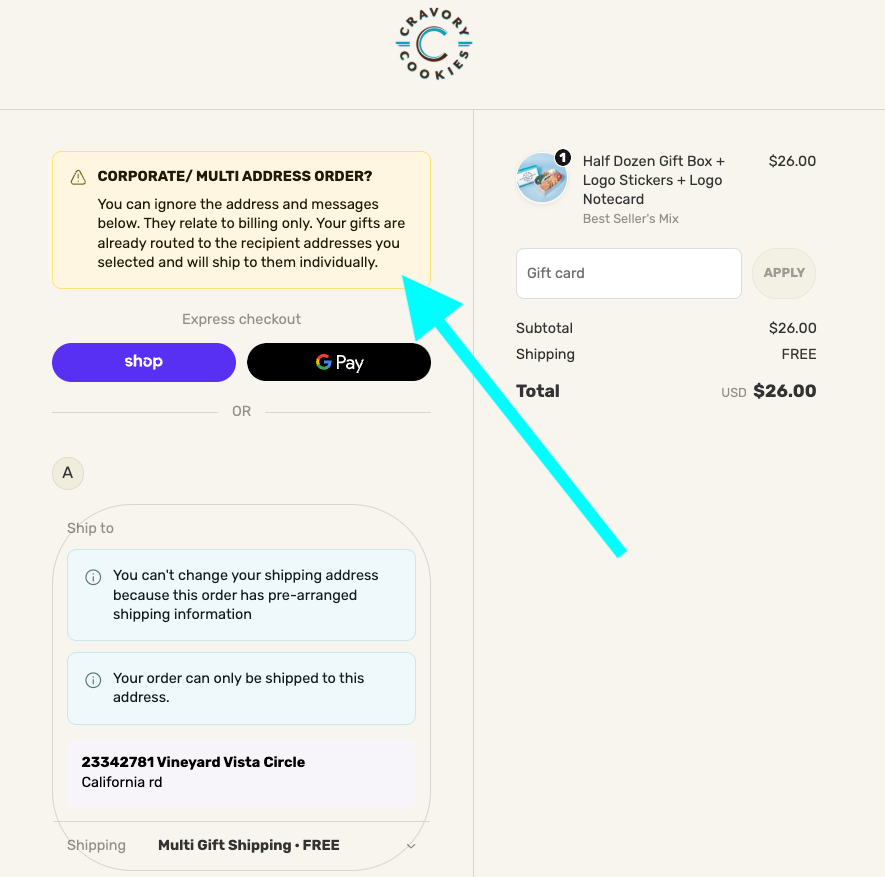
At checkout. Giftnote fills in the Shopify checkout with your customer's billing address, so you get one order and one invoice. Shopify locks that address and says "You can't change your shipping address". It also asks your customer to confirm the billing address before they pay. They've just entered 20, 50 or 100 recipient addresses, so they can think the recipients were lost or that every gift will ship to one place. Some abandon the order. Others email your support team.
After payment. Giftnote creates one order per recipient and cancels the main order the customer paid for (when Cancel the main order once it's paid is on, which it is by default). The thank-you page and order status page then show the order as cancelled. Nothing has gone wrong, but your customer can't tell.
You can't turn these Shopify messages off. You can add two banners of your own that only show on multi-gift orders: one explains the address, the other explains the cancelled status.
What you need
Shopify Plus: the app below needs checkout extensibility (Shopify's way of letting apps add blocks to checkout), which only Plus stores have.
Checkout Blocks app: a Shopify app for adding banners and other blocks to checkout. The free tier is enough. Install it from the Shopify App Store.
Upgraded checkout: check in Shopify under Settings → Checkout. The old checkout.liquid checkout won't work.
Multi Gift set up and live: the banners are triggered by your multi-gift shipping rate.
Step 1: Find your multi-gift shipping rate name
The banner only shows when the checkout's delivery method matches your multi-gift shipping rate, so your normal orders never see it. For that you need the rate's exact name.
In Shopify admin, go to Settings → Shipping and delivery.
Find the rate used for multi-gift orders.
Copy its name exactly, including capitals and spaces.
The default is Multi Gift Shipping. If you have renamed it, use your name.
Not sure which rate it is? Place a test multi-gift order through your storefront and read the delivery line on the checkout page.
Step 2: Create the address notice block
In Shopify admin, go to Apps → Checkout Blocks → Create block and set:
Block type: Banner
Name:
Multi Gift - Address NoticeLocations: Checkout, Thank you and Order status
Step 3: Add the message
Style: Warning (amber)
Collapsible: Off
Title: Corporate / Multi Address Order?
Content: Don't worry, the below address is for billing purposes only. Your gifts will still ship to the recipient addresses you entered earlier.
Button label: leave empty
Button URL: leave empty
Keep this wording unless you have a reason to change it. The phrases "billing purposes only" and "will still ship" are what reassure customers.
Step 4: Set the display rule
This rule keeps the banner off your regular orders.
Rules comparison: All conditions must match
Condition: Delivery method title → is equal to →
Multi Gift Shipping
Replace the value with your own rate name if it differs.
Step 5: Position it
Place the block at the top of the checkout, above the express checkout buttons. It must sit above Shopify's locked-address message, so your customer reads your explanation first.
Leave it on for the Thank you and Order status pages too, so the billing address is still explained after payment. The cancelled status gets its own banner in Step 6.
Step 6: Add the "not cancelled" block for after payment
The thank-you page and order status page belong to the main order, which Giftnote cancels after payment. Build a second banner the same way as the first, with this wording:
Block type: Banner
Name:
Multi Gift - Order StatusLocations: Checkout, Thank you and Order status
Style: Warning (amber)
Collapsible: Off
Title: Corporate / Multi Address Order?
Content: Don't worry — your order hasn't been cancelled. You can ignore the message below; it's just what our system shows for multi-recipient orders.
Button label and Button URL: leave empty
Give it the same display rule as the first block: Delivery method title → is equal to → your multi-gift rate name. Without the rule, every customer who opens an order status page sees it.
Place it at the top of the page, above Shopify's cancelled-order notice, so your customer reads your explanation first.
Step 7: Activate and test
Set both blocks to Active.
Place a test multi-gift order through your storefront with two or more recipients.
Check the amber address banner shows at the top of the checkout, above Shopify's locked-address message.
Pay, and check both banners show on the thank-you page.
Once Giftnote has created the recipient orders, open the order status page from the confirmation email. Check the cancelled status sits under your "your order hasn't been cancelled" banner.
Place a normal single-product order on your online store.
Check neither banner shows.
Don't skip the last two checks. They're the only way to know your display rules keep the banners off normal orders.
Advanced: import the blocks instead
Checkout Blocks can import a block from JSON (a text format for settings). If your shipping rate is named Multi Gift Shipping, you can import both blocks instead of building them by hand. Import them one at a time.
Block 1: the address notice
{"version":"1.0.1","resource":"block","type":"checkout_static_content","fields":{"name":"Multi Gift - Address Notice","markets_legacy":[],"block_location":"2","is_preview_mode":false,"is_debug_mode":false,"rules_comparison":"all","styles":{},"allowed_locations":["checkout","order_status","thank_you"],"text_title":null,"status":"ACTIVE","rules":[{"type":"delivery_title","condition":"eq","value":"Multi Gift Shipping","pWhen":"any"}],"content_items":[{"type":"banner","settings":{"title":{"en":"Corporate / Multi Address Order?"},"content":{"en":"Don't worry, the below address is for billing purposes only. Your gifts will still ship to the recipient addresses you entered earlier."},"buttonLabel":{"en":""},"buttonUrl":"","status":"warning","collapsible":false}}]}}Block 2: the "not cancelled" notice
{"version":"1.0.1","resource":"block","type":"checkout_static_content","fields":{"name":"Multi Gift - Order Status","markets_legacy":[],"block_location":"3","is_preview_mode":false,"is_debug_mode":false,"rules_comparison":"all","styles":{},"allowed_locations":["checkout","order_status","thank_you"],"text_title":null,"status":"ACTIVE","rules":[{"type":"delivery_title","condition":"eq","value":"Multi Gift Shipping","pWhen":"any"}],"content_items":[{"type":"banner","settings":{"title":{"en":"Corporate / Multi Address Order?"},"content":{"en":"Don't worry — your order hasn't been cancelled. You can ignore the message below; it's just what our system shows for multi-recipient orders."},"buttonLabel":{"en":""},"buttonUrl":"","status":"warning","collapsible":false}}]}}After importing, open each block and check the rule value matches your shipping rate name. If it doesn't match, the banner never shows.
Get the wording right for your brand
The wording above works. To rewrite it in your brand's voice or another language, paste this prompt into ChatGPT or Claude:
I run a Shopify Plus store called [STORE NAME]. We sell [WHAT YOU SELL] and our brand voice is [e.g. warm and plain-spoken / playful / formal]. If you can browse, look at [YOUR STORE URL] for tone.

We use Giftnote for corporate and multi-address gifting. One customer sends gifts to many recipients in a single order, and that creates two confusing moments in Shopify's checkout that we cannot turn off:

1. At checkout, the address shown is the customer's BILLING address, and Shopify says "You can't change your shipping address". Shopify also asks them to confirm that billing address before paying. The recipient addresses they entered earlier are safe and each gift ships separately.
2. After payment, Giftnote splits the order into one order per recipient and cancels the original order, so the thank-you page and the order status page show the order as CANCELLED. Nothing has gone wrong.

We show a warning banner for each moment. Rewrite the two banners in our voice. Keep them to a short title and two sentences of content. Our current wording is:

Banner 1 title: Corporate / Multi Address Order?
Banner 1 content: Don't worry, the below address is for billing purposes only. Your gifts will still ship to the recipient addresses you entered earlier.

Banner 2 title: Corporate / Multi Address Order?
Banner 2 content: Don't worry — your order hasn't been cancelled. You can ignore the message below; it's just what our system shows for multi-recipient orders.

Rules:
- Lead with the reassurance, not the explanation. The customer is worried before they finish the first sentence.
- Say plainly that the recipient addresses are safe (banner 1) and that the order is not cancelled (banner 2).
- Do not promise delivery dates, refunds, or anything about order changes.
- Do not use exclamation marks or emoji.
- Plain language, no jargon. Aim for a grade 8 reading level.
- The banner sits above the Shopify message it is explaining, so do not say "above" or "below" unless it still makes sense there.

Return just the four lines: Banner 1 title, Banner 1 content, Banner 2 title, Banner 2 content.
Paste the whole prompt each time, and keep a copy of your final wording outside Shopify. Test both banners in a private window when you're done.
Hide other checkout blocks on multi-gift orders
Multi Gift uses your normal Shopify checkout. Some checkout blocks suit your regular customers but not bulk gifting, for example:
- Loyalty widgets
- Gift wrap options
- Post-purchase upsells
- Shipping insurance
You can often hide these on multi-gift orders the same way the banners work: with a visibility rule on your multi-gift shipping rate. Whether you can depends on the app that adds the block. Many let you show or hide a block by shipping method, tag or other rules, in Shopify's checkout editor or in the app's own settings.
- Find your multi-gift rate name. See Step 1 above.
- Add a visibility rule to the block you want to hide. In Shopify's checkout editor, or in the settings of the app that adds the block, set it to hide when the shipping method matches your multi-gift rate name.
- Test it. Place a test order through your storefront and check the block is hidden. Then place a normal order and check it still shows.
If you run more than one storefront, each can have its own rates. Add every rate name your multi-gift checkouts can use to the rule, then place a test order from each storefront.
Not on Shopify Plus?
Without Plus you can't add these banners to your checkout or order status page. Warn your customer one step earlier instead, on your storefront's review page. It's the last thing they read before Shopify's checkout.
In Giftnote, go to Settings → Multi Gifts, select Edit on your storefront and open Language & Content. Add a note to the review page copy (Step 3 — Checkout), for example:
On the next page you'll confirm your billing details. Shopify will show a single address and say it can't be changed. That's expected. Your recipient addresses are saved, and each gift will ship to the person you chose. After you pay, your order may show as cancelled while we split it into one order per recipient. That's expected too.
It also helps to:
Add the same reassurance to your order confirmation email
Give your support team a ready answer (below)
If a customer asks about it
You can send this reply:
Nothing has gone wrong, and your recipient addresses are saved. The address on the payment page is your billing address, which is why Shopify locks it and asks you to confirm it. Your gifts go to the recipients you entered and ship to each of them separately. If your order shows as cancelled after payment, that's the original order closing once we split it into one order per recipient. You'll get a confirmation listing every recipient.
Need help setting this up? Chat with us using the chat button in the help centre or in the app, or email support@giftnote.com.