4. Troubleshooting Multi-Gift Orders
Find a customer's multi-gift order and fix the common problems: CSV uploads, missing shipping rates, submission errors, approval, payment and missing recipient orders.
Written By Giftnote Team
Last updated About 1 hour ago
Use this when a customer has a problem with a multi-gift order. Find the order first, then work down the list to the step that matches the problem.
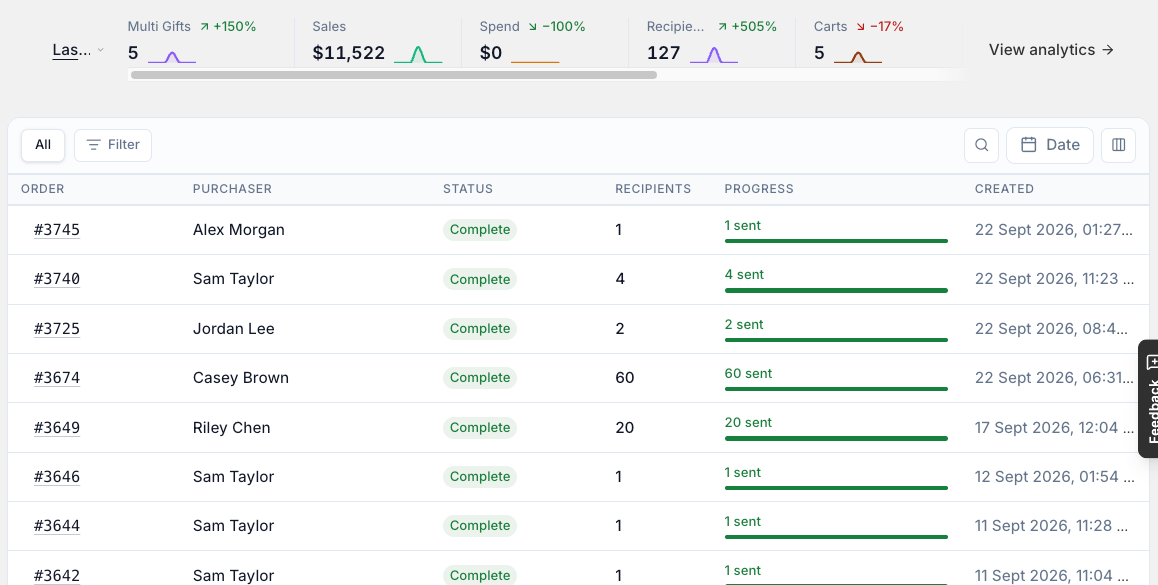
1. Identify the order
Each order has its own link, for example:{yourshopid}.giftnote.shop/{storefront}/orders/{order}
If your storefront uses a custom domain (for example gifts.yourstore.com), the link starts with that instead. The letters and numbers at the end identify the order. Ask the customer for the full link so you know exactly which order they mean. If they don't have it, see step 8.
2. Check the CSV upload
The recipient list is a CSV file (a spreadsheet). The most common problem is a row with a missing name, email address or shipping address, or a file in the wrong format.
Customers can upload up to 1,000 recipients per file. For more, split them across several files. The easiest way to get the format right is to download the template from the upload dialog and fill it in.
To fix it:
- If the customer's own file won't upload, ask them to start from the template in the upload dialog.
- Fill gaps with placeholder data, for example
no-reply@yourstore.comfor a missing email. - If you need to, ask the customer to send you their CSV.
- Once every field is filled in, upload the file again.
3. Review shipping settings
If shipping rates aren't appearing:
- Check the addresses in the CSV for mistakes.
- Check your Shopify shipping settings cover the recipients' countries and regions.
- Open the storefront's Shipping tab (Settings → Multi Gifts → Edit on the storefront). If Minimum for Shipping Rate is set, rates aren't fetched until the cart's shippable items reach that subtotal. If Use Shopify Rates is on and Shopify returns no rates, your fixed shipping rates are used instead, so check that list too.
Still no rates? Chat with us using the chat button in the help centre or in the app, or email support@giftnote.com.
4. Order submission issues
If a customer can't submit the order:
- Check they've entered a complete billing address.
- Check the storefront's Pricing tab. An order below Min Order Total, Min Recipient Cart Total or Min Recipients can't go through.
5. Approving and managing orders
Once an order is submitted:
- Your team gets an email: the Multi Gift - Confirmed (Staff) and Multi Gift - Payment Received (Staff) notifications in Settings → Notifications.
- If Require your approval before recipient orders are created is on (Settings → Multi Gifts → Advanced settings), Giftnote doesn't create the recipient orders until you approve. Open the order under Multi Gifts in Giftnote to review it.
If product quantities or details need changes:
- Make the change in Giftnote, not in Shopify. The customer can reopen their order link and use Edit Order on the review page, if Show Edit Order is on in the storefront's Branding tab.
Don't edit the main draft order in Shopify. Make changes in Giftnote instead.
6. Checkout and payment
Once paid:
- If Cancel the main order once it's paid is on (Settings → Multi Gifts → Advanced settings), Giftnote cancels the main order in Shopify once payment is confirmed, without restocking. If it's off, the main order stays open.
- Giftnote creates one Shopify order per recipient, tagged GNMG-Child plus a shared family code that links them to the main order.
Paid, but no recipient orders yet?
- If Require your approval before recipient orders are created is on, recipient orders aren't created until you approve the order.
- If the payment was invoiced or authorised but not yet captured, the main order stays open until the payment settles.
- If Hold every order for review before it can ship is on, the orders exist but start on hold in Shopify until you release them.
7. Verify orders and gift data
In Shopify:
- Open the new recipient orders.
- Gift messages, delivery dates and other custom fields are saved in Giftnote's metafield on the order (a hidden data field Giftnote reads to process the order).
- They only show under Additional details (order attributes) if Keep Order Attributes is on (Settings → Gift Orders → Advanced settings, off by default) or you've mapped them with Field Maps on the storefront's Form tab. You only need that if your theme, packing slips, Shopify Flow, Order Printer or 3PL reads them. Shops that had the setting on before the September update keep it.
To view or edit a recipient's gift message, open the multi gift in Giftnote, then open the recipient.
The multi gift's Recipients table shows each recipient's Shopify order and a Health column, and you can filter it by status (Created, Confirmed, Pending, Processing, Complete, Failed, Cancelled). Open a recipient to see its timeline and any notices.
8. Handling customer reports
If a customer reports an issue:
- Ask for the full order link.
- If they don't have it, find the order under Multi Gifts in Giftnote, using the customer's name, products or recipients.
- In Shopify, search the order's family code tag (
GNMG-followed by the code) to see the main order and every recipient order together. - Open the multi gift to check its status, recipients and timeline.
- If the problem is with recipient details, ask for their CSV.
9. When to contact support
Contact us if:
- Shipping details don't sync correctly.
- Orders fail to create after payment.
- The CSV upload keeps failing after corrections.
We can check your setup and fix system issues. Chat with us using the chat button in the help centre or in the app, or email support@giftnote.com.