How to set up Attentive Integration
Written By Giftnote Admin
Last updated About 10 hours ago
Heads up — Giftnote v3 is here and the app looks different. We have just launched a completely new interface, so some screenshots and menu names in this article are still from the old version. We are updating the help docs over the next few days. In the meantime, if you get stuck, email support@giftnote.com and we will help you out.
Use our integration with Attentive for total control and customization of the gifting journey.
Set up transactional emails and optional SMS with Attentive
- Emails triggered by Giftnote via Attentive are always sent as transactional.
- SMS will only be sent if the recipient has explicitly opted into SMS through Attentive.
- If they haven't opted in, they’ll still receive the email, but not the SMS.
To encourage more SMS opt-ins, we recommend adding a sign-up link to your SMS message template. This can be done inside Giftnote.
To add a sign-up link to your SMS template:
- Open the Giftnote App inside your Shopify Admin
- Go to Settings > Notifications
- Edit the SMS message template
- Include your Attentive SMS opt-in link directly in the text
Example: “You just received a gift 🎁 Sign up to view it via SMS: [opt-in link]”
Configure Attentive from the Giftnote Dashboard
- Open the Giftnote App inside your Shopify Admin
- Navigate to Settings > Integrations
- Find the Attentive integration and click configure

- You can configure the integration settings from this screen.
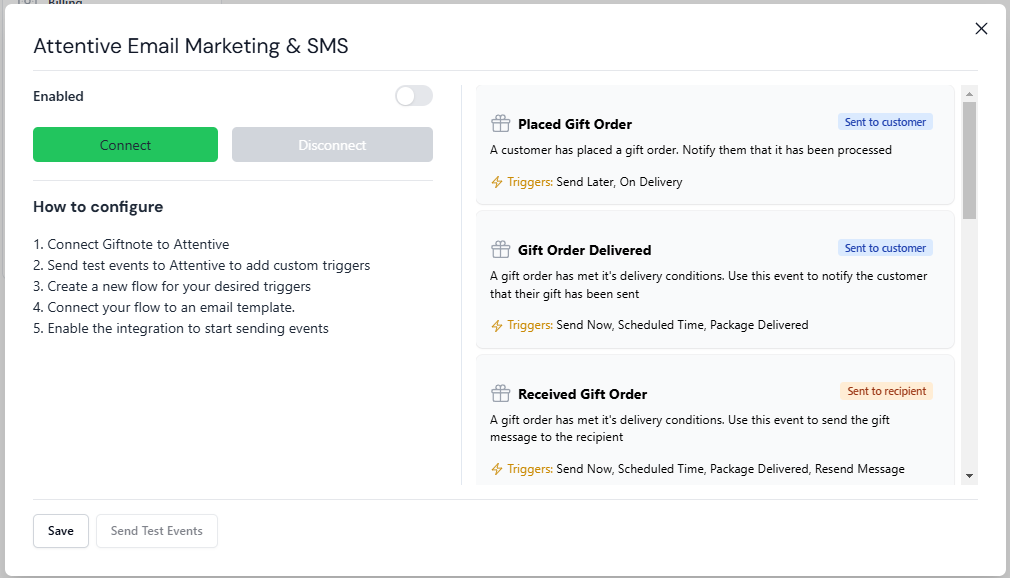
- You'll be redirected to Attentive to approve the integration
- Review the permissions
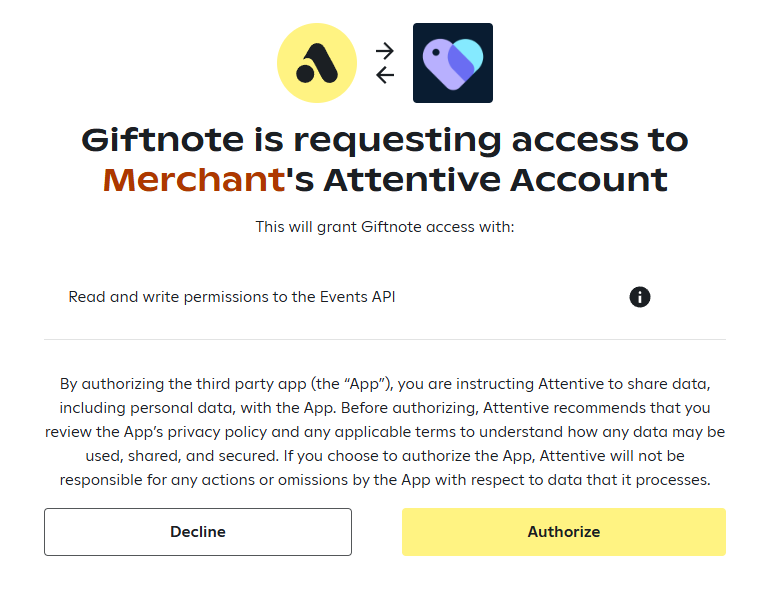
- Click allow to authorize the connection
- You'll be back in Giftnote with the Attentive integration now "disabled"
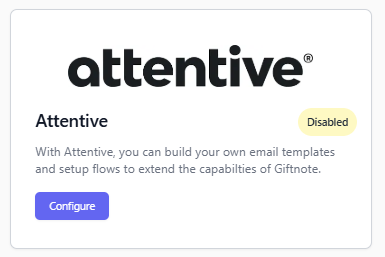
- Open the modal again
- Send test events
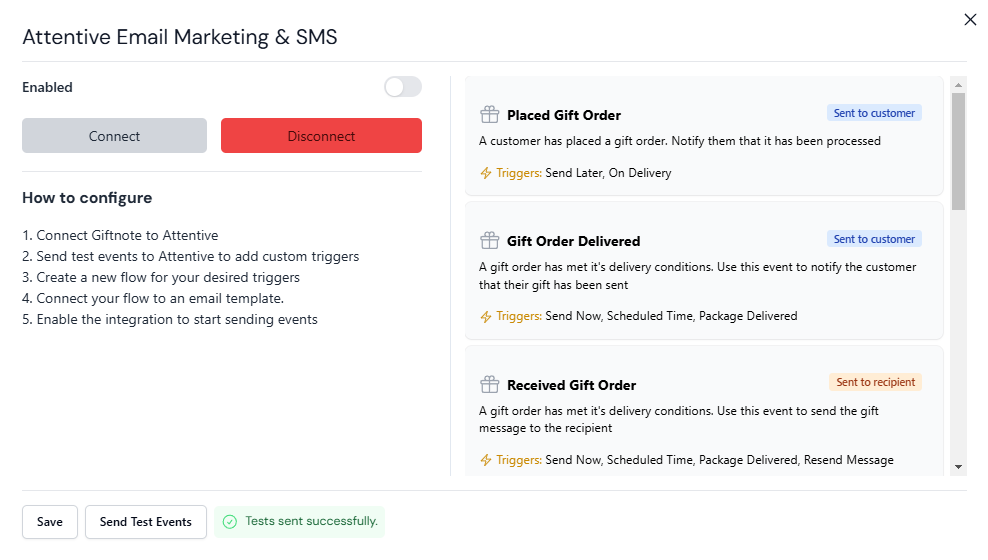
- Check events are coming through by creating a new journey

- Start a new journey from scratch
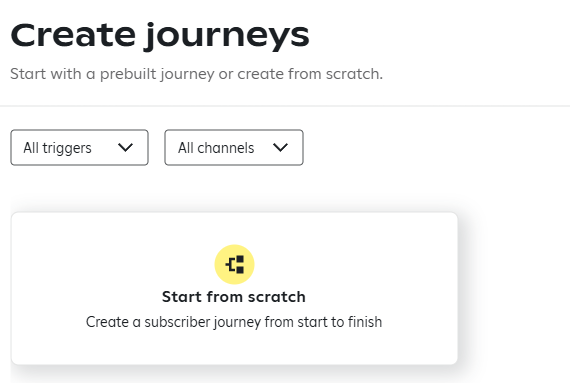
- Check you're able to see all available Giftnote events

- You can now create flows based off these events as triggers
Create your journey in Attentive
- Start a new journey and choose Flow
- Create a new email in the flow
- Use personalization for the recipient name:
{{triggerEvent.custom['To']}}
- Suggested subject line: You just received a gift from!
- Build your email using these available Giftnote variables:
{{triggerEvent.custom['From']}}– Sender name{{triggerEvent.custom['Message']}}– Gift message{{triggerEvent.custom['To']}}– Recipient name{{triggerEvent.custom['ScheduledTime']}}– Delivery time
This gives you full control over the gifting experience while Giftnote continues to handle delivery and timing.
- When you're ready, head back to Giftnote Admin
- Enable Attentive and hit Save
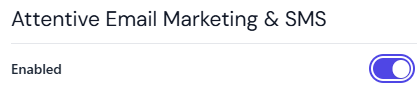
- Events will now be sent to Attentive!
Please reach out if you need support! hello@giftnote.com