How to resend messages
Written By Giftnote Admin
Last updated About 15 hours ago
Heads up — Giftnote v3 is here and the app looks different. We have just launched a completely new interface, so some screenshots and menu names in this article are still from the old version. We are updating the help docs over the next few days. In the meantime, if you get stuck, email support@giftnote.com and we will help you out.
Giftnote gift orders can be resent from within the app. This may be requested for several reasons such as the messages being accidentally deleted or lost within the inbox.
Resending the message
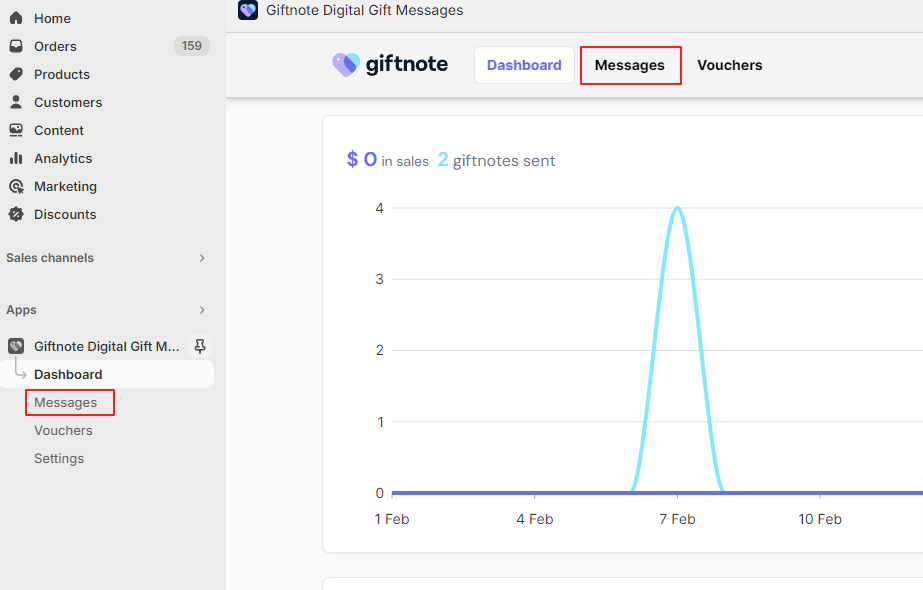
On the Giftnote dashboard select messages either via the top navigation of the Shopify navigation on the left.
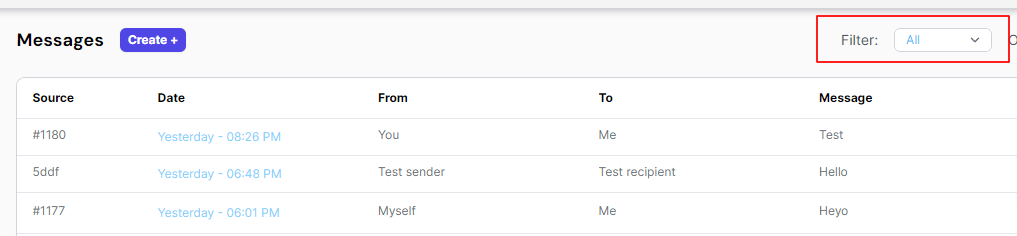
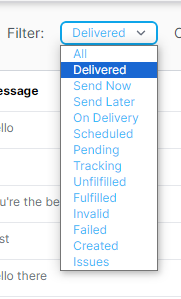
Locate the message that needs to be resent. The filter on the top right of the page can be used to help narrow down the messages.
After the message has been located select the message to open the message summary. Select ‘Force Send’ On the right side of the screen to send another message to the recipient.
