Disable a Gift card
Written By Giftnote Admin
Last updated About 15 hours ago
Heads up — Giftnote v3 is here and the app looks different. We have just launched a completely new interface, so some screenshots and menu names in this article are still from the old version. We are updating the help docs over the next few days. In the meantime, if you get stuck, email support@giftnote.com and we will help you out.
Giftnote-issued gift cards and store credit codes can be disabled for any reason. There are two methods of doing this either through the app or through Shopify itself.
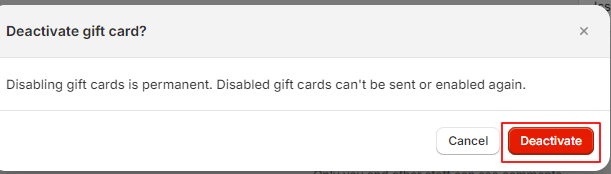
Note that disabled gift cards cannot be re-enabled.
Disabling a gift card code via the App
This method is best suited if only the customer or recipient is known
From the Giftnote homepage access the gift card section.
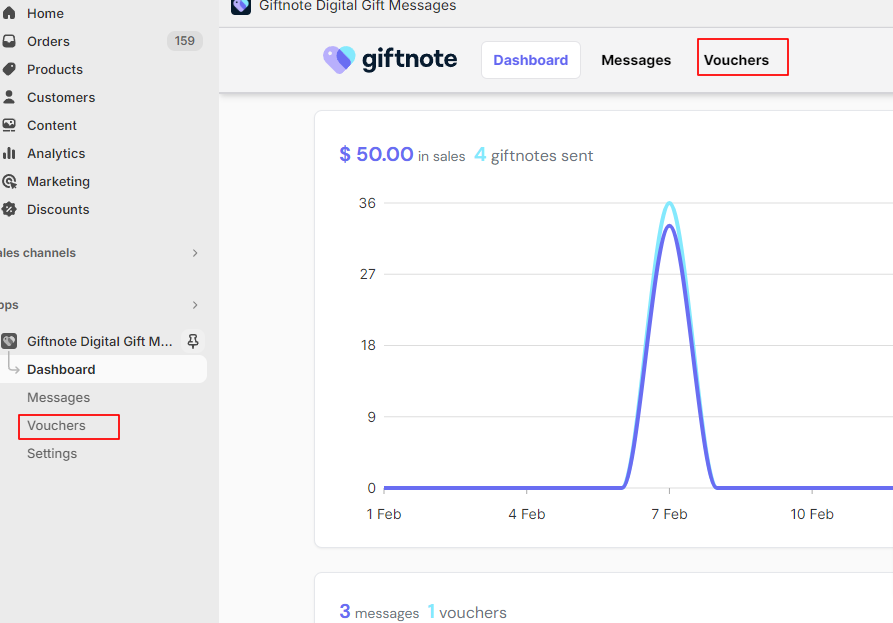
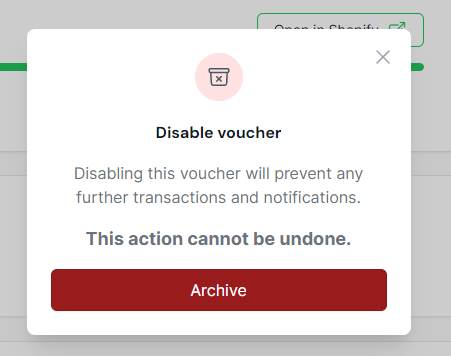
Find the code that needs to be disabled and select the code to open its settings. Then select disable on the right of the page. Press ‘Archive’ in the popup that appears to confirm.

Disabling a code via Shopify
This method is faster but requires knowing the code that needs to be disabled. Please note this code as it will be needed.
From the Shopify backend homepage select ‘Products’ and then ‘Gift cards’ in the expanded drop-down
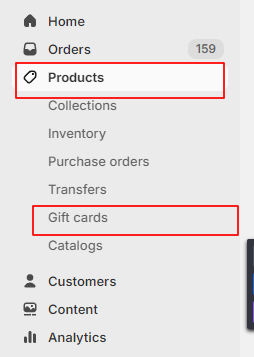
On the right of the page select the magnifying glass to open the search bar and search for the noted code. Selecting the option that appears.


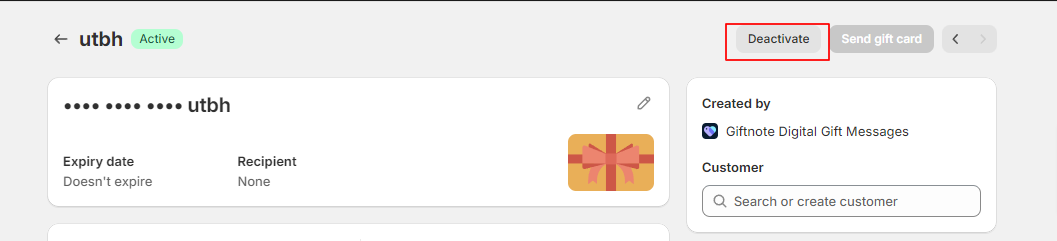
Select deactivate in the top right of the Shopify page and confirm the deactivation in the popup