Customising Email
Written By Giftnote Admin
Last updated About 11 hours ago
Heads up — Giftnote v3 is here and the app looks different. We have just launched a completely new interface, so some screenshots and menu names in this article are still from the old version. We are updating the help docs over the next few days. In the meantime, if you get stuck, email support@giftnote.com and we will help you out.
The Giftnote emails can be managed and styled within the app. The emails have a range of global and individual options.
Accessing style options for emails
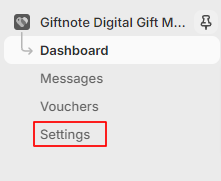
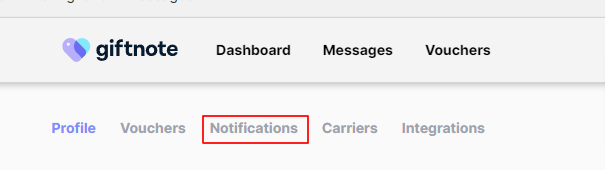
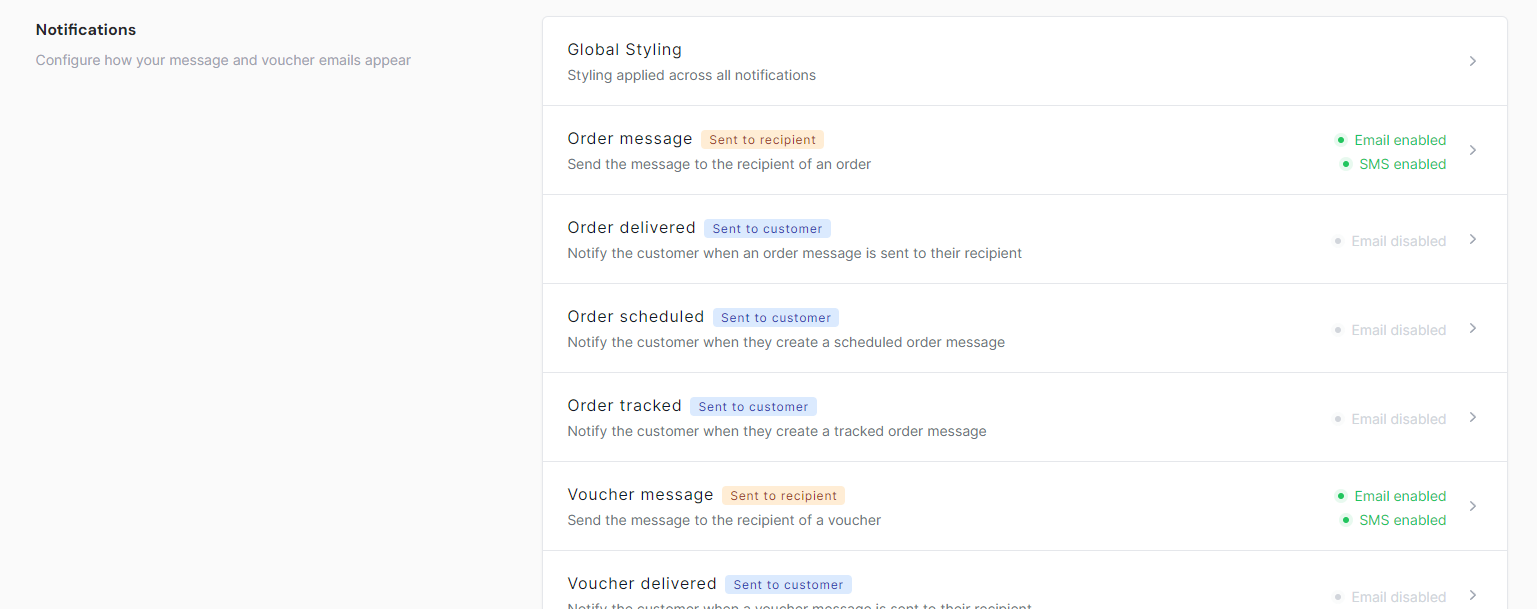
To access the styling options for emails select settings on the left navigation bar under Giftnote and on the following page select notifications or scroll down to the notifications section.
Global Styling options
These options will affect all emails sent by Giftnote. These changes will only need to be made once for all emails. To edit these options, select the first Global styling option on the list.

All the settings are on the left side while the changes can be observed in the example email on the right.
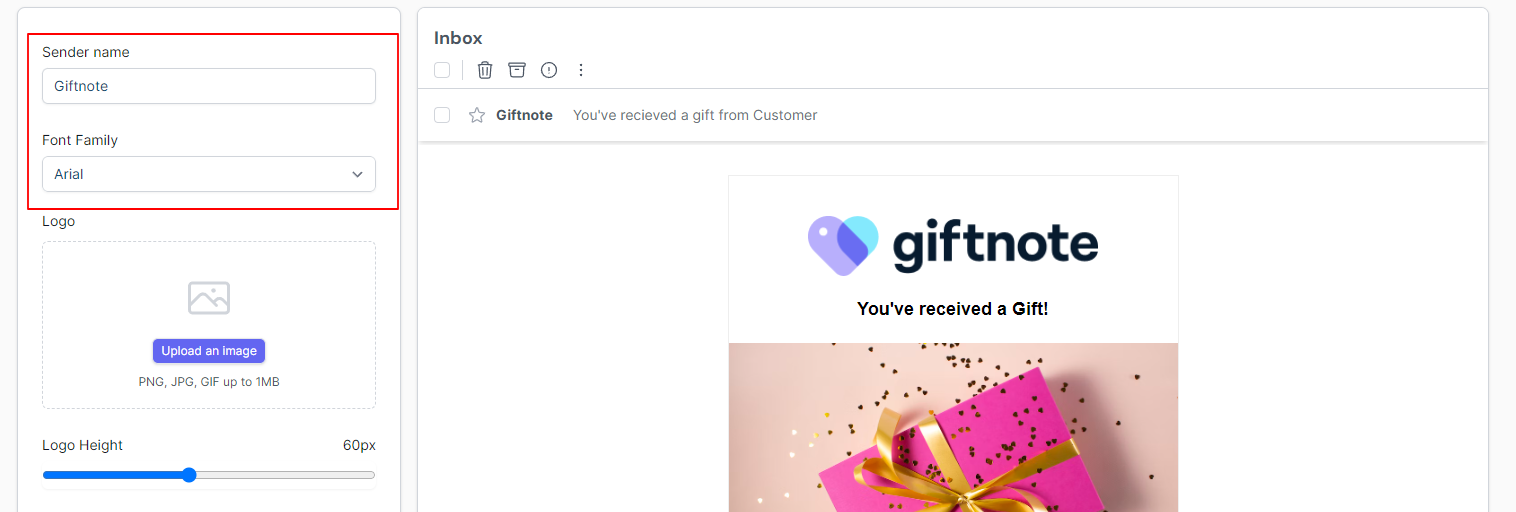
The sender name can be set with the respective field. This is the name that will be shown in any email Giftnote sends.
The font family of the emails can be set via a drop-down bar. This will affect all text in the emails. These are limited to websafe options to ensure maximum compatibility with all users.
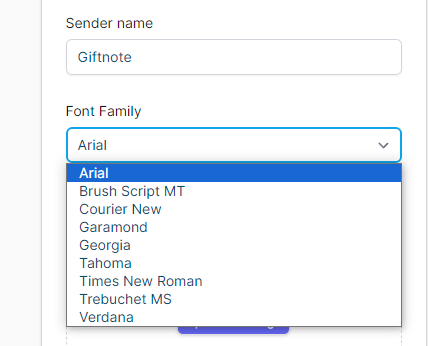
A logo can be uploaded via the ‘Upload an Image’ button and selecting an image on the computer. To remove an image click the X on the top right of the image or upload an image over it. The logo will need to be a PNG, JPG, or GIF and up to 1MB in size. The recommended size of the logo is 290x60.
The height of the logo can be managed to make slight adjustments with the slider below. This slider is limited to the sizes of 20px-100px
Underneath the image options are the options to manage the colour of the email’s contents.
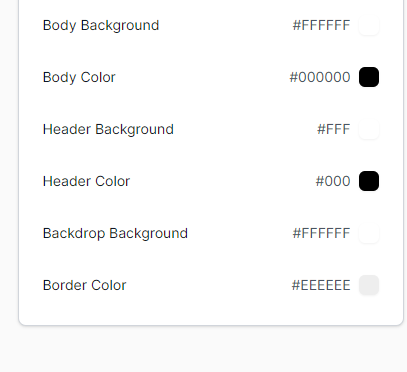
The colours are managed via HEX and can be edited by clicking on the field and opening a colour selection popup.
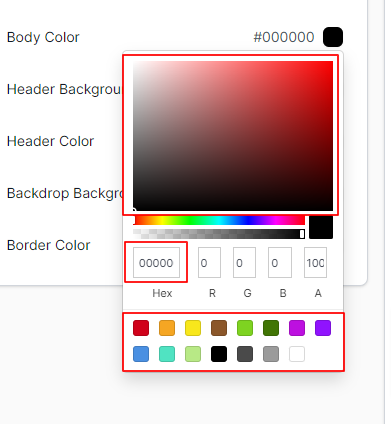
A colour can be selected using the colour palette with a preset selection of colours on the bottom. If specific HEX codes can be used by copying them into the Hex field without the hash.
Click off the popup to close it.
The Body background manages the background of the body section which consists of the message and products, while the colour manages the text colour for this section.
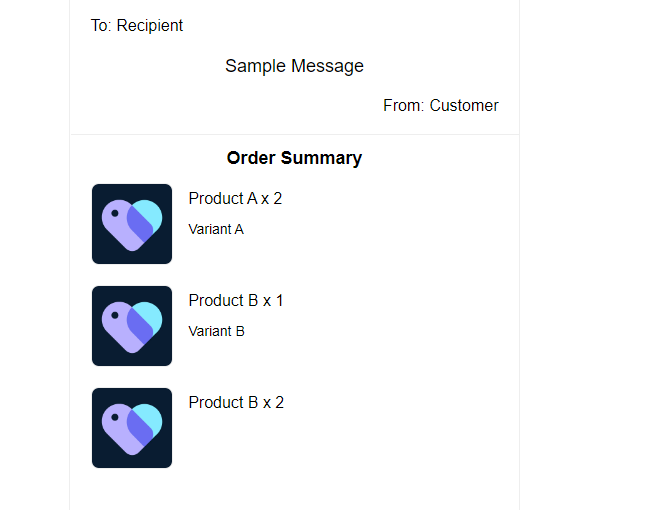
The header background manages the heading background underneath the logo and above the heading image while the header colour manages the colour of the text in this section.
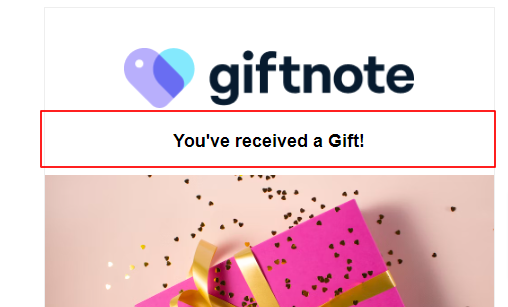
The backdrop background manages the colour of the background of the email outside of the content. The border colour refers to the border between the email content and the backdrop.
Saving changes
After making all the necessary changes ensure that the changes are saved via the button on the top right

Individual Styling options
Each email will have its own settings as well. These settings will be similar between emails but will not be shared like the Global styling options.
To edit an email select one of the individual emails

All the settings are on the left side while the changes can be observed in the example email on the right.
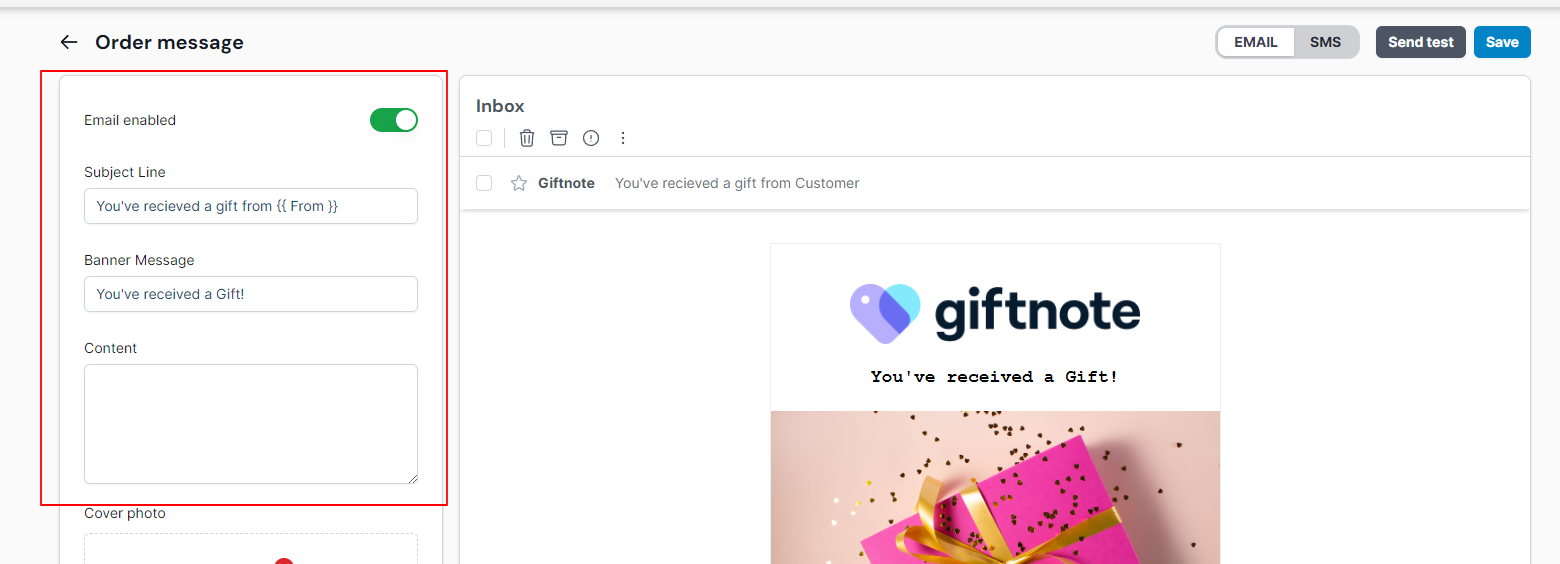
Email Settings
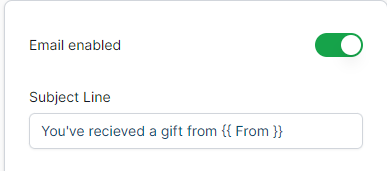
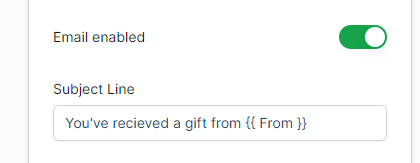
At the very top of settings consists of general settings that affect the whole email. This includes a toggle to enable or disable the email.
The subject field manages the subject fields that will be sent to the user's inboxes. Quick fields can be used in this selection.
Quick Fields
Here's the list of the current fields available to use in Giftnote emails. These can be used in any text field within email or SMS.
Add {{ To }} to display the gift recipient
Add {{ Sender }} to display the gift sender
Add {{ Message }} to display the gift message
For gift card emails, you can additionally use
- {{ Value }} to show the value of the gift card.
- {{ Currency }} to display the currency code
- {{ Code }} to display the gift card code
Header and content customisations
After the general email settings, the header and content of the email can be managed.
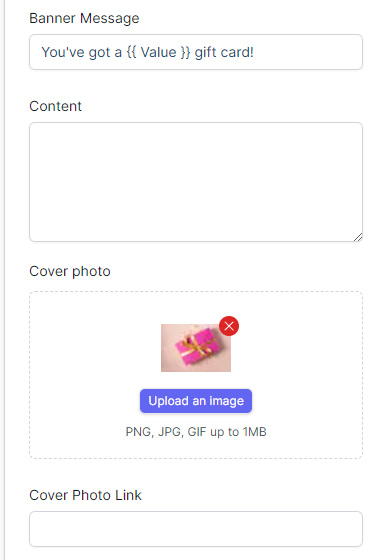
This section consists of the banner message, content, cover photo, and cover photo link.
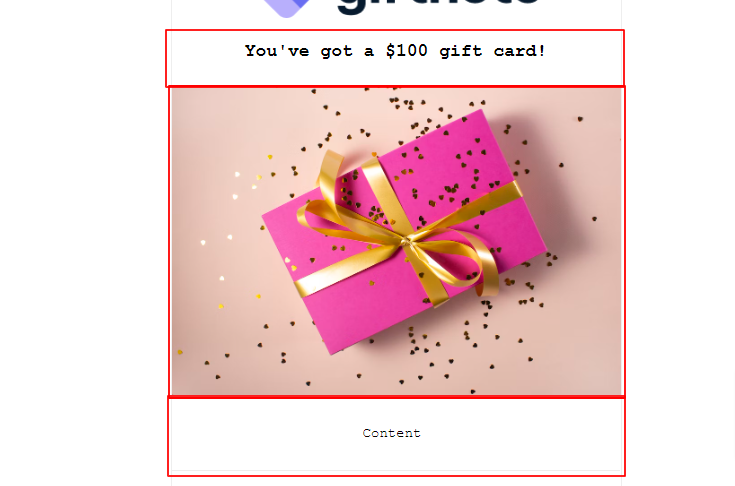
The banner message refers to the text section directly below the logo.
The cover photo can be uploaded via the ‘Upload an Image’ button and selecting an image on the device. To remove an image click the X on the top right of the image or upload an image over it. The image will need to be a PNG, JPG, or GIF and up to 1MB in size. For the cover photo recommend an image that is 520px wide.
If a cover photo is set the link for the photo can be set in the field below it. The image will link directly to what is in this field.
If there is a cover photo it will appear directly below the banner message
The content field allows for a small message to be entered. If there is something in this field it will appear directly underneath the cover photo
Footer customisations.
The options cover the footer section where the footer image and link can be managed.
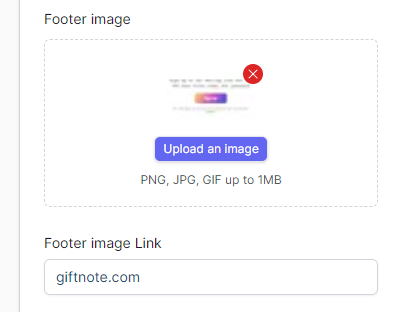
A footer image can be uploaded via the ‘Upload an Image’ button and selecting an image on the device. To remove an image click the X on the top right of the image or upload an image over it. The image will need to be a PNG, JPG, or GIF and up to 1MB in size. The recommended size of this image is 520px wide.
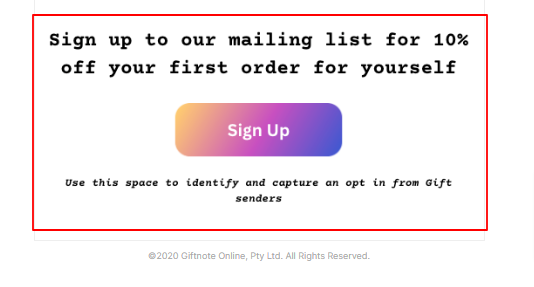
If a footer image is set will appear directly below the content of the email.
If a footer image is set the link for the image can be set in the field below it. The image will link directly to what is in this field.
Saving changes
After making all the necessary changes ensure that the changes are saved via the button on the top right
