8. Troubleshooting Klaviyo + Giftnote
Fix the most common Klaviyo + Giftnote issues, from duplicate emails and rejected transactional flows to renamed events and case-sensitive variables.
Written By Giftnote Team
Last updated 7 days ago
Find the problem you're seeing below and follow the fix. If you're still stuck at the end, contact us and we'll look at it with you.
1. Recipients getting duplicate emails
If your gift recipients are receiving two emails for the same gift (one that looks like a basic Giftnote email and one in your Klaviyo design), Giftnote and Klaviyo are both sending.
Turn off Giftnote's native emails:
- Open the Giftnote app in your Shopify admin.
- Go to Settings → Notifications.
- Turn off the email for every event your Klaviyo flows now send. Expand each event row (for example Gift Order - Gift Message Delivered) and switch off its email channel. Save if a save bar appears.
While your Klaviyo flows are on, keep Giftnote's own emails off.
SMS gift messages are still sent by Giftnote, not Klaviyo. Turning off native emails does not stop the SMS.
You'll know it worked when: the next gift order triggers only one email to the recipient, and that email matches your Klaviyo template design (your branding, your domain).
2. Flows rejected by Klaviyo as non-transactional
Klaviyo only approves a gift email as transactional (allowed to reach people who haven't signed up to marketing) if less than 20% of it is promotional. A rejection means Klaviyo found too much promotion.
Strip promotional content from your flow:
- Open the rejected flow in Klaviyo.
- Remove all call-to-action buttons (e.g., "Shop Now," "Browse New Arrivals," "Use Code X").
- Remove any promotional images: banners, sale graphics, or lifestyle images unrelated to the gift.
- Remove any sign-up block or link, product recommendations, discounts, and split blocks that serve marketing content. In our ready-made flows, delete the "Get the most out of your gift" block.
- Keep only the gift message content: who it's from, the message itself, and any product details related to the gift.
- Resubmit the flow for transactional approval via Klaviyo live chat.
Standard email support may not escalate this correctly. Use Klaviyo's live chat and ask them to review and approve the flow as transactional.
Important: Approval can take up to 24 hours, so don't submit on the morning of your go-live. If you edit an approved template, you have to resubmit it for approval.
3. Klaviyo invite link expired before setup was completed
If you sent the Giftnote team a Klaviyo invite and they weren't able to accept it in time, the link has expired. Klaviyo invite links are only valid for 12 hours.
Resend the invite:
- Log in to Klaviyo.
- Go to Settings → Account → Users.
- Send a new invite to nick@giftnote.com with Manager-level access. Analyst or Viewer access isn't enough to set up flows.
- Tell the Giftnote team straight away so they can accept within the 12 hours.
4. Old flows stopped working after a Giftnote update
If your Klaviyo flows were working months ago but have stopped triggering, your flows are probably still waiting for Giftnote's old event names.
Check the event names first:
- In Klaviyo, open the flow and note the metric it triggers on.
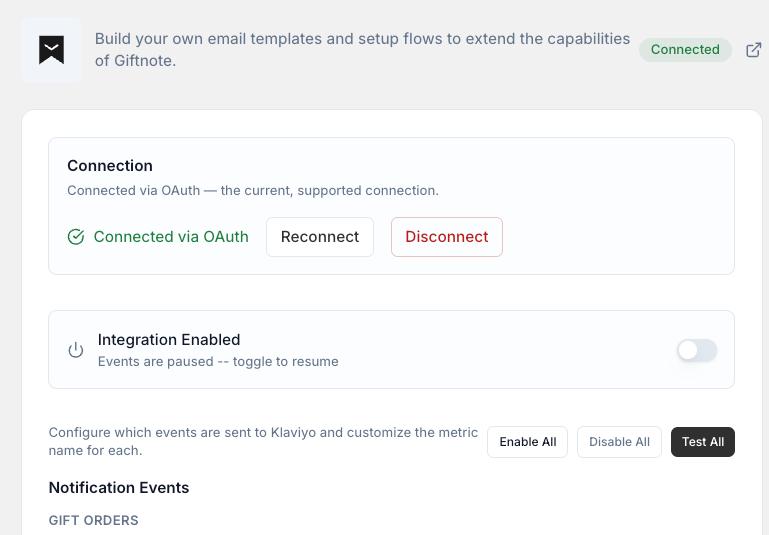
- In the Giftnote app, go to Settings → Integrations → Klaviyo → Manage settings. Under Notification Events, check the event you expect is switched on and that Integration Enabled is on.
- Compare the names. Select Edit on an event to see or customize the metric name Klaviyo receives.
- Check the connection. The Connection card should say Connected via OAuth.
Used Giftnote before the September update?
Flows built on the older Klaviyo metrics Giftnote - Order Scheduled and Giftnote - Order Tracked keep working. Shops that used Giftnote before September 2026 keep sending both legacy metric names, and both now map to the Placed Gift Order event. That event includes a Delivery Method property (for example sendNow, Send Now or onDelivery; select Preview to check), so new flows can use one trigger and split on the method.
If the names match and the flow still doesn't trigger, the flow itself needs replacing. Editing the trigger on an existing Klaviyo flow doesn't reliably fix this.
Replace your flows entirely:
- Chat with us using the chat button in the help centre or in the app, and let the team know your flows have stopped triggering.
- The Giftnote team will copy the current template flows into your Klaviyo account. These use the latest event names.
- Reskin the new flows with your brand's design (logo, colors, copy).
- Submit the new flows to Klaviyo for transactional approval. Approval takes up to 24 hours. Do not delete your old flows until the new ones are approved and live.
- Turn on the new flows and turn off the old ones.
If your Connection card does not show Connected via OAuth, you may be on the legacy Klaviyo integration and missing newer event types like gift card usage tracking (Redeemed Gift Card). Ask the Giftnote team about upgrading during this process.
5. Event variables showing as blank in emails
If your Klaviyo email shows the gift message, recipient name or sender name as blank, but the flow is triggering, check the capital letters in your variables first.
Klaviyo event variables are case-sensitive. Get the capitals wrong and the field shows up blank.
Check every variable in your template against this reference:
Giftnote's event schema uses capitalized property names (e.g., From, To, Message). Lowercase versions will not render. Names with a space need lookup, for example {{ event|lookup:'Gift Card Code'|default:'' }}. Buyer gift card emails show a masked code (********T123) by design. If you're unsure about the exact casing for a specific variable, select Preview on the event in Settings → Integrations → Klaviyo → Manage settings, or check the event payload in Klaviyo under Analytics → Metrics → [event name] → Activity Feed and click any event to see the raw property names.
Fix the variables:
- Open your Klaviyo flow.
- Click into the email template.
- Find every Giftnote event variable and update the casing to match the reference above.
- Save the template.
- Resubmit the flow for transactional approval. Any edit to an approved template needs re-approval.
You'll know it worked when: the next gift order email displays the sender's name, recipient's name, and gift message correctly instead of blank spaces.
Still not working?
If none of the above fixed it, try these:
- Send a test event. In Settings → Integrations → Klaviyo → Manage settings, select Test on the event (or Test All), then check your Klaviyo activity feed. If the test arrives, the connection works and the problem is in the flow or the order.
- Place a test order from your live storefront (not from Shopify admin, because admin orders skip the gift message widget). Add a gift message, complete checkout, then mark the order as Delivered in Shopify admin. Check your Klaviyo activity feed to see if the event appeared.
- Check Klaviyo's flow activity log for the specific flow. Go to Flows → [your flow] → Activity Feed to see if events are arriving but the flow is skipping them (a common cause is Smart Sending skipping the email, so turn Smart Sending off on all Giftnote flows).
- Verify your Klaviyo account is on a paid plan with payment details entered. Flows cannot be marked as transactional on free Klaviyo accounts.
If you've tried all of the above and the issue persists, chat with us using the chat button in the help centre (https://help.giftnote.com/en) or in the app, or email support@giftnote.com. Include your store URL, the name of the Klaviyo flow that isn't working, and a screenshot of the flow's activity feed so we can diagnose it quickly.
Related articles
Was this helpful?
Still need help? Share an idea