Upselling and Charging for Giftnote at Checkout on Shopify Plus
Written By Giftnote Admin
Last updated About 13 hours ago
Heads up — Giftnote v3 is here and the app looks different. We have just launched a completely new interface, so some screenshots and menu names in this article are still from the old version. We are updating the help docs over the next few days. In the meantime, if you get stuck, email support@giftnote.com and we will help you out.
You can now upsell and charge customers for a Giftnote message at checkout if you are using Shopify Plus. Follow these steps to set up this feature and start monetizing the gift message option:
Step 1: Create a Digital Product for Upsell
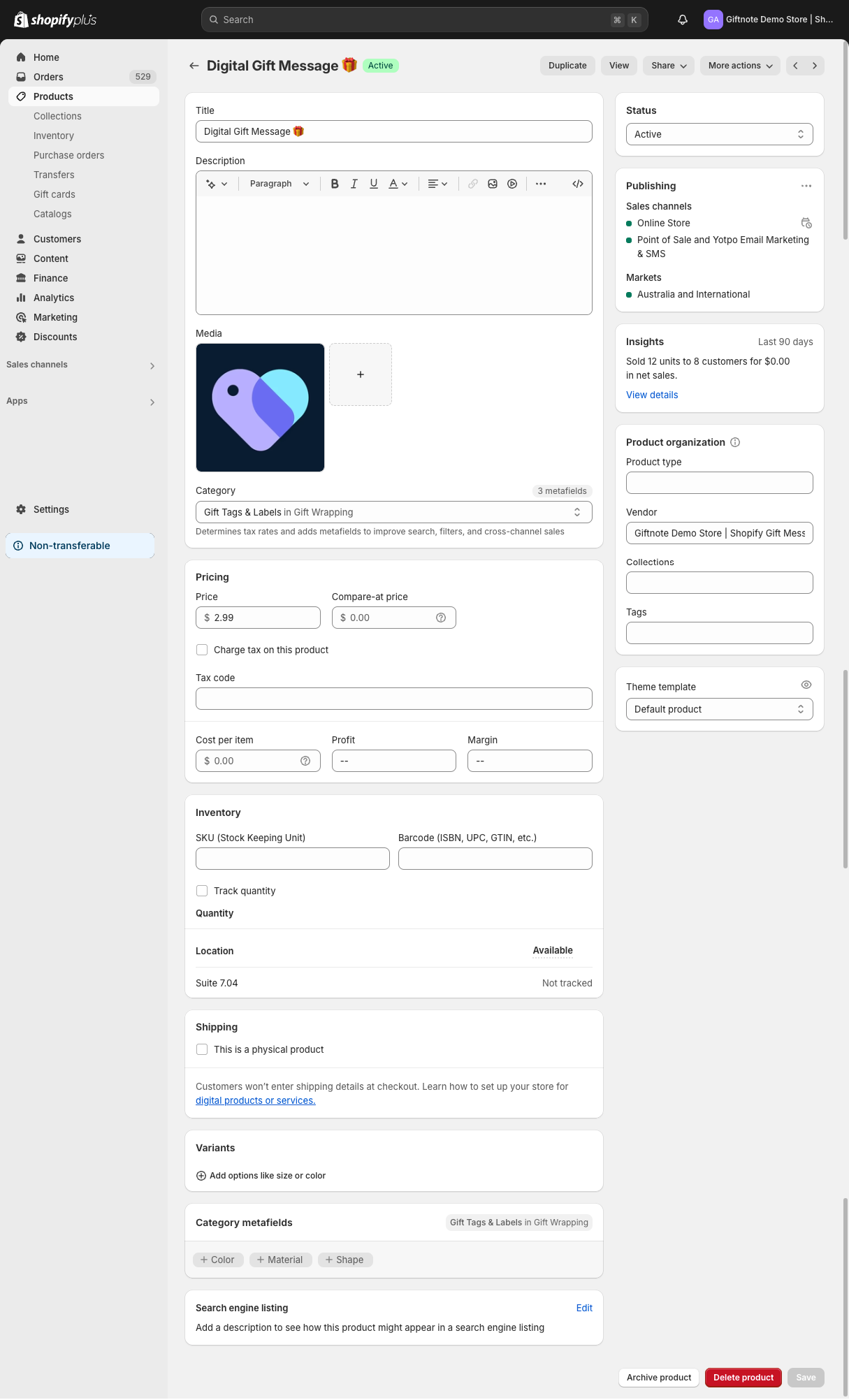
Create a Digital Product: In your Shopify admin, create a new product specifically for the Giftnote upsell.
- Set the product type to digital (ensure it is marked as not a physical product).
- Set a price for the upsell that you would like to charge customers.
- Publish the product to make it available for purchase.
Example settings can be seen below.
Step 2: Customize Checkout with Giftnote Widgets
Navigate to Checkout Settings:
- Go to Shopify > Settings > Checkout.
- Click on Customize to open the checkout editor.
Add App Blocks:
- At the bottom of the checkout editor, select Add App Block.
Add the Giftnote Widgets:
- If you haven't already, add the 'Checkout Message' app block. This is the Giftnote widget that allows customers to add a gift message.
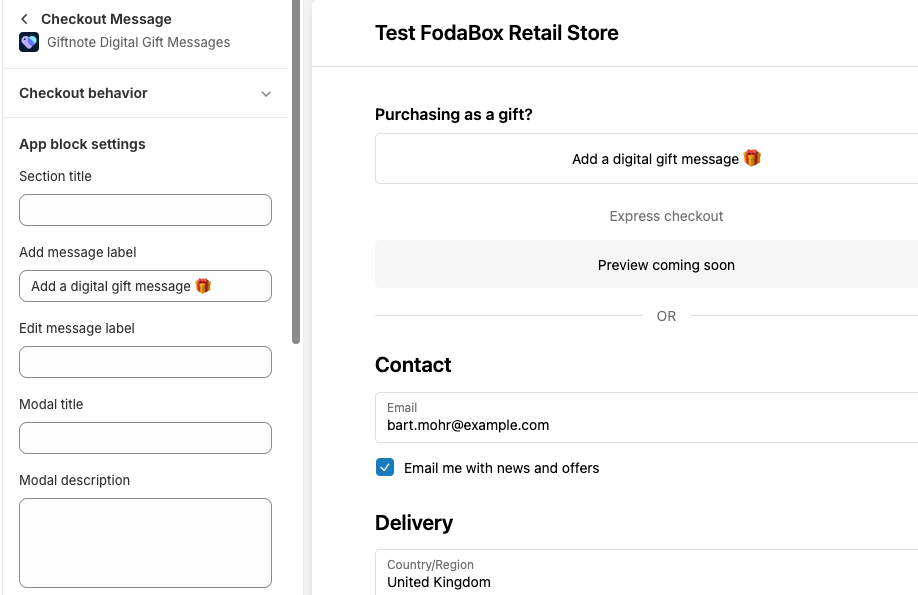
- Next, add the 'Gift Order Surcharge' app block. This will enable the upsell feature to charge for the Giftnote message.
- If you haven't already, add the 'Checkout Message' app block. This is the Giftnote widget that allows customers to add a gift message.
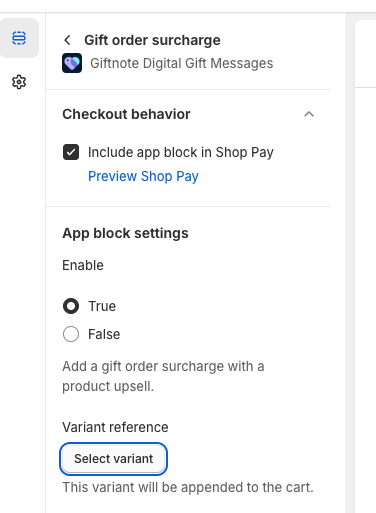
Include in Shop Pay:
- Make sure to select Include app in Shop Pay if this option was selected in the previous step.
Step 3: Link the Digital Product to the Upsell
Choose the Digital Product:
- Select the digital product you created earlier as the upsell product.
Save Your Changes: Click Save to apply the changes.
Step 4: Test the Checkout Process
- Perform a Quick Test:
- Go through the checkout process and add a gift message.
- Verify that the digital product (the upsell) is added as a line item to the cart, confirming that customers will be charged for the Giftnote.
Step 5: Customize Giftnote Widget Labels (Optional)
- Consider editing the labels in the Giftnote Checkout Message widget to clearly explain that a surcharge will apply when a gift message is added.
Additional Options for Non-Shopify Plus Users
If you are not using Shopify Plus, you can still implement this upsell feature with the help of a developer. By adding JavaScript code to your theme, you can trigger the upsell in the cart. For an example of how this works, check out this product page: Aussie Animals Magnetic Play Set.
- Need Assistance? Reach out to us if you need advice on setting this up with the help of a developer.
Additional Tips
- Covering Costs and Profitability: This upsell feature can help cover the cost of using the Giftnote app and potentially generate additional profit. You can educate your customers that this service acts like a "gift concierge," similar to paying for gift wrapping in a physical store.
- Complex Requirements: If you have more complex upselling needs or want to explore additional options, feel free to reach out to us for support and customization.
By following these steps, you can enhance your Shopify Plus store’s checkout experience and increase revenue through Giftnote upsells.