Set Up Multi Gift (Pro Plan Only)
Multi gift is available on the pro plan for gifttote > navigate to giftnote> settings > upgrade to pro plan.
Written By Giftnote Team
Last updated About 11 hours ago
Heads up — Giftnote v3 is here and the app looks different. We have just launched a completely new interface, so some screenshots and menu names in this article are still from the old version. We are updating the help docs over the next few days. In the meantime, if you get stuck, email support@giftnote.com and we will help you out.
How to Access
To enable Multi Gift:
Go to Giftnote > Settings.
Select Upgrade to Pro Plan.
Once upgraded, the Multi Gift section will appear in your dashboard.
💡 Only the Shopify account owner can upgrade plans.
You can follow these steps to set up your store.
Every Shopify setup is a little different, so once your store is configured, place a few test orders to confirm everything works as expected.
This helps ensure that your ERP integrations, reporting tools, and internal processes align smoothly with your Multi Gift workflow.
1. Enable Products in the Giftnote Sales Channel
To display products in your Multi Gift Store, they must be included in the Giftnote sales channel.
How to Enable Products
In Shopify, go to Products.
Select the products you want to include. If you have many, use Select all.
Click the three dots (…) menu.
Choose Include in sales channels.
Select Giftnote, then click Include Products.
Repeat this process for relevant Collections as well.
2. Configure Settings
Once Multi Gift is enabled on the Pro Plan, you’ll unlock the Multi Gift Settings page.
This is where you control pricing, notifications, and order behavior.
Contact Email
Set a dedicated email address to receive internal notifications and order updates.
You’ll get alerts when Multi Gift orders are placed or require review.
Allow Discount Codes
Let customers enter discount codes during Shopify Checkout for Multi Gift orders.
Toggle ON to enable.
Enable Tax on Messages & Shipping
Include tax in message and shipping totals for draft order calculations.
Toggle ON if you want these totals to include tax.
Gated Products
Allow customers to enter a product code to access hidden items.
Tag hidden products using this format:gn_mg_PRODUCTTAG
Replace PRODUCTTAG with your custom access code (max 34 characters).
Example: gn_mg_VIPACCESS
Track Inventory
Show and validate inventory levels for products.
Customers can only add as many items as are available per variant and per recipient.
Show “Return to Shop” Button
Toggle whether the “Return to Shop” button appears on the Multi Gift order review page.
Enabled by default for smoother navigation.
Order Settings
Draft Order Tag
Add a tag to the parent draft order for tracking in Shopify.
Example: Corporate-Gift-Parent
Individual Order Tag
Add a tag to each individual child order created from a Multi Gift.
Example: Corporate-Gift-Child
Auto Approval
You can automate approval for Multi Gift orders based on custom rules.
Toggle Enable Auto Approval ON
If any rule is met, the order is automatically approved
If no rules are set, all orders are auto-approved by default
Example rule:
Recipient count is at least
10
Add new rules as needed to match your workflow.
3. Offerings
Found under:
Giftnote → Multi Gift → Settings → Offerings
Use this section to control product behavior, upsells, and storefront navigation in your Multi Gift store.
Product Settings & Upsells
Message Fee
Charge a fixed fee per message in each Multi Gift order.
The fee is applied to every recipient’s checkout.
Example: £1 per message
Message Upsell Product
Select a Shopify product to automatically add when a message is included.
This creates a visible line item linked to the message fee.
Make sure the product variant’s price matches your configured message fee.
Click Pick Product to select or change your upsell item.
Navigation & Collections
Main Shop Collection
Choose the main collection for your storefront (e.g. Christmas Gifting).
This is your default display collection and cannot be deleted or include sub-items.
Please note: If you can’t see your products in the Giftnote Multi-Gift Portal, the Collection you wish to show may also be required to publish to the Giftnote sales channel from the Collection settings page within Shopify.
You can:
Edit the Title shown in your storefront
Select the Collection from Shopify
Add a short Description that appears below the collection name
Cart Upsell Collection
Choose a collection to power the Cart Drawer Upsell.
This section appears at the bottom of the cart drawer and is limited to 8 products.
You can:
Set the Title (fixed as Cart Drawer)
Select a Collection (e.g. Gifts Under £25)
Additional Navigation Links
Add extra links to other collections, such as:
Festive Gift Guide
Gifts Under £75
Each link includes:
Label: Display name for your navigation
Collection: Shopify collection shown when clicked
Description: Optional supporting text below the label
You can drag to reorder links or delete any item using Actions → Delete.
Click Add Optional Navigation Link to create a new one.
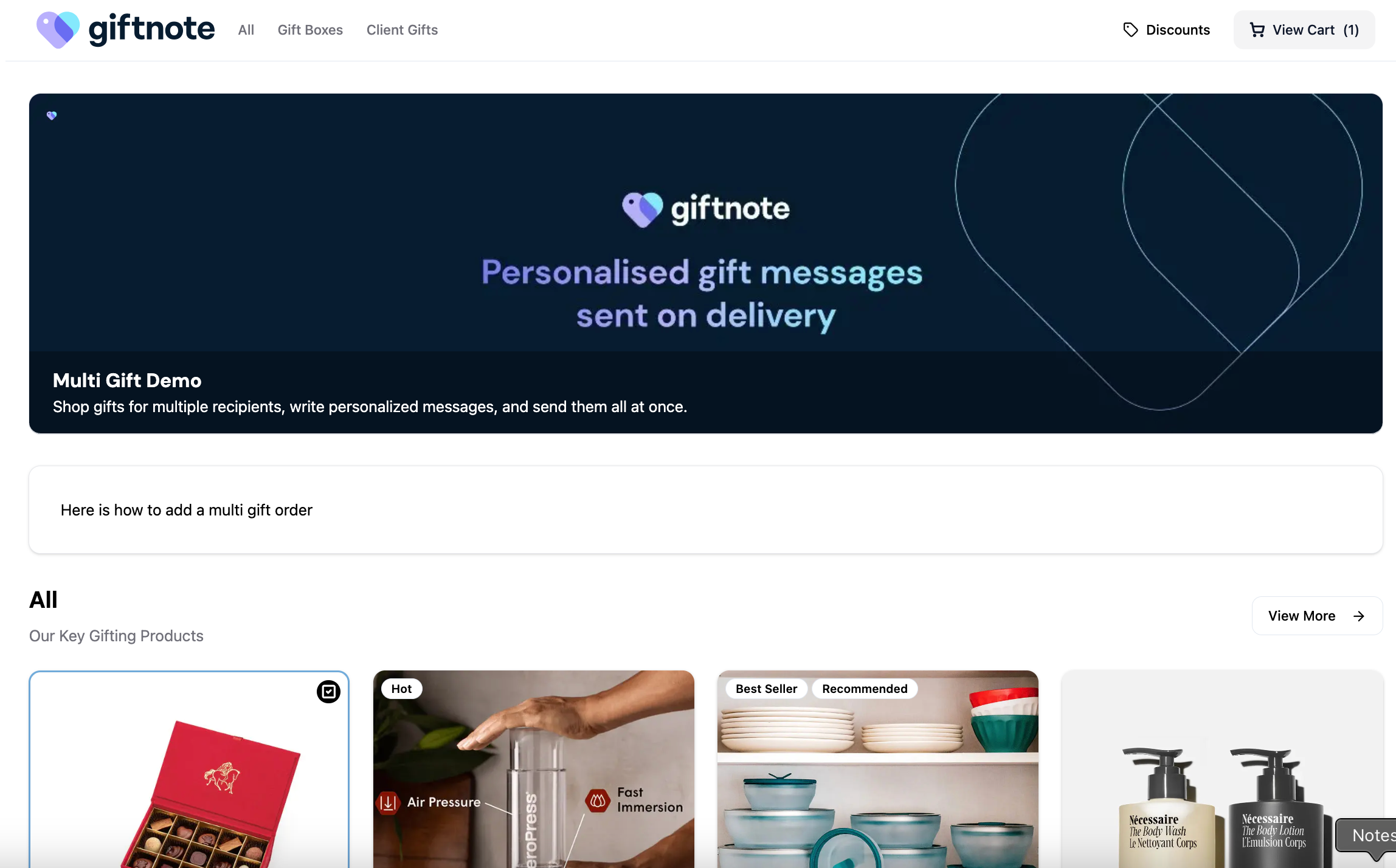
4. Branding
Use this section to customize the branding and design of your Multi Gift store.
Logo and Banner
Upload your logos and hero banner to match your brand’s look and feel.
Custom HTML Sections
For advanced customisation, you can inject HTML into specific sections of the storefront:
Sticky Nav HTML
Custom Nav HTML
Custom Header HTML
Custom Footer HTML
Theme Settings
Control visual and brand elements:
Edge Radius: Default is
12px(rounded corners)Brand Color: Use HSL or HEX (e.g.
206, 61%, 53%)Show Banner: Enable or disable Hero Banner visibility
Show Return to Shop: Toggle visibility of the return link
Custom CSS & Fonts
Add global Custom CSS rules to override styling
Add custom fonts:
Define Font Family
Weight (e.g. 400, 700)
Add Font URL (self-hosted or from services like Google Fonts)
Click save!
5. Language
Found under:
Giftnote → Multi Gift → Settings → Language
Use this section to edit all customer-facing text in your Multi Gift storefront.
You can adjust tone, translate content, and add rich text instructions to guide shoppers.
Page Content
Add Rich Text content across key storefront pages.
Each field supports formatted text, links, and simple styling.
You can customize text for:
Home Page: Welcome or introductory content
Recipients Page: Instructions for adding recipients and messages
Review Page: Summary before checkout
Submit Page: Confirmation or final note after checkout
Use these to include support info, delivery details, or discount reminders.
Shop Information
Define how your Multi Gift store appears in titles and banners.
You can set:
Store name, title, and short description
Banner heading and tagline (shown at the top of your storefront)
Keep it short, branded, and clear.
Step Content
Each step in the Multi Gift flow has editable headings and short descriptions.
Gift Selection – Titles and descriptions for browsing collections and upsells
Recipients & Messages – Instructions for uploading recipient details and writing messages
Message Options & Delivery – Labels for message type (group, personal, none) and timing (send now, on delivery, or later)
Checkout & Review – Review order headings, contact info, and billing copy
Focus on clarity — guide users through each stage in your brand’s tone.
Navigation & Policies
You can edit all button labels and footer links.
Examples include Add Recipients, Review Order, Submit Order, and Return.
Add policy links like Privacy or Terms to the footer for compliance.
Save and Preview
Click Save to apply your updates, then refresh your storefront to confirm changes across all steps
6. Shipping
Found under:
Giftnote → Multi Gift → Settings → Shipping
Use this section to control how shipping costs are calculated for each recipient in a Multi Gift order.
You can either pull live rates from Shopify or create custom flat rates for corporate gifting.
Shopify Shipping Rates
Enable this option to fetch live shipping rates directly from your Shopify store.
These rates reflect your existing Shopify shipping settings, including free shipping thresholds and product deliverability.
You can also enable Carrier Calculated Rates for more accurate live quotes from your carriers.
Recommended for small recipient counts
Not ideal for large corporate orders (as rate fetching can be slower due to third-party carrier lookups)
If enabled, recipients will see real-time shipping options during checkout.
Flat Rates
If you prefer not to rely on Shopify’s live rates, you can create your own fixed shipping options.
This is ideal for large corporate or bulk orders where consistency and speed matter more than precision.
You can set:
Title: The shipping option name (e.g. Standard Shipping, Overnight Shipping)
Rate: A flat price per recipient (e.g. $10, $30)
Customers will choose one option during checkout, and it will apply individually to each recipient.
Use Add Shipping Rate to create multiple tiers if needed.
Testing Your Setup
After saving your settings:
Go through the Multi Gift flow and add test recipients with valid addresses.
Confirm that rates appear per recipient.
If you see an error (e.g. “We don’t ship to this location”), check your Shopify shipping zones or flat rate setup.
7. Form - Add Custom Fields
This is where you customise the form customers fill out when placing a Multi-Gift order. These fields apply at the overall order level, not per recipient — and you're in full control of what’s included.
You can build fields for anything:
Delivery date
Custom packaging
Gift box options
Notes or special requests
File uploads (e.g. branding, artwork)
Internal references or PO numbers
You choose the field type (text, dropdown, date, file upload, etc.), set whether it’s required, and map where the data goes in Shopify:
Order attributes (main or child orders)
Cart attributes
Line item properties
Tags
Date fields
If you want customers to select a delivery date, you can add a date field with:
Blocked-out dates
Offset rules (e.g. exclude the next 5 days)
Specific format control
Important: This doesn’t schedule the order. It only collects the date. If you use a 3rd-party tool to trigger fulfilment, it can pull the selected date from the Shopify order data.
All of this is passed through to Shopify so your team can use it however you need.
If you’re unsure how to build a field or map it correctly, feel free to reach out — we can help set it up.
8. Notifications
Set up internal and customer-facing notifications for your Multi-Gift orders.
This includes:
Emails sent to the customer confirming and updating their order
Emails sent to your team when orders are placed or paid
Optional customization using our email builder
How Notifications Work
There are two types of Multi-Gift notifications:
Corporate Gifter Notifications
Sent to the person placing the Multi-Gift order.
These confirm order status and guide them through approval, payment, and completion.Internal Admin Notifications
Sent to your team.
These alert you when new orders are placed and paid.
Important
These notifications are not sent through Klaviyo, Postscript, or any other integration partner at this stage.
They are delivered through Giftnote’s internal email system.
You can customize the content and branding using our built-in email editor.
External integration support is planned for a future release.
Customer-Facing Emails
Multi Gift Created
Sent when a new order is submitted and awaits approval.
Email enabled
Multi Gift Approved
Sent after you approve the order. Prompts the customer to pay.
Email enabled
Multi Gift Denied
Sent if you deny the order.
Email enabled
Multi Gift Complete
Sent once all gift orders have been processed and fulfilled.
Email enabled
Internal Admin Notifications
Multi Gift Placed
Sent to your team when a new order is submitted.
Email enabled
Multi Gift Paid
Sent when the customer completes payment.
Email enabled
Customizing Notifications
Go to Multi Gifts > Notifications
Click each email to edit its content and design
Use the built-in editor to apply your branding, tone, and formatting
These are separate from your one-to-one gifting notifications
9. Discounts
You can offer automated discounts based on total spend — perfect for rewarding bulk orders or large gifting campaigns.
Where Discounts Appear
Recipients will see available discounts on the cart summary page during checkout. If their order meets the spend threshold, the discount is automatically applied.
For example, spend over $1,000 and they’ll get 5% off. No code needed.
Important: Avoid Double Discounts
If you have Shopify Checkout discount codes turned on in your settings, customers may be able to stack discounts.
We recommend one of the following:
Use Multi-Gift discounts only and turn off Shopify Checkout discounts
Or use Shopify Checkout discounts and leave Multi-Gift discounts off
How to Set Up Discounts
Head to the Discounts tab in the admin.
Add your spend tiers and select the discount type:
Percentage – e.g. 10% off
Fixed Amount – e.g. $10 off
Free Shipping
Each rule is added as a line item and applied automatically if the cart meets the condition.
How Discounts Work
The highest threshold of each discount type is applied
Percentage and fixed discounts can stack if both conditions are met
Free shipping is applied separately if its condition is met
Examples
Fixed Discounts: If you have "$5 off $50+" and "$10 off $100+", a $120 order gets $10 off (not both)
Combined Discounts: "$5 off $100+" and "10% off $50+" → a $100 order gets both
Free Shipping: "$75+ free shipping" applies on top of any other discounts once cart hits $75
10. US Tax
If you ship to the US and need to pay tax in certain recipient regions, we can help calculate this for you, if you have tax rules set up in Shopify or with a 3rd party
Giftnote uses TaxJar to calculate sales tax on Multi Gift orders for U.S. deliveries.
How it works:
We check your Shopify tax settings (by product type and delivery location)
We use TaxJar to determine if tax is required for each recipient
We calculate the estimated tax amount based on your Shopify rules
This amount is displayed in the Giftnote order summary as a tax line item
Final tax is calculated and charged at Shopify Checkout
⚠️ You must have your tax rules set up correctly in Shopify. Giftnote uses these settings to estimate and pass tax details to checkout.
Enable US Tax Collection
To activate tax calculation in Giftnote:
Switch on “US Tax Collection” in your Multi Gift settings
Select the states where tax needs to be applied
We’ll handle the rest — based on the rules you’ve configured in Shopify.
Example Order
You’re sending:
10 gifts total
Each gift includes:
Meat product — $30 (non-taxable)
Merch item — $20 (taxable in some states)
6 recipients are in tax-applicable states. If average tax is 8%:
Taxable amount = 6 × $20 = $120
Estimated tax = 8% of $120 = $9.60
This appears in the Giftnote order summary:
Gift Items: $500.00 Shipping: $80.00 Tax: $9.60 ------------------------- Total: $589.60 When the customer proceeds to Shopify Checkout, the exact tax is recalculated and charged based on Shopify's engine and your rules.