Create a new gift order
Written By Giftnote Admin
Last updated About 14 hours ago
Heads up — Giftnote v3 is here and the app looks different. We have just launched a completely new interface, so some screenshots and menu names in this article are still from the old version. We are updating the help docs over the next few days. In the meantime, if you get stuck, email support@giftnote.com and we will help you out.
Giftnote gift orders can manually be added to order later on. This functionality can help assist customers who may have forgotten to add this feature when checking out. This can be managed within the app and will require the order number.
Obtaining the order number
From the Shopify backend select orders on the navigation tab on the left
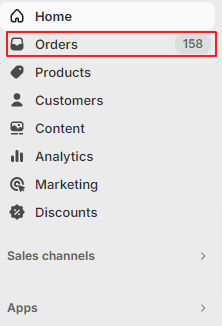
Find the customer's order on this page. A search bar can be opened by clicking the small magnifying glass icon on the top right of the screen. This will open a bar where the customer's name or email can be entered to narrow the results.


After finding the customer's order note the numbers under the Order column for that order.

Adding a message
On the Giftnote dashboard select messages either via the top navigation of the Shopify navigaiton on the left.
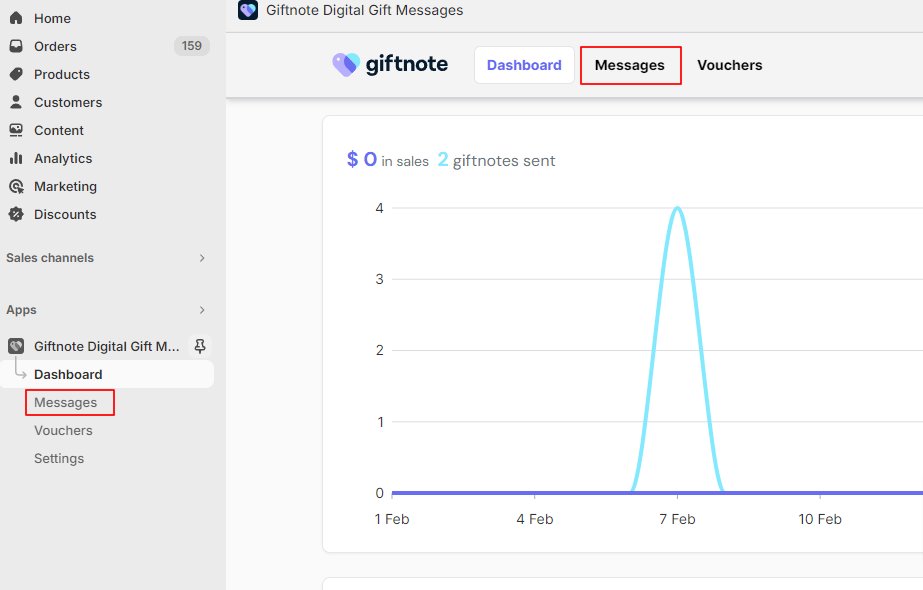
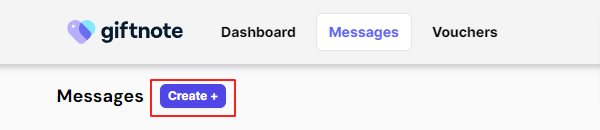
Select Messages the ‘Create +’ button adjacent to the messages heading
On the popup that appears enter the noted order number under the order field and search for the order. It will then check the system to ensure the order exists
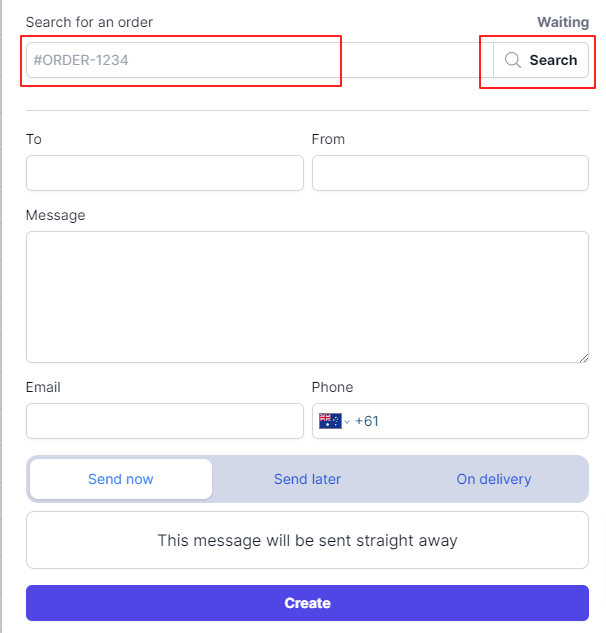

Fill out the rest of the form as requested by the sender.
Please ensure that the order is searched for creating the note as the system will not allow the note to be created without an order.