Gift Card Only Implementation
Written By Giftnote Admin
Last updated About 13 hours ago
Heads up — Giftnote v3 is here and the app looks different. We have just launched a completely new interface, so some screenshots and menu names in this article are still from the old version. We are updating the help docs over the next few days. In the meantime, if you get stuck, email support@giftnote.com and we will help you out.
GIftnote can be used only for gift cards without the gift message widgets. After the app has been installed and activated in the theme we will need to set up a Giftnote gift card product in Shopify.
Accessing Shopify products
All Giftnote and non-shopify managed gift cards are managed in the Shopify product backend. To access this section select Products from the Shopify backend homepage.
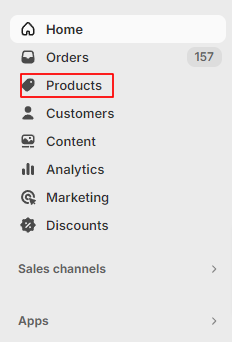

Creating a New Gift Card for Giftnote
Select ‘Add product’ on the top right-hand side of the page

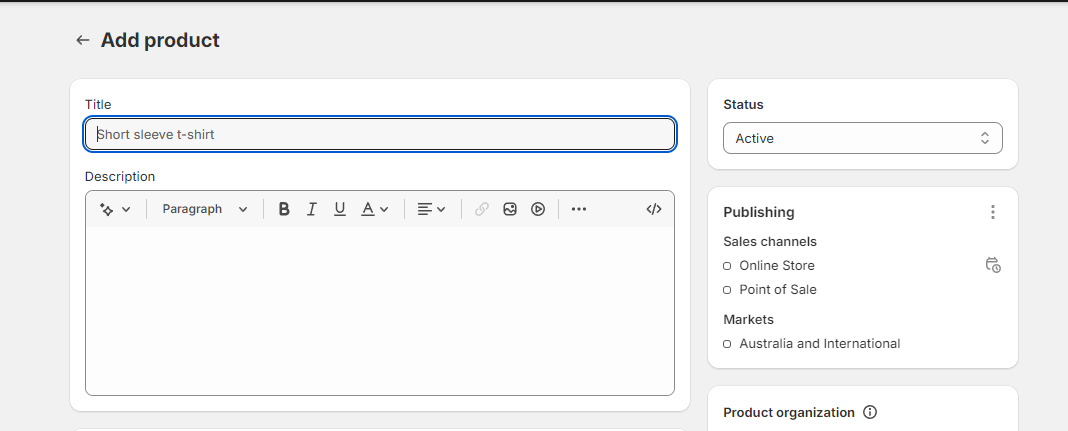
Enter the gift card details, including the title, description, and product image. The description can be styled with HTML, including styling options such as bold, italics and underline. The image will be the same as the product images on the site as such it is recommended to use a similar image size.
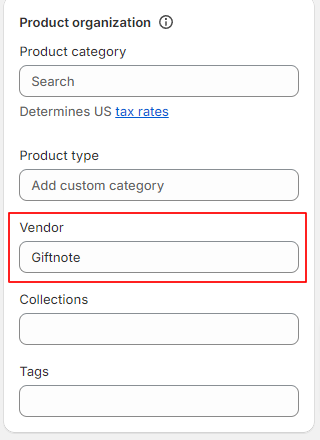
Under product organisation on the right-hand side enter the vendor as Giftnote. This will allow the app to identify this product. The other details can be modified as needed.
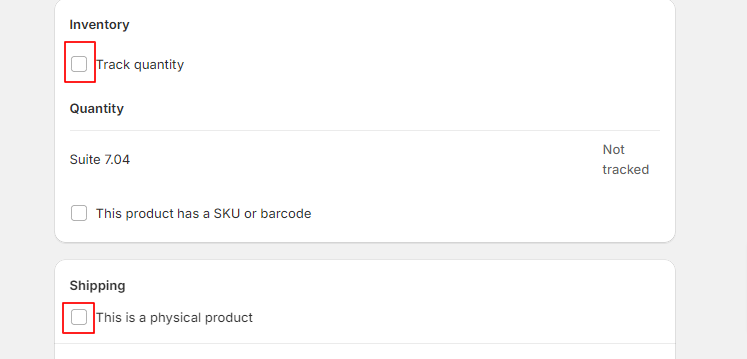
Scroll down to the Shipping and Inventory tabs. Toggle off the physical product option. It is also recommended that the track inventory option be turned off
Scroll down to variants and add a new option. This will open up a small tab where the option name and its values can be set.

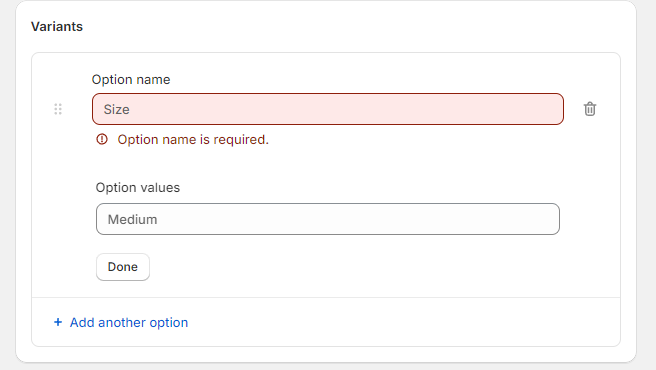
Enter an option name such as Amount and set the values to match the gift card values. More values will appear when the one has been filled in. Please ensure the gift card values are correct as the store will display them matching how they have been filled in.
The values can also be rearranged by dragging the small dots on the left of the value or deleted via the bin on the right of the value. Please be careful around the bin next to the option name as this will delete the whole section.
After all the values have been set scroll down to the variant tab where the prices for the variants can be set. The prices should be set to match the variant values.
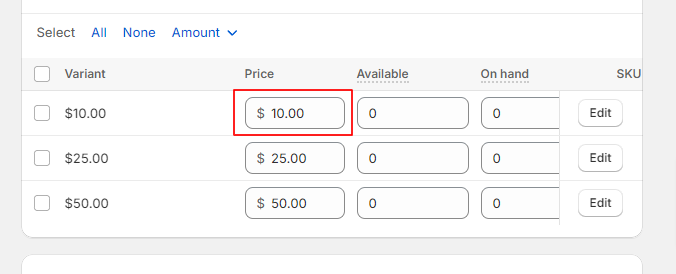
The Gift card is ready at this point. Scroll up to the top of the page and set the status to ‘Active’ to publish.

Please ensure that you save the product before exiting

Modifying an existing Gift Card
If the store already possesses an existing gift card product, please ensure it is not a Shopify Gift card product as Giftnote does not work with those products. The easiest way to check is via the product.
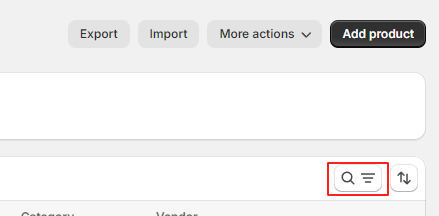
From Shopify products select the gift card product. A search bar can be opened with the magnifying glass on the right of the screen to help narrow down the results.
Within the product page check the Product Category on the right of the page. If it is set to Gift Cards and cannot be edited it is a Shopify gift card and will not work with Giftnote. If that's the case a new gift card product must be created.
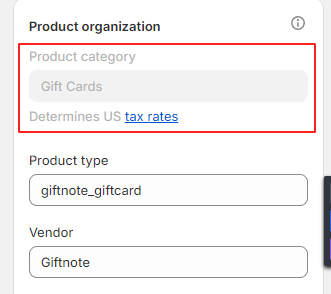
If it is not a Shopify gift card the product can be modified for use by Giftnote. To modify the product to be compatible with Giftnote add Giftnote as a vendor under the vendor field in Product organization on the right of the page.
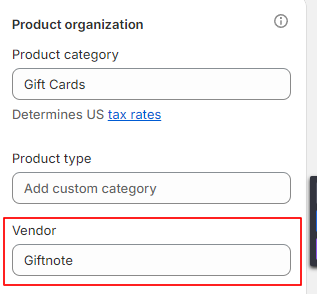
Save after the vendor has been changed to modify the product.

Checking the app to see if the Gift card is working
We can double-check if everything has been set correctly by checking inside the App itself.
To access the app, on the Shopify backend homepage select Apps on the left navigation bar.
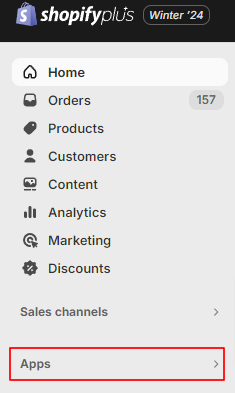
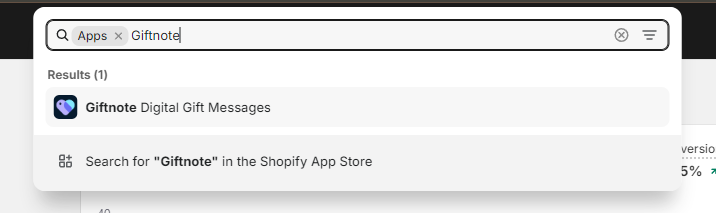
Search for Gift Note on the search bar that appears on the top of the screen and select Giftnote
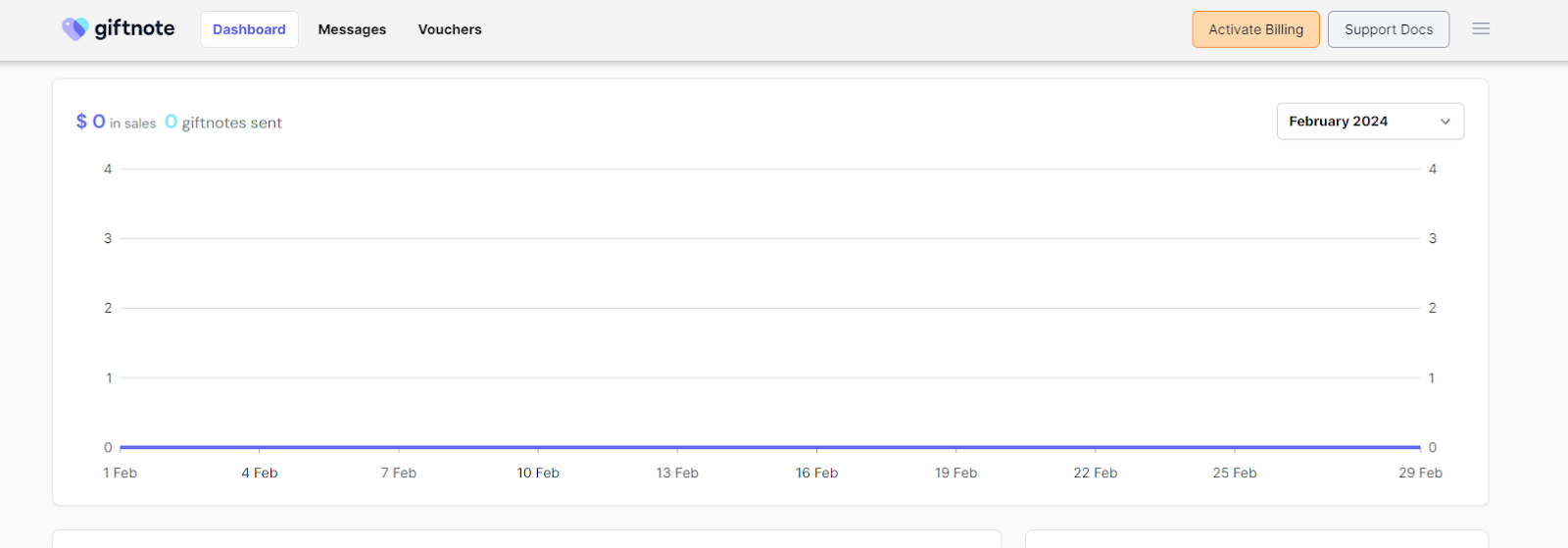
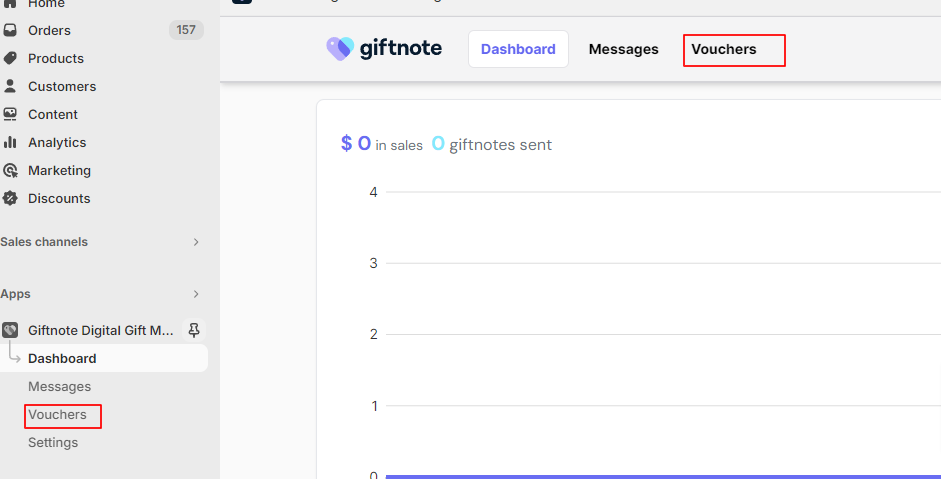
From the Dashboard of the app then navigate to gift cards either via the navigation bar on the left of the page or the navigation on top of the screen.
Then on the following page select Gift cards.
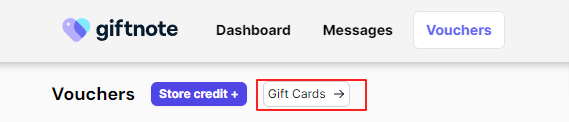
This will show all gift cards that the app can detect. If everything is working correctly the recently created gift card should be on this page and be Active

If it is invalid press the ‘View more’ button on the right of the gift card. This will provide a small pop-up that will detail your issue.

If the Gift card setup does not appear double-check that the vendor has been set to ‘Giftnote’.