Definitions: Metrics
Written By Giftnote Admin
Last updated 11 months ago
Giftnote Metrics Overview
Giftnote monitors and records all metrics going through the app month by month. These metrics are all stored within the app and can help provide insight into how your customers use Giftnote.
Dashboard metrics
The dashboard will consist of a general overview of the metrics for up to the last 90 days. This time frame can be managed with the drop-down on the top left.

Gifted revenue shows the total revenue generated from orders with a gift message.
Gifted AOV refers to the average order value of those orders with a gift message.
Gifted orders show total orders with a gift message.
New customers refer to new customers that are using Giftnote.
The value below the title in blue shows the value in this time selection while the from is the value from the preceding time i.e. the value from value will be compared to the values from yesterday while the values from this week will be compared with the values from the previous week.
To access more detailed metrics select 'Analytics' on the top navigation or left-side navigation.
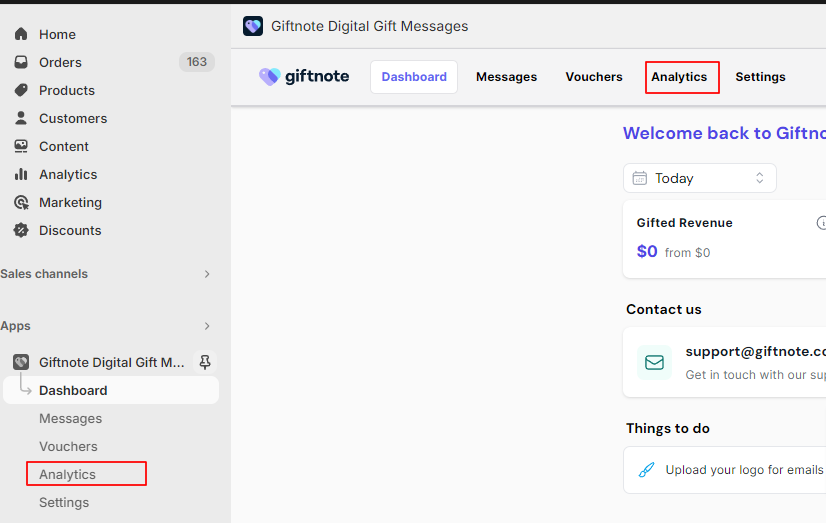
Managing metrics
Metrics are shown on a month-to-month basis. The month and year are shown on the top right under the lifetime analytics.

To change which month is shown select the current timeframe to open a drop-down where a new timeframe can be selected.
Lifetime Analytics
At the very top of the screen, the lifetime analytics is shown.

Gifted Revenue shows the total value of all gift orders and gift cards that have been sent via Giftnote.
Gifted AOV shows the average order value of all gift orders and gift cards that have been sent via Giftnote.
Gifted Orders show the total amount of all gift orders and gift cards that have been sent via Giftnote.
New customers show the total amount of new customers that are using Giftnote.
Monthly sales table
Beneath the lifetime analytics, the monthly sales can be monitored. This table monitors both the number of sales that have used Giftnote and the amount of Giftnotes sent.
The total values of the month are shown at the very top of the screen in their respective dark blue and light blue colour which they is used to represent them in the graph underneath.
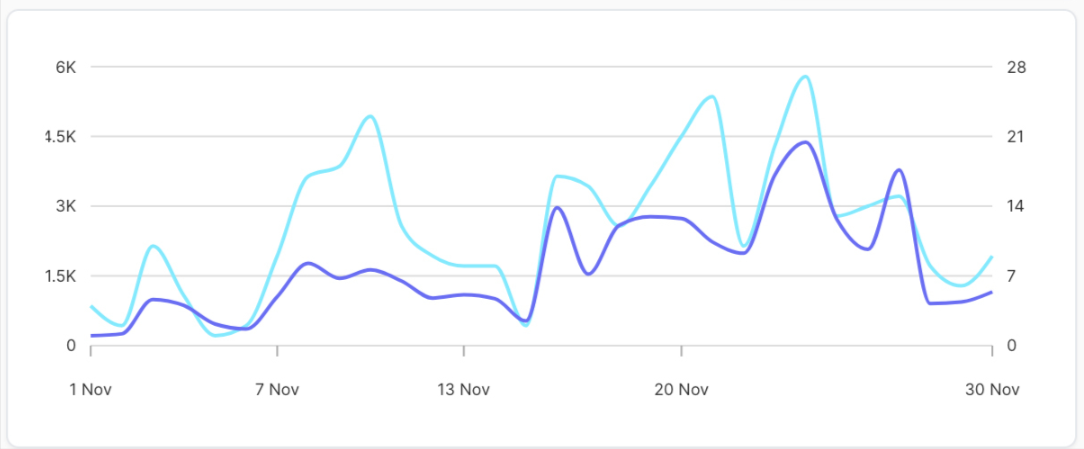
The graphs show the value and amount day to day for the month.
The dark blue line represents the total value of the sales per day with Giftnote where the value is shown on the left Y axis.
The light blue line represents the total amount of Giftnote sent where the value is shown on the right Y axis.
The date when the data corresponds is shown on the X-axis.
Mousing over the table will give more precise values including the exact day, total gift notes and total sales.
Key Metrics
Adjacent to the monthly sales the key metrics for the month are displayed.
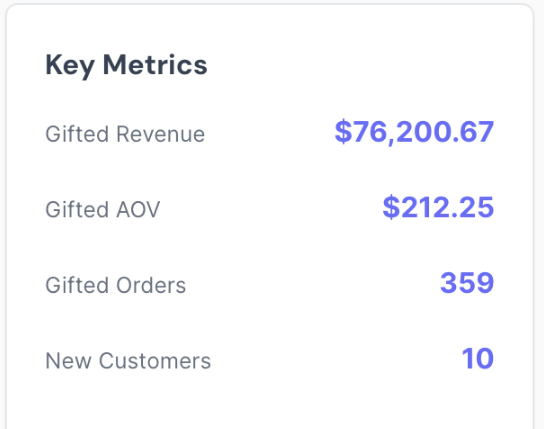
Gifted revenue shows the total revenue generated from orders with a gift message for the month.
Gifted AOV refers to the average order value of those orders with a gift message for the month.
Gifted orders show total orders with a gift message for the month.
New customers refer to new customers who are using Giftnote for the month.
Messages and Gift cards breakdown
Underneath the Monthly sales table, the Giftnotes sent for the month are broken down into messages and gift cards.
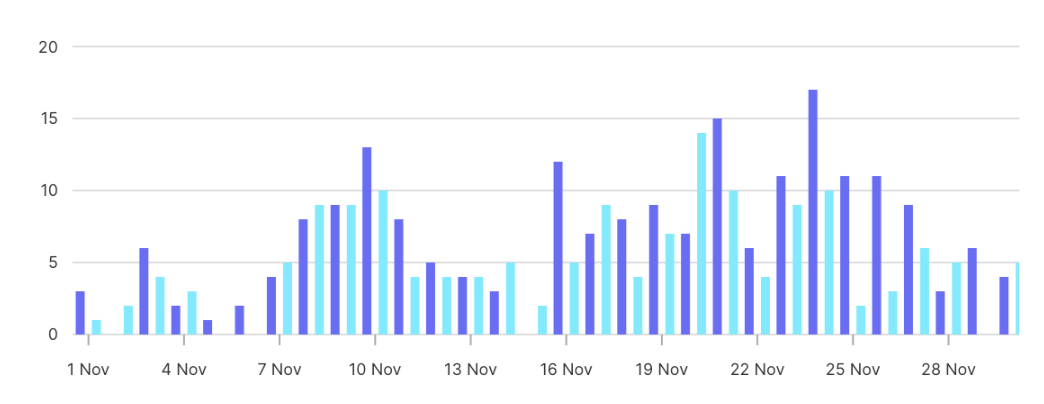
Each pair represents a day which can be checked using the X-axis.
The dark blue bar represents the number of messages sent per day.
The light blue bar represents the number of gift cards sent per day.
The values for both bars are represented on the Y-axis.
Mousing over the table will give more precise values of the data if needed.
Messages and Gift cards values
Next to the 'Messages and Gift cards' table on the left is a table that provides some more information on the sales made with Giftnote for the month.
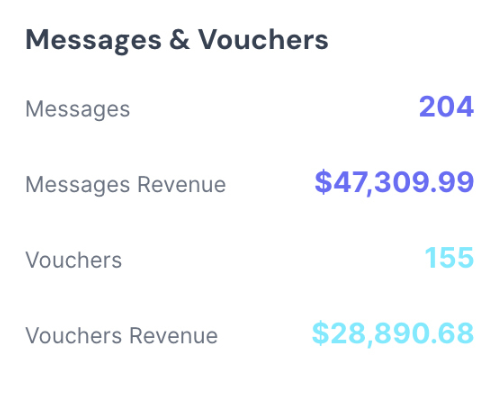
The 'Messages' section shows the amount of gift messages sent by users for the month.
The 'Message Revenue' section shows the total revenue generated by gift orders for the month.
The 'Vouchers' section shows the total amount of gift vouchers or gift cards sent with Giftnote for the month.
The 'Vouchers Revenue' section shows the total value of all the Giftnote voucher or gift card sales that month.
Delivery methods
Underneath the 'Messages and Gift cards' table in the middle of the page is a graph that breaks down the delivery methods for the month.
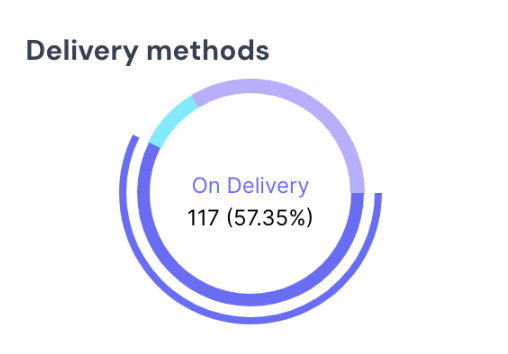
Mousing over each section will give the name of the section, the number of uses for the month and the percentage.
The light blue section represents the total amount of messages that have used the send later or scheduled send options.
The purple section represents the number of messages that have used the send now option.
The dark blue sections represent the amount of on-delivery or tracked messages sent.
Impressions
Next to the delivery methods on the left of the page is the impression section. This section covers the customers that have ordered this month.
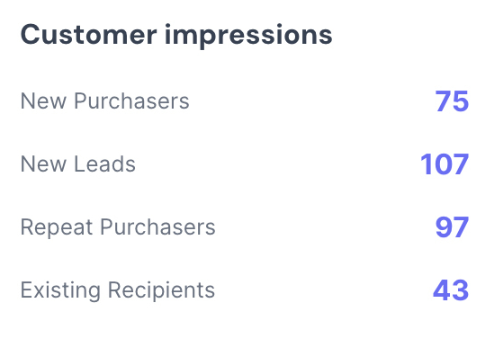
New purchasers refer to new users of the app not including new conversions.
New conversions refer to a new user of the app that previously received a Giftnote from someone else.
New recipients refer to recipients that have received a Giftnote that hasn’t been previously recorded.
Existing recipients section refers to recipients that have received a Giftnote once before receiving another one.
Running total
Next to the delivery methods on the right of the page is the running total graph.
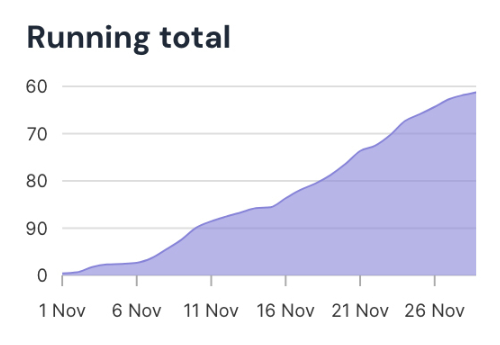
This section covers the amount of Giftnote orders throughout the month.
The Y axis shows the number of orders while the X axis shows the day of the month.
The section can be moused over for more precise data such as date and exact amount.
Top products
On the very bottom of the page, products that have been purchased with Giftnote are shown and ranked. These ranks are based on the total sales value for the month.
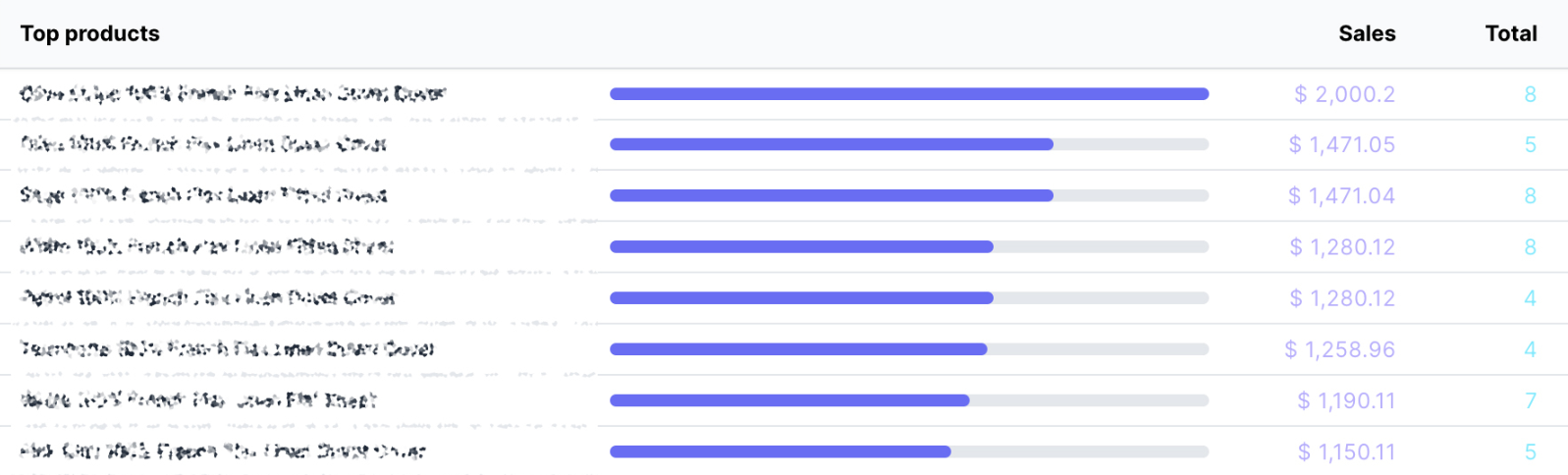
The name of the product is shown on the far left.
The blue bar shows the value of the sales as a percentage compared to the top-performing product.
The sales column shows the total value of orders with Giftnotes for the month.
The total column represents the total amount of Giftnotes that were sent with the product for the month.
The graph can be ordered by clicking on the headings of each field.
Selecting the 'Top products' heading will order the graph alphabetically.
Selecting the Sales heading will order the graph by most to least sales.
Selecting the Total heading will order the graph by most to least total amount.