Customizing SMS
Written By Giftnote Admin
Last updated About 10 hours ago
Heads up — Giftnote v3 is here and the app looks different. We have just launched a completely new interface, so some screenshots and menu names in this article are still from the old version. We are updating the help docs over the next few days. In the meantime, if you get stuck, email support@giftnote.com and we will help you out.
The Giftnote SMS messages can be modified within the app. They have a wide range of quick fields that can be used to personalise the messages.
Accessing SMS options
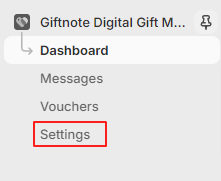
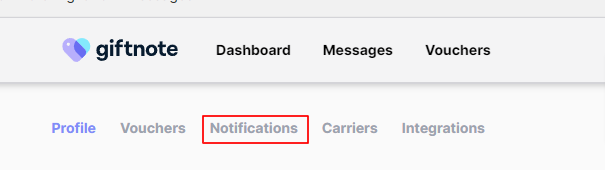
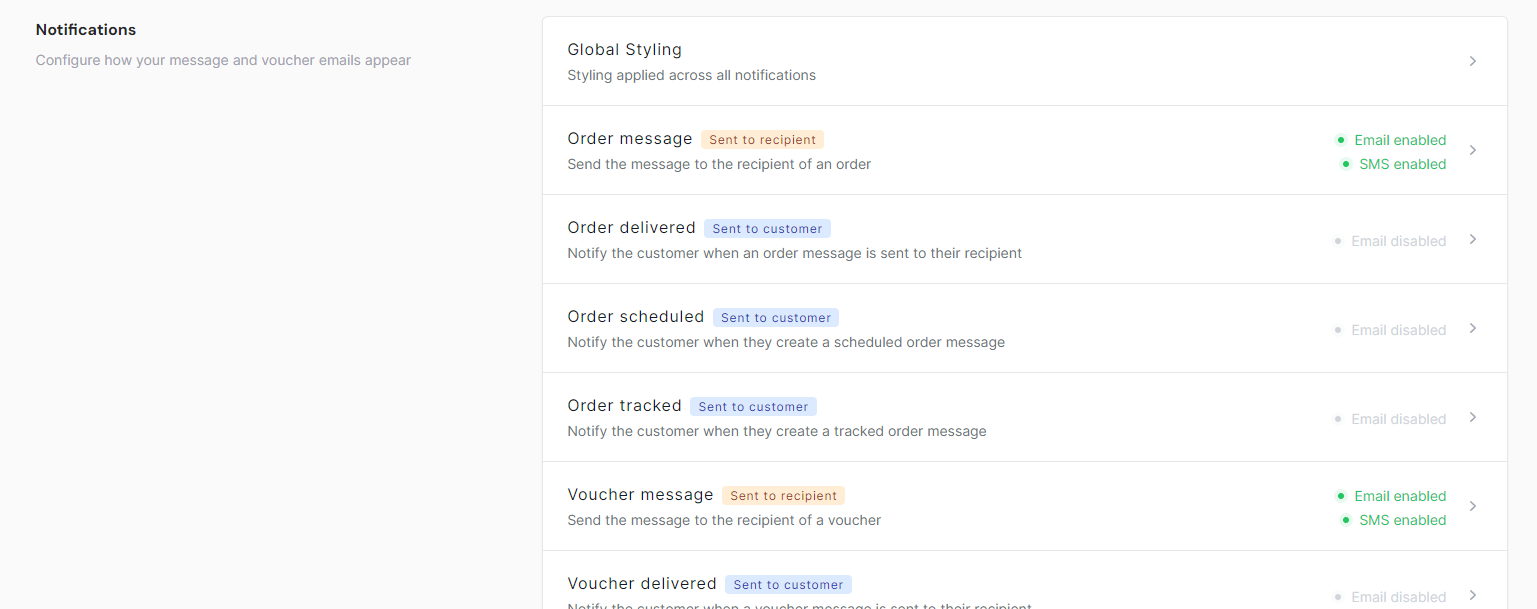
To access the options for SMS select settings on the left navigation bar under Giftnote and on the following page select notifications or scroll down to the notifications section.
Global SMS options (enterprise plan)
This option is currently limited to the enterprise plan. This section will allow for the sender ID to be changed for certain regions. Please get in contact if you would like to explore this.
To access this option select ‘Global Styling’ and then select the SMS option on the right of the page

Individual SMS options
To style an SMS message select a message and then select the SMS option to the right of the page

Note that not all emails will have an SMS message to edit. This can be checked on the selections screen by checking for the ‘SMS’ indicator underneath the regular email indicator

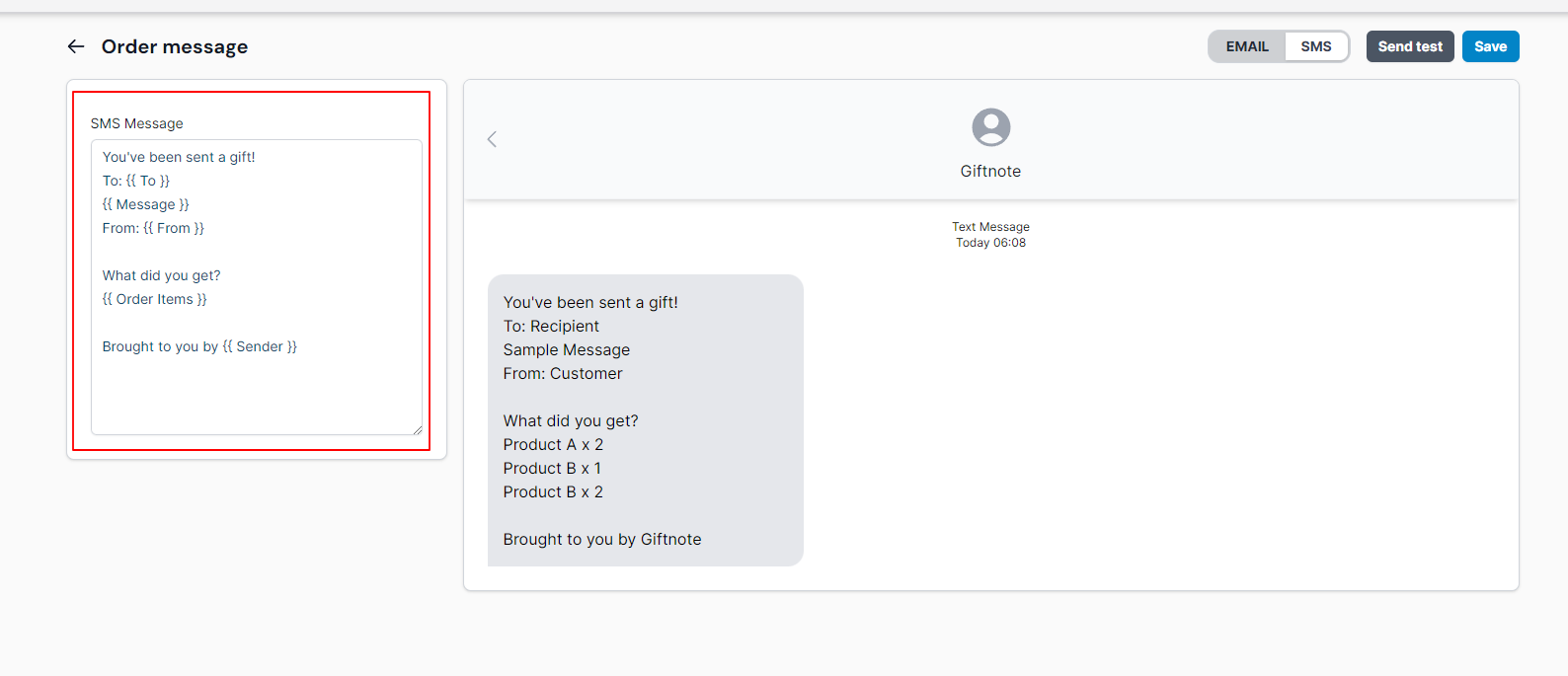
This will lead to a page where the message can be edited with the field on the left and how it will look can be previewed on the right. The SMS message currently can use emojis, regular text, and Giftnote quick fields.
Quick Fields
Here's the list of the current fields available to use in Giftnote emails. These can be used in any text field within email or SMS.
Add {{ To }} to display the gift recipient
Add {{ Sender }} to display the gift sender
Add {{ Message }} to display the gift message
For gift cards, you can additionally use
- {{ Value }} to show the value of the gift card.
- {{ Currency }} to display the currency code
- {{ Code }} to display the gift card code
Saving changes
After making the content changes save via the button on the top right
