How to Integrate Giftnote with Yotpo Email
Written By Giftnote Admin
Last updated About 11 hours ago
Heads up — Giftnote v3 is here and the app looks different. We have just launched a completely new interface, so some screenshots and menu names in this article are still from the old version. We are updating the help docs over the next few days. In the meantime, if you get stuck, email support@giftnote.com and we will help you out.
Elevate your gifting experience
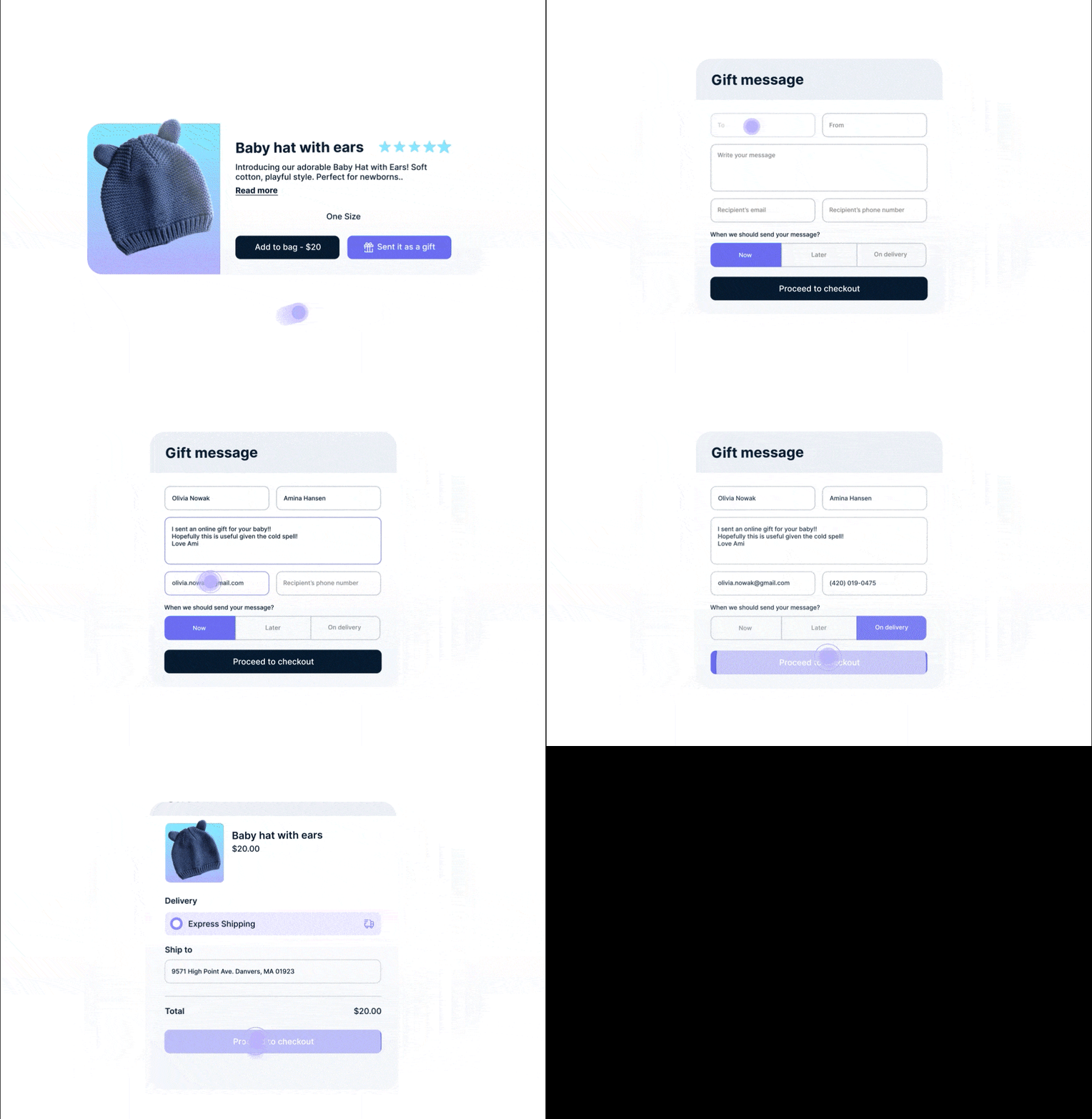
by integrating Giftnote with Yotpo, allowing for full control and customization of the gifting journey right from your Shopify store. This integration empowers you to leverage Giftnote emails and SMS through Yotpo, enhancing design flexibility and personal account use, supporting opt-in collection, and segmenting recipients effectively.
Before You Begin
- Transactional Emails: Emails sent through this integration are classified as transactional, so recipients may not necessarily be opted-in. We recommend adhering to Yotpo's guidelines and the data privacy regulations of your country to ensure compliance and minimize the inclusion of excessive marketing material in these communications.
- Reach out for support: If you need any assistance getting started please book in a call calendly.com/giftnote.
Getting Started
1. Install and Configure Giftnote If you haven’t set up Giftnote yet, start with the installation steps outlined here: Install Giftnote.2. Configure Yotpo in Giftnote
- Connect Your Accounts:
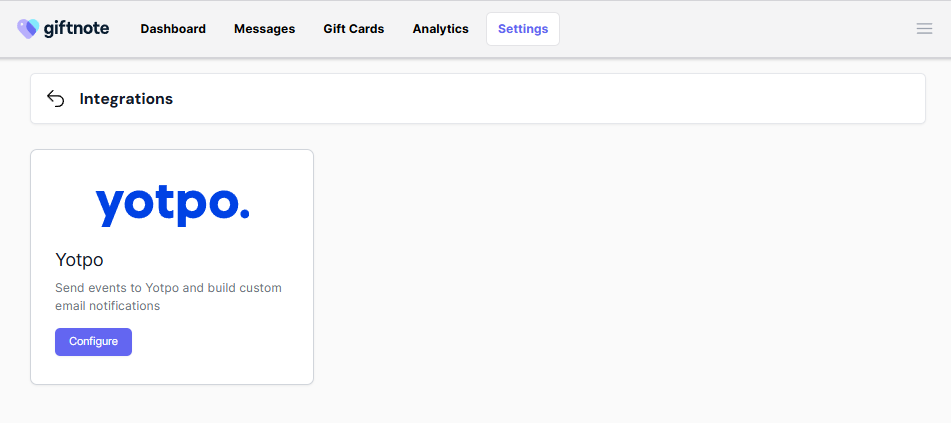
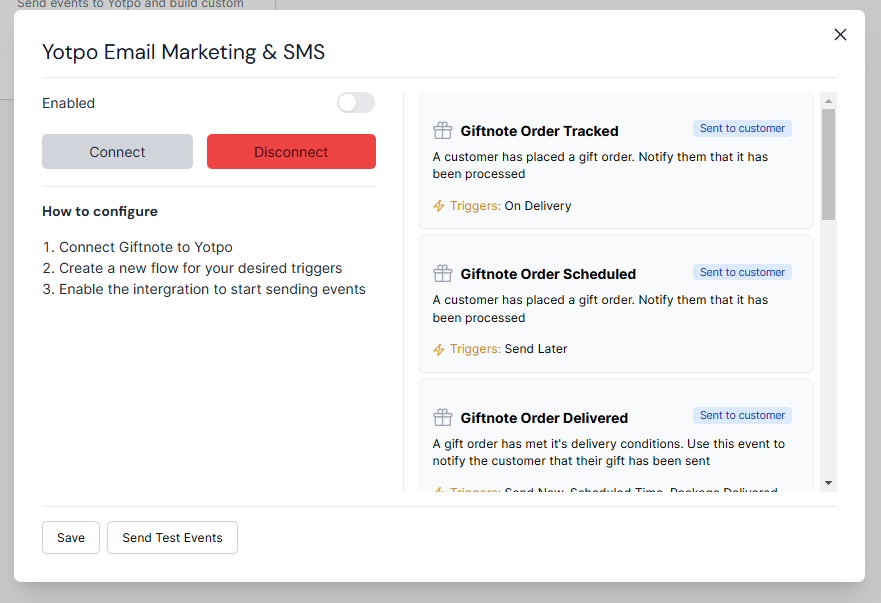
- Navigate to Settings > Integrations in the Giftnote Dashboard within your Shopify Admin.
- Click Configure to access the integration settings screen, then select Connect.
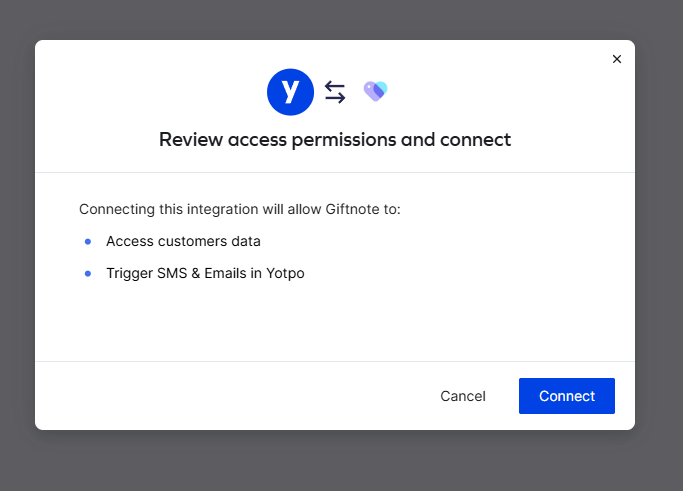
- You’ll be redirected to Yotpo to accept the connection and approve the integration.
3. Integration Setup:
- After authorizing the connection, you’ll return to Giftnote where the Yotpo integration initially appears as “disabled.”
- Reopen the settings and select Send Test Events to verify the integration by sending test events to Yotpo.
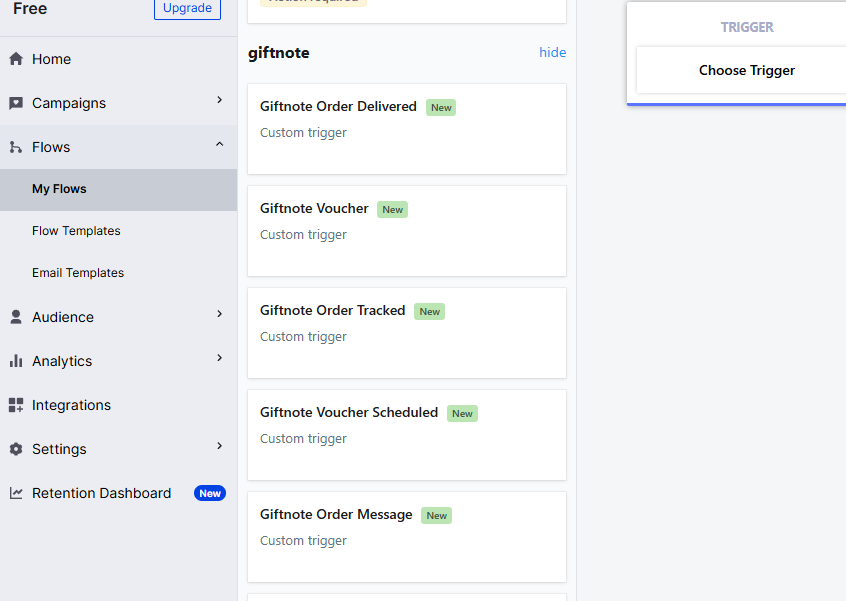
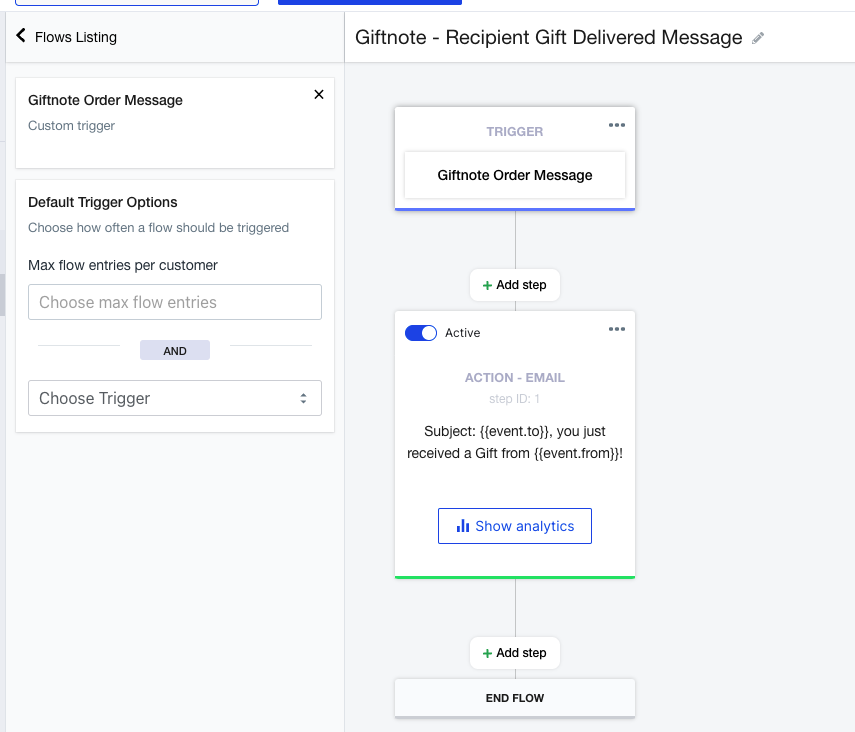
- Head back to Yotpo to create a new flow using a Giftnote trigger.
4. Enable and Save:
- Test your flow by selecting Send Test Events again from Giftnote.
- Once you’re satisfied, enable the integration and save the settings to begin sending real events to Yotpo.
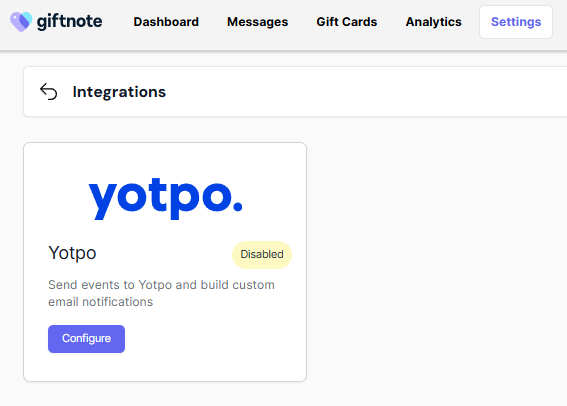
- Open the settings again
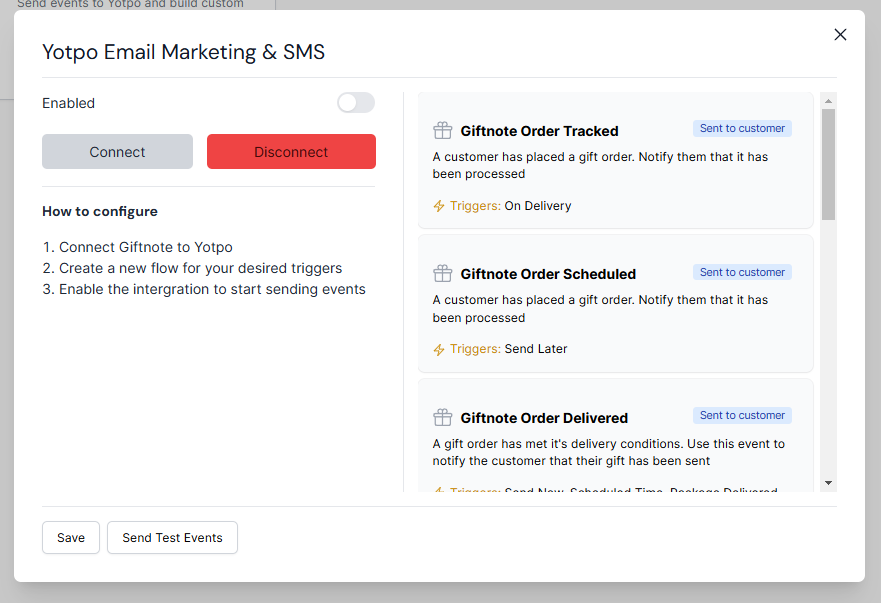
- From here, click "Send Test Events" to send some test events to Yotpo.
- Head back to Yotpo to create a new flow using a Giftnote trigger
6. Configure the Giftnote Events
Configure specific events in Yotpo to trigger based on the actions listed below:
Giftnote Order Tracked
- Description: Sent to the customer when a gift order has been processed.
- Triggers: On Delivery.
Giftnote Order Scheduled
- Description: Sent to the customer when a gift order has been scheduled for a future delivery.
- Triggers: Send Later.
Giftnote Order Delivered
- Description: Sent to the customer when a gift order meets its delivery conditions.
- Triggers: Send Now, Scheduled Time, Package Delivered.
Giftnote Order Message
- Description: Sent to the recipient when a gift order meets its delivery conditions and includes sending the gift message.
- Triggers: Send Now, Scheduled Time, Package Delivered, Resend Message.
Giftnote Voucher Events
5. Giftnote Voucher Scheduled
- Description: Sent to the customer when a gift card with a message has been processed.
- Triggers: Send Later.
Giftnote Voucher Delivered
- Description: Sent to the customer when a gift card meets its delivery conditions.
- Triggers: Send Now, Scheduled Time.
Giftnote Voucher Message
- Description: Sent to the recipient when a gift card meets its delivery conditions and includes sending the gift message.
- Triggers: Send Now, Scheduled Time, Resend Message.
Giftnote Voucher
- Description: Sent to the customer or recipient when a gift card has been purchased without a message or when resending just the gift card.
- Triggers: Self Purchase, Store Credit, Resend Gift Card.
Giftnote Voucher Usage
- Description: Sent to the customer or recipient updating them on the remaining balance after a gift card has been used.
- Triggers: Gift Card Spent.
These events allow for robust and flexible handling of different gifting scenarios, ensuring that your customers and their gift recipients receive timely and appropriate notifications throughout the gifting process. If you need to customize or add more event triggers, feel free to discuss your specific requirements!
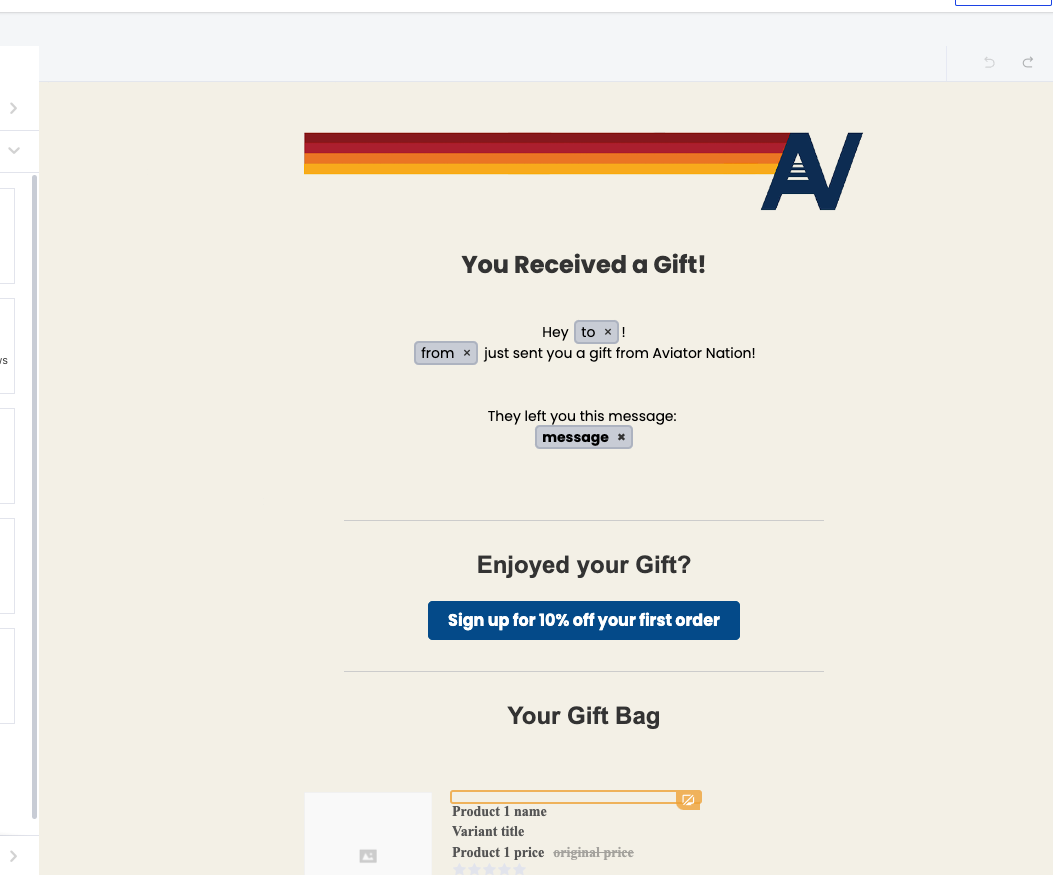
7. Build Your Email Templates
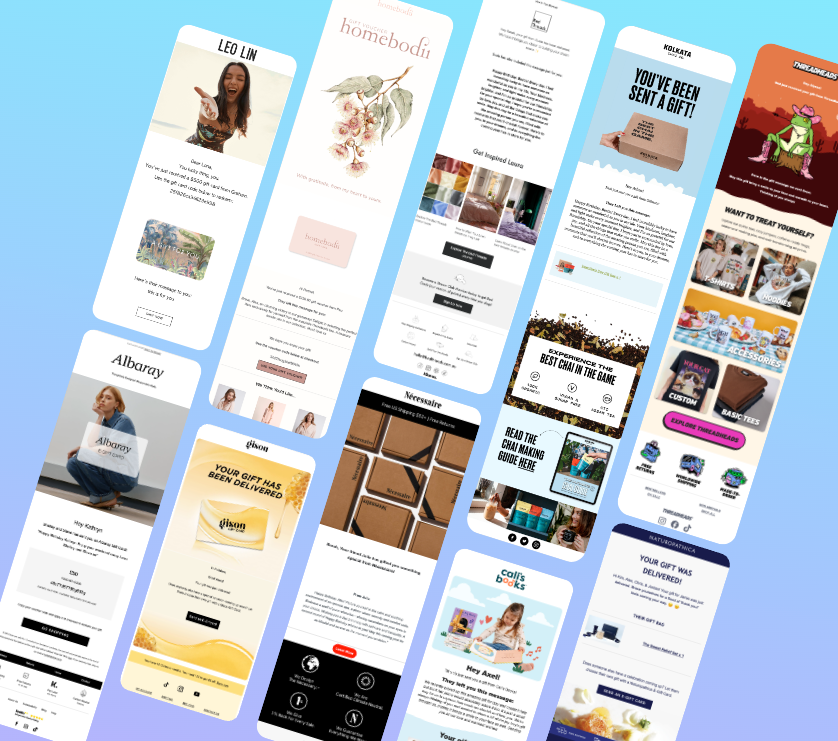
- Create Templates: Using the merge fields provided by Giftnote, build your email templates to ensure all pertinent data is included.
Template Builder
8. Disable Giftnote Templates
Once your Yotpo templates are ready, disable the original email templates in Giftnote by navigating to Settings > Notifications and adjusting each template.
Please note the SMS will continue to be sent by Giftnote.
9.Test Your Emails
The best way to test your templates is by creating and force-sending a Giftnote message through the Giftnote admin.
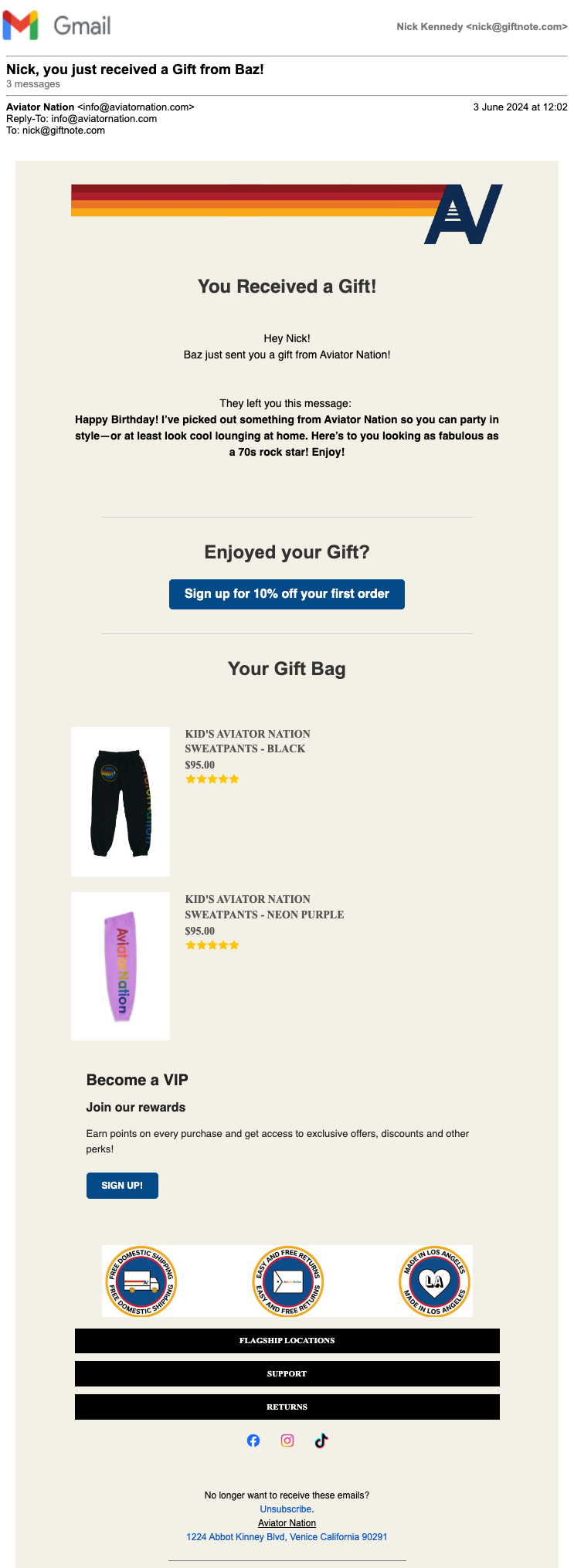
10. You are good to go!
Check out this amazing example below from Aviator Nation.
Need Help?
For further assistance or to address any integration issues, please reach out to our support team at support@giftnote.com.
Giftnote Event List
Below is a table of configurable events you can use to personalize and automate your customer communications through Yotpo integration. Each event includes example data and the syntax required for template customization, enabling precise and effective messaging.
1. Placed Gift Order
2. Gift Order Delivered
3. Received Gift Order
4. Purchased Gift Card
5. Gift Card Delivered
6. Received Gift Card
7. Issued Store Credit
8. Gift Card