Klaviyo onboarding guide for agencies: setting up Giftnote flows
A step-by-step checklist for agencies setting up Giftnote's 9 Klaviyo flows, with example designs, plus extra gifting projects you can scope and charge the client for.
Written By Giftnote Team
Last updated About 18 hours ago
This is a checklist for agencies and in-house CRM teams setting up Giftnote in a client's Klaviyo account. Part 1 is the setup, in order. Part 2 is the extra work the client's new gifting data makes possible, laid out as projects you can scope and charge for.
The example designs use Wildmoss Candle Co., a made-up brand.
Part 1: Setup checklist
Work through these steps in order and tick each item off as you go.
Step 1. Check Giftnote is connected to Klaviyo
We usually connect the integration and copy the flows in before we hand over. Check it anyway, because nothing else works without it.
☐ In Klaviyo, go to Analytics > Metrics and search for Placed Gift Order or Received Gift Order.
☐ In Shopify admin, open Giftnote > Settings > Integrations and check that Klaviyo shows as enabled.
No Giftnote metrics in Klaviyo? The integration is the likely issue. Either it isn't connected, it's connected to a different Klaviyo account, or it was connected but never switched to enabled and saved. Email support@giftnote.com and we'll fix it. If the metrics start with Giftnote -, the account is on our old integration. Read Migrating your Klaviyo flows first.
Step 2. Find the 9 flows and pick the ones the client needs
Each flow is triggered by one Giftnote event. Only turn on the flows that match what the client sells.
☐ List the flows the client will use.
☐ Leave the rest off.
☐ Send a test event from Giftnote, then open it under Analytics > Metrics > [event] > Activity feed to see the real property names.
Step 3. Check the account settings
☐ Klaviyo is on a paid plan. Free accounts can't get transactional status.
☐ Smart Sending is off on every Giftnote flow. If it's on, recipients who got another email recently are silently skipped.
☐ Note which Giftnote notifications are on under Giftnote > Settings > Notifications. You'll switch these off at go-live, not before.
☐ Decide whether Shopify's own gift card email should also send. It can fire alongside ours.
☐ List the markets and currencies they sell in. You'll test each one.
☐ Match the SMS copy. Gift SMS is sent by Giftnote, not Klaviyo, and edited in the Giftnote app.
Step 4. Reskin the templates
You don't need nine designs. Build Flow 3 (recipient) and Flow 1 (gifter) properly, then copy them across to the other flows and change the words.
Keep the recipient email in this order, so it stays mostly about the gift. Klaviyo's guideline for transactional emails is under 20% promotional content.
A headline about the gift, not the brand
The gifter's message, styled like a card
The gift: product image and name, or the gift card code, value and expiry. Product images need a SKU on every variant
What happens next: delivered, on its way, or how to redeem
One hook (Step 5)
A short footer
Merge fields. Keep the capitalisation exactly as written:
☐ Flow 3 and Flow 1 are designed
☐ The design is copied to every other flow the client uses
☐ Every merge field ends in
|default:''. Without it, an empty field printsNone☐ Every value shows its currency (A$50, not $50)
Step 5. Add the hook to the recipient emails
Gift recipients haven't opted in to marketing, and Giftnote doesn't subscribe them to anything. The gift email is the only email you can send them, so it needs one clear reason to join the list. Without one, opt-ins sit at zero.
☐ One hook per email, placed below the gift content
☐ It's a signup, not a shop-now product grid
☐ The offer is better than the popup offer (a recipient holding the product is a warm lead)
Example designs: Wildmoss Candle Co.
Wildmoss is a made-up brand. Use these designs as a starting point for layout and copy.
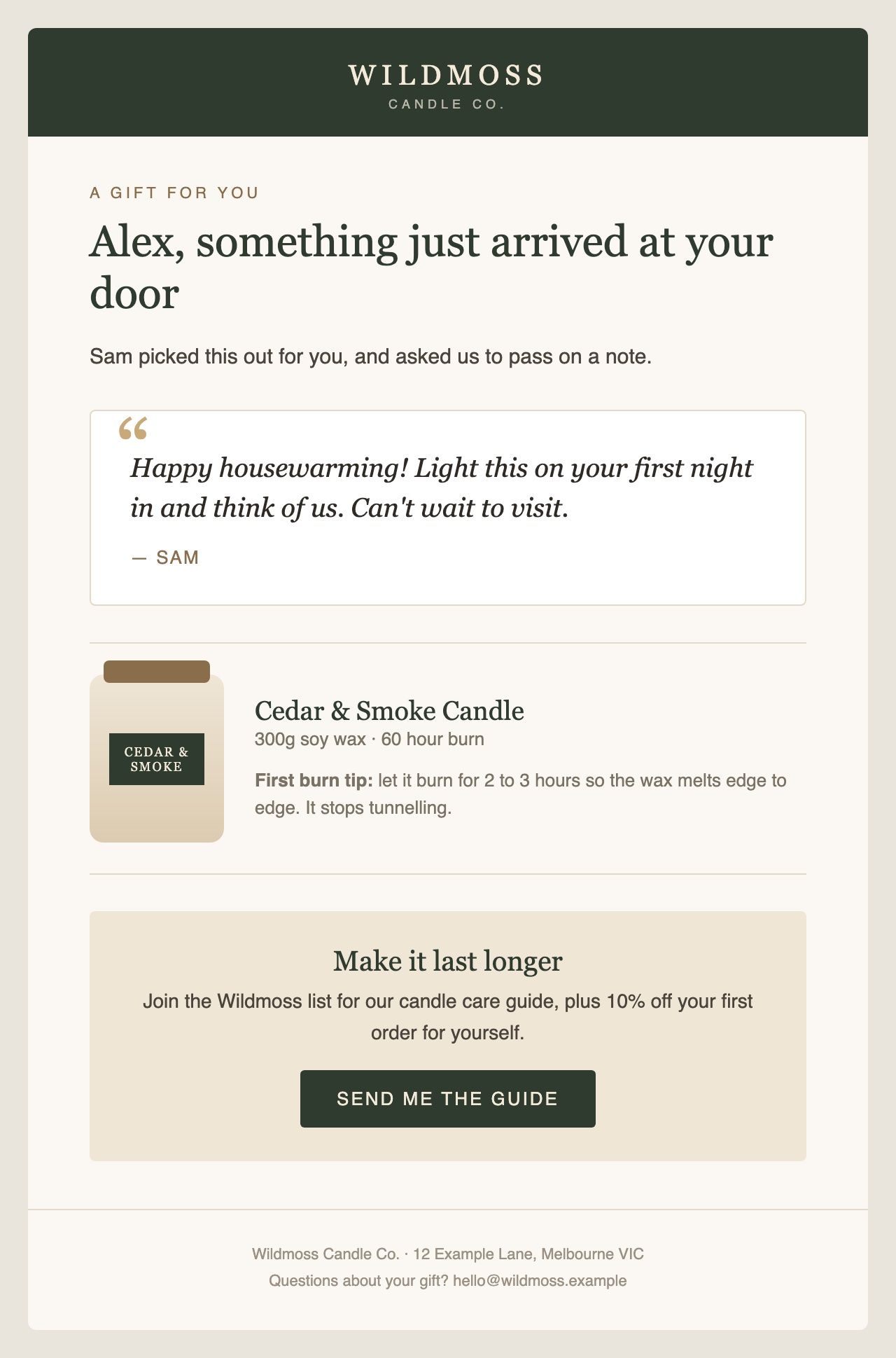
Flow 3: Received Gift Order (recipient)
The message is styled like a card, followed by the product and one care tip. The hook offers a care guide plus a first-order discount, so it reads like part of the gift.
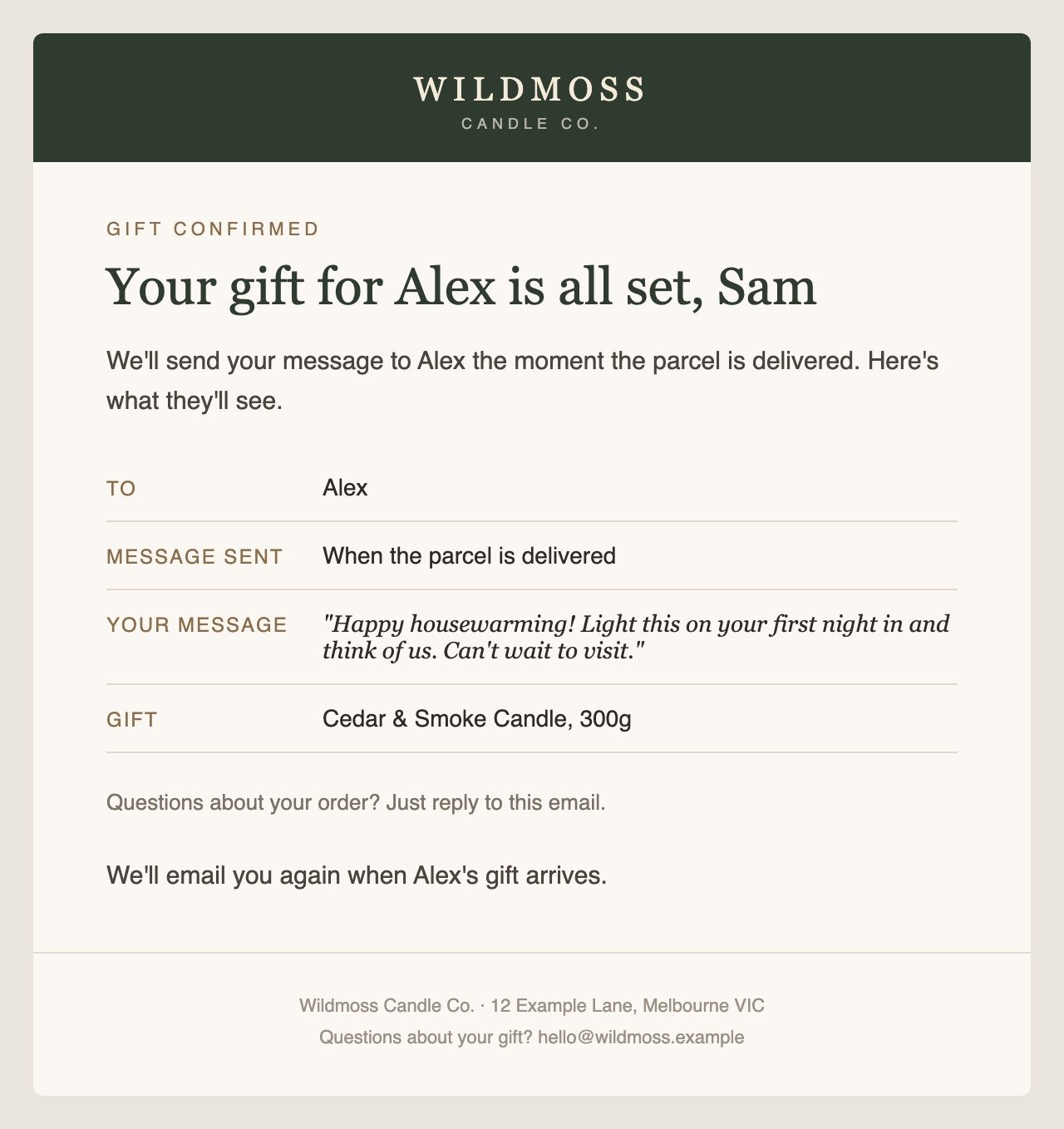
Flow 1: Placed Gift Order (gifter)
This email repeats back exactly what the recipient will see and when. No hook needed.
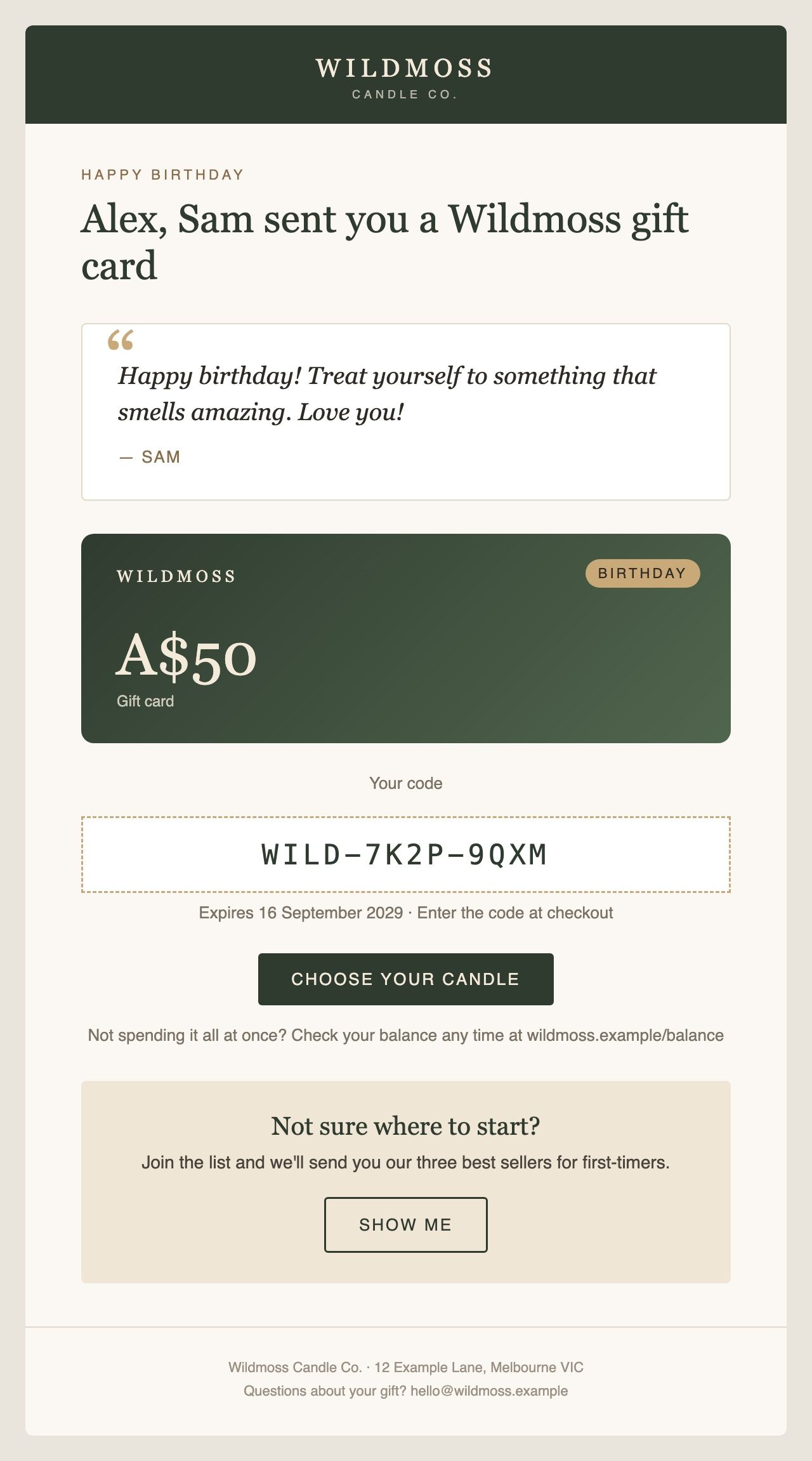
Flow 6: Received Gift Card (recipient)
The artwork changes by occasion through a gift card SKU split. The code, the value with its currency, and the expiry are easy to find.
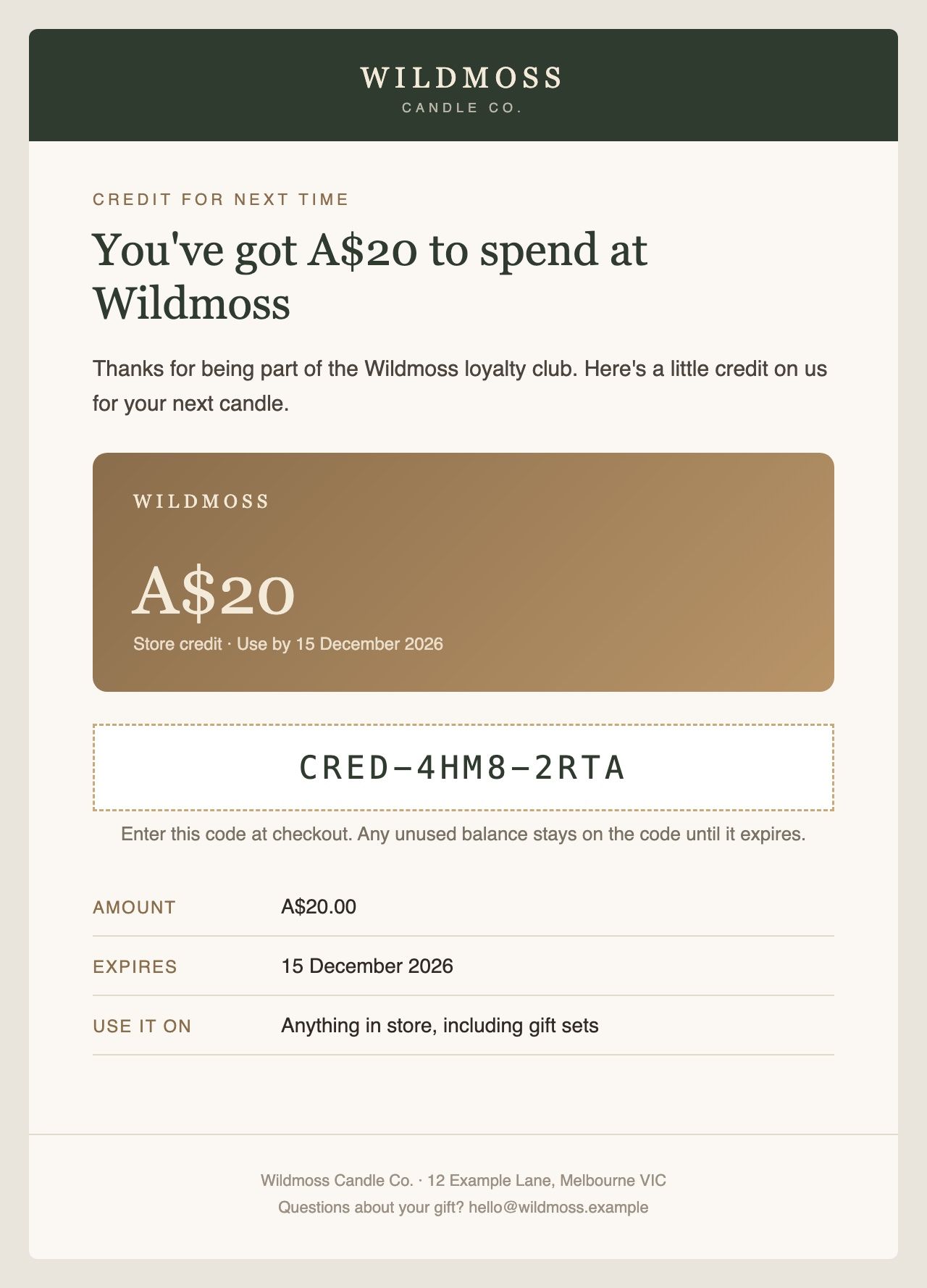
Flow 9: Issued Store Credit
This email leads with the amount and the expiry date, then explains how to use the credit.
See real designs from live brands in the Klaviyo Template Showcase.
Step 6. Get transactional approval
☐ Apply for transactional status on every flow you're using. Without it, recipients who haven't consented get nothing
☐ If a flow is rejected, cut the hook back to one line and a link, then resubmit through Klaviyo live chat
☐ Allow up to 24 hours for approval. Don't leave it until go-live day
☐ Tell the client that editing an approved template removes its transactional status until Klaviyo approves it again
Step 7. Go live
☐ Turn on the approved flows
☐ In the same sitting, turn off the matching notifications in Giftnote > Settings > Notifications
☐ Archive any duplicate copies of the flows
☐ Let us know at support@giftnote.com
Step 8. Test with real orders
☐ Place orders from the live storefront. Orders created in Shopify admin skip the gift widget
☐ One order for each scenario the client uses: on delivery (mark the order delivered in Shopify), send now, scheduled, gift card, store credit
☐ One test in each market and currency
☐ Check the inbox, not just Klaviyo. One email per scenario, no blanks, no
None
Step 9. Set up the basics for what comes next
☐ Exclude gift recipients from the client's welcome flow. It thanks them for an order they didn't place
☐ Build two segments: Gift recipients (has Received Gift Order or Received Gift Card) and Gifters (has Placed Gift Order or Purchased Gift Card)
Setup is done. Everything in Part 2 builds on these two segments.
Part 2: Extra work you can scope and charge for
Once the flows are live, the client has two audiences they never had before. Most of their gift recipients are new to the brand, and their gifters spend more per order and come back on a predictable calendar. Each project below stands on its own, so you can quote it as a one-off build or add it to a retainer.
1. Recipient conversion programme
The pitch: turn people who received a gift into customers who buy for themselves.
☐ A signup flow triggered by the hook in Flow 3 and Flow 6, not by the gift event itself
☐ Day 0: deliver what the hook promised
☐ Day 3 to 7: product story, how to use it, reviews. No offer yet
☐ Day 12 to 21: a first-order offer tied to the product they received, plus the product that goes with it. Anyone who orders exits the flow
☐ A/B test the hook in the gift email to lift the opt-in rate
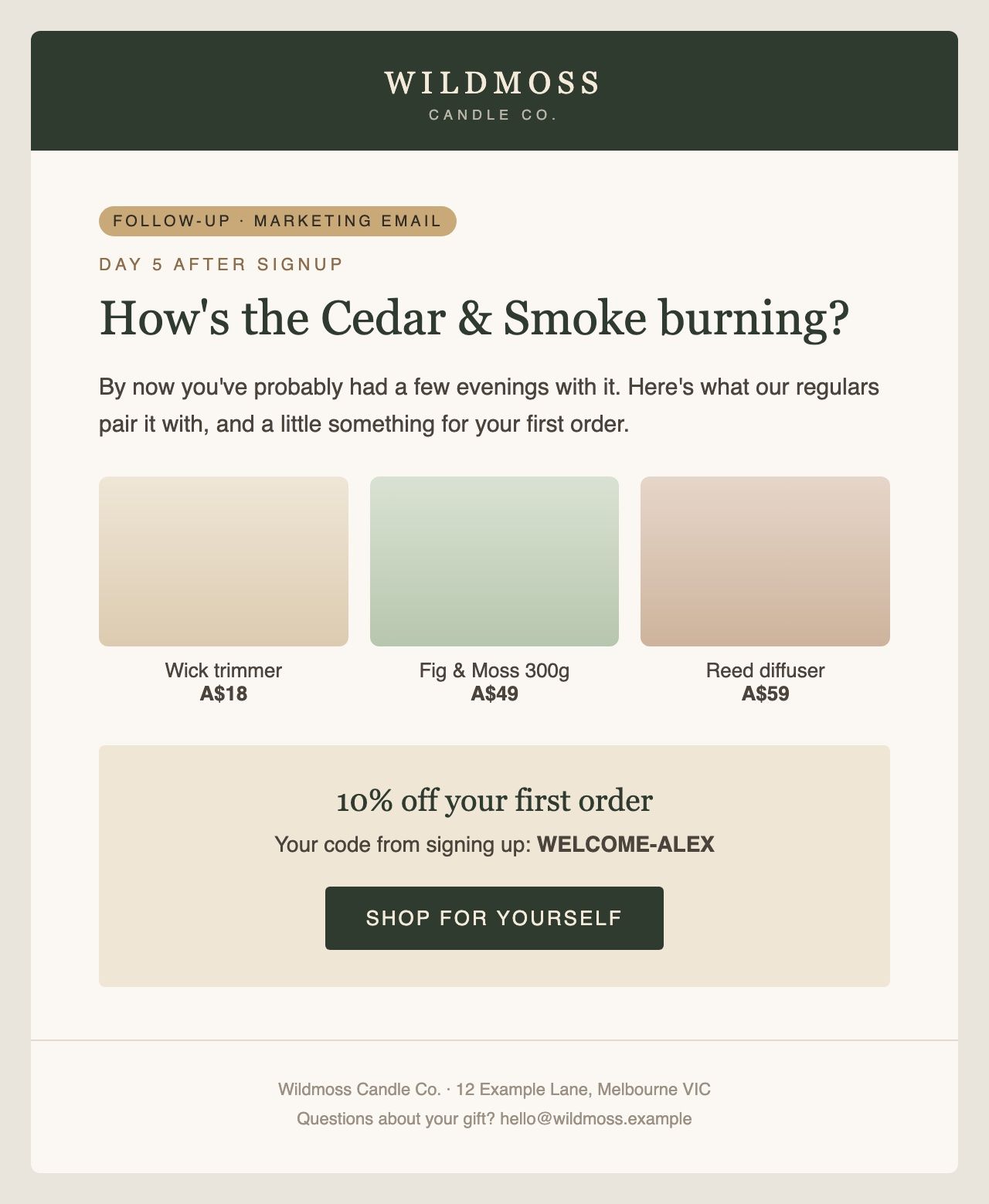
2. Gifter retention
The pitch: gifters already buy and come back for the same dates each year, so remind them before those dates.
☐ A thank-you email 2 to 3 days after Flow 2 (Gift Order Delivered), with "send another" or bundles
☐ An occasion reminder about 11 months after Flow 1: "Last year you sent a gift around now." Few brands send this, and it's one of the highest-returning gifting emails
☐ A repeat gifters segment (more than one gift order) with VIP treatment
3. Gift card revenue
The pitch: gift card balances left unspent are lost sales, and reminders get them spent.
☐ A spend nudge 30 to 60 days after Flow 6 if the card hasn't been redeemed, with best sellers at that price point
☐ An expiry reminder using the gift card expiry field
☐ A post-redemption email 7 to 14 days after Flow 8, with how-to content and a cross-sell
☐ Occasion designs (birthday, thank you, Christmas) split by gift card SKU
☐ A balance checker page on the site, linked from every gift card email
4. Store credit and cashback campaigns
The pitch: give credit back instead of a discount, so the promotion brings people back for another order.
☐ Design the offer: spend threshold, credit amount, expiry date
☐ Set up Shopify Flow to issue the credit through Giftnote. We can help with this
☐ Design the Flow 9 email
☐ Add an expiry reminder 7 to 10 days before the credit expires
☐ Test every market and currency before launch
5. Seasonal gifting calendar
The pitch: plan the client's gifting campaigns around real dates, not one BFCM email.
☐ Map the client's gifting dates: BFCM, Christmas, Valentine's Day, Mother's Day, Father's Day, graduations
☐ Send gifters early access and shipping cut-off dates two weeks before each date
☐ Send opted-in recipients seasonal campaigns
☐ Promote scheduled sending for gifts timed to a date
6. Corporate gifting outreach
The pitch: one corporate order can be hundreds of gifts.
☐ A segment of repeat gifters and anyone who has sent a single order to several addresses
☐ A Q3 and Q4 outreach flow inviting them to corporate gifting (Giftnote's Multi Gift portal is on the Professional plan)
7. Gifting performance report
The pitch: if the client can't see what gifting earns, they won't keep investing in it. A monthly report fixes that.
☐ Monthly figures: new gift recipients, opt-in rate from the hook, recipients who became customers, revenue from the recipient segment, repeat gifters
☐ Gift card figures: issued, redeemed, and balance still unspent
☐ Segment build steps are in Klaviyo + Giftnote segments
Klaviyo only has events from the date the integration was connected. For a campaign aimed at gift card holders from before that date, the first send needs an export from us.
If something isn't working
More fixes are in Troubleshooting Klaviyo + Giftnote. Send us your flow links at support@giftnote.com and we'll review them before you submit for approval.