5. Troubleshooting Multi-Gift Orders
Find a customer's multi-gift order and fix the common problems: CSV uploads, missing shipping rates, submission errors, approval, payment and missing recipient orders.
Written By Giftnote Team
Last updated 1 day ago
On the free plan or Core? Multi Gift needs the Professional plan. Choose a plan in Settings > Subscription in the app, or email support@giftnote.com and we’ll help you choose. Which plan do I need?
Use this when a customer has a problem with a Multi Gift order. Find the order first, then work down the list to the step that matches the problem.
1. Identify the order
Each order has its own link. For your default storefront it looks like this:
{your-shop-name}.giftnote.shop/orders/{order}
For any other storefront, the storefront’s handle comes before /orders:
{your-shop-name}.giftnote.shop/{storefront}/orders/{order}
If your store uses a custom domain (for example gifts.yourstore.com), the link starts with that instead. If you haven’t set a name under Shop name in links (Settings → Multi Gifts → Settings → Web address), the first part is your store ID. The letters and numbers at the end identify the order. Ask the customer for the full link so you know exactly which order they mean. If they don’t have it, see step 8.
2. Check the recipient file
Customers add recipients from a CSV or Excel (.xlsx) file, or one at a time. The most common problem is a row with a missing name, email address or shipping address, or a file in the wrong format.
An order can have up to 1,000 recipients by default, counting every group. You can change this under Recipients per order (Maximum recipients) on the storefront’s Settings tab. If a customer goes over, they see “CSV has exceeded the recipient limit” or Too many recipients for one order. For a bigger gift, they place a second order. The easiest way to get the format right is to download the template with Download template in the upload dialog and fill it in.
After a file is read, the dialog lists the recipients that Succeeded and the ones that Failed. The customer can add the good ones, select Download failed CSV to fix the rest and upload again, or select Add all recipients anyway? to add the failed rows with incomplete data and fix them in the recipient rows.
To fix it:
- If the customer’s own file won’t upload, ask them to start from the template in the upload dialog. Keep the template’s columns as they are.
- If a recipient has no contact details, the customer can use their own. Every recipient needs a name and a full address, unless the order is an e-gift.
- If you need to, ask the customer to send you their file.
- Once every row is filled in, upload the file again.
3. Review shipping settings
If shipping rates aren’t appearing, a recipient’s row shows one of these:
- Address unavailable (“We do not ship to this location”): your Shopify shipping zones don’t cover that address. Add the zone in Shopify, or ask the customer to remove the recipient or use a different address.
- Products not available at address: Shopify says these products can’t be delivered to that address. The customer can put that recipient in their own group with different gifts, or remove them.
- No shipping options available: the customer can select it to try fetching rates again.
Then check these:
- Check the addresses in the file for mistakes.
- Check your Shopify shipping settings cover the recipients’ countries and regions.
- Open the storefront’s Shipping tab (Settings → Multi Gifts → Edit on the storefront’s card). By default a storefront charges your Base rates, which are prices you set by cart value, so there has to be at least one base rate. Live rates are off until you turn on Use Shopify rates. Use carrier-calculated rates needs Use Shopify rates first. If live rates return nothing for a recipient, Giftnote uses your Base rates, so check that list too.
- With live rates, keep Maximum recipients (storefront Settings tab, under Recipients per order) below 250 with Shopify rates or below 50 with carrier rates. At or above that, checkout may time out and fall back to your base rates.
Still no rates? Chat with us using the chat button in the help center or in the app, or email support@giftnote.com.
4. Order submission issues
If a customer can’t submit the order:
- Check they’ve filled in Customer info: First name, Last name and Email are required, and the email has to be valid. Their Billing address has to be complete.
- The Your order panel lists everything left to fix, under a heading like “2 things to fix before you submit”. Common ones: a group with no gifts or no recipients, recipients without an address, or an order that’s too small. The customer can’t submit until each one is fixed.
- Check the storefront’s Pricing tab. An order below the Order total, Each cart or Recipients minimum (under Minimums) can’t go through.
If the customer sees Checkout couldn’t be created, their order is saved. Ask them to try again. If it keeps happening, contact support. We were unable to save your order means the order itself wasn’t saved. Ask them to try again too.
5. Managing orders
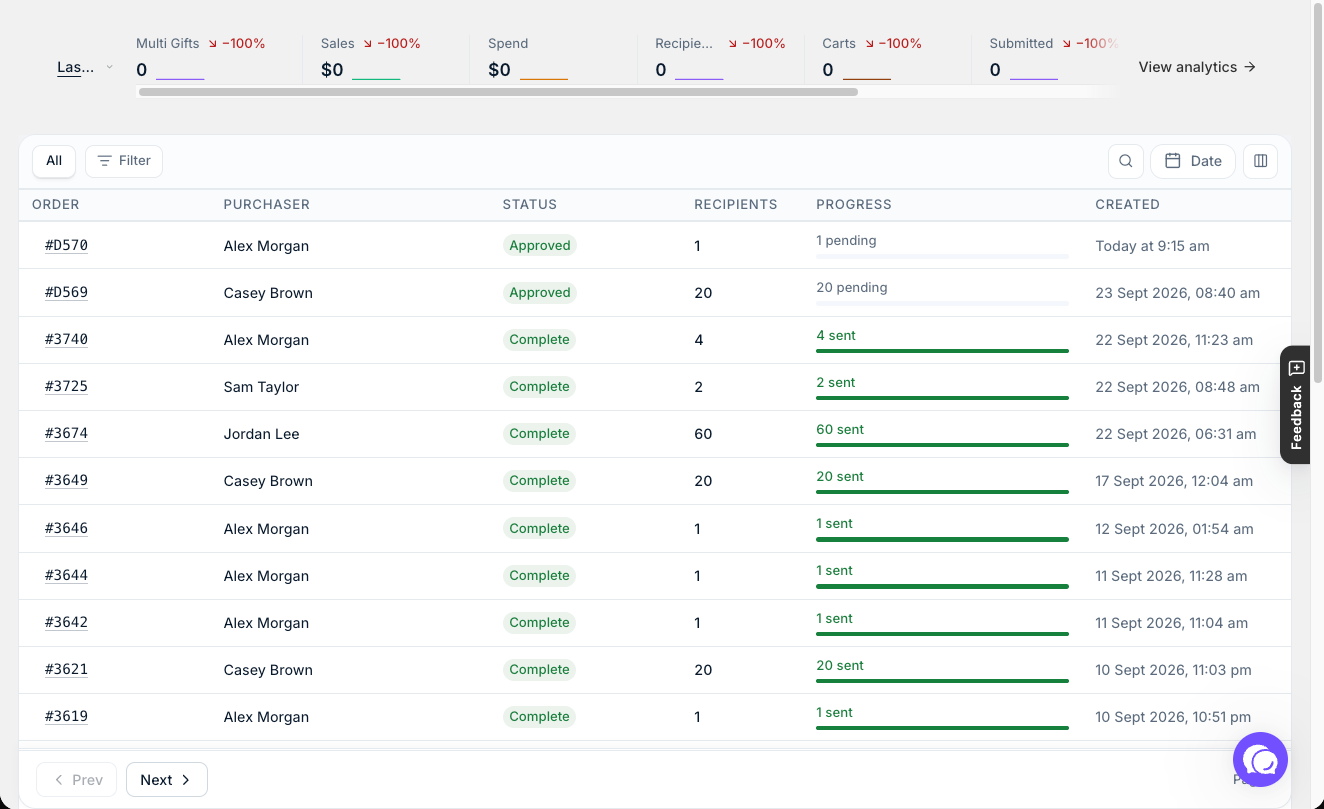
Find an order under Multi Gifts in Giftnote. You can search by purchaser or order, and filter by status. Select an order to open it.
Giftnote’s staff alerts (Multi Gift - Placed, Multi Gift - Paid, Multi Gift - Error (Staff), and Multi Gift - New Submission when approval is on) go to the contacts with Administration ticked in Settings → Profile. You can also check Multi Gifts in Giftnote for new orders.
If Require your approval before recipient orders are created is on (Settings → Multi Gifts → Edit settings), a new order waits for you. Open it and select Approve, or open More actions and select Deny (you pick a reason and the customer is told it). Giftnote creates the recipient orders once you approve.
If product quantities or details need changes:
- Make the change in Giftnote, not in Shopify. On the Multi Gift’s page, select Edit order (it shows while the order can still be edited) to change the recipients, messages or groups, or Edit customer to change the customer’s name, email or phone number.
- The customer can also reopen their order link and use Edit Order on the review page, if Edit order is on in the storefront’s Settings tab (under Ordering). It’s on by default. Once the order is paid or sent to the store, it can’t be edited any more.
Don’t edit the main draft order in Shopify. Make changes in Giftnote instead. Edits made to the draft in Shopify don’t sync back to Giftnote.
Two actions on the Multi Gift’s page help when something stalls:
- Reprocess refreshes the Multi Gift’s details. Nothing is charged and no new orders are created.
- Pause child orders stops new recipient orders being created in Shopify until you select Resume child orders. Recipients that already have an order keep going, and nothing is canceled or refunded.
6. Checkout and payment
Once paid:
- If Cancel the main order once it’s paid is on (Settings → Multi Gifts → Settings), Giftnote cancels the main order in Shopify once payment is confirmed and every recipient order exists, without restocking. If it’s off, the main order stays open.
- Giftnote creates one Shopify order per recipient, tagged GNMG-Child plus a shared family code that links them to the main order.
Paid, but no recipient orders yet?
- If the payment was invoiced or authorized but not yet captured, the main order stays open until the payment settles.
- If Hold every order for review before it can ship is on (Settings → Multi Gifts → Settings, under Hold orders on creation), the orders exist but start on hold in Shopify until you release them.
- If someone selected Pause child orders, select Resume child orders on the Multi Gift’s page.
- If one recipient is missing its order or shows Failed, open that recipient in the Recipients table and select Reprocess. Giftnote re-checks the recipient against Shopify and finishes anything that didn’t complete, like a missing order. Anything already done stays as it is.
7. Verify orders and gift data
In Shopify:
- Open the new recipient orders.
- Gift messages and delivery dates are saved in Giftnote’s metafield on the order (a hidden data field Giftnote reads to process the order). Answers to your own custom fields go wherever you chose under Write the answer to on the storefront’s Form tab.
- They only show under Additional details (order attributes) if Also save as order attributes (legacy) is on (Settings → Gift orders, in the Orders section) or you’ve mapped them with Field maps (the storefront’s Settings tab, under Legacy settings). You only need that if your theme, packing slips, Shopify Flow, Order Printer or 3PL reads them. Shops that had the setting on before the September update keep it. If it’s off and you need it, contact Giftnote support.
To view or edit a recipient’s gift message, open the Multi Gift in Giftnote, then open the recipient.
The Multi Gift’s Recipients table shows each recipient’s Shopify Order and Order state, and you can filter it by status (Created, Confirmed, Pending, Processing, Complete, Failed). Open a recipient to see its timeline and any notices.
8. Handling customer reports
If a customer reports an issue:
- Ask for the full order link.
- If they don’t have it, find the order under Multi Gifts in Giftnote. Search by the purchaser’s name or the order.
- In the Multi Gift’s page, select Review order to open the page your customer sees.
- In Shopify, search the order’s family code tag (GNMG- followed by the code) to see the main order and every recipient order together.
- Open the Multi Gift to check its status, recipients and timeline.
- If the problem is with recipient details, ask for their file.
9. The Giftnote block on a Shopify draft order
When your customer checks out, Giftnote creates one Shopify draft order for the whole gift. This is the main draft order, and it’s what your customer pays. You can add a Giftnote block to it, so you can get back to the Multi Gift from Shopify.
To add the block:
- In Shopify admin, go to Orders > Drafts and open the Multi Gift’s draft order.
- Under Blocks, add the Giftnote multi-gift block and pin it to the page.
- Reload the page.
The block has the heading Multi-gift order. It shows the Multi Gift’s status and three buttons:
- Edit order opens the order page where you change recipients, messages or groups. It only shows while the order can still be edited.
- View order page opens the page your customer sees.
- Open in app opens the Multi Gift in Giftnote.
If the draft order wasn’t made by Giftnote, the block says “This draft isn’t a Giftnote multi-gift order.” If the order was made by a different Giftnote app on your store, it says it can’t be managed from this one.
The line under the status shows the number of recipients and, once recipient orders are being created, how many have been sent and how many have failed.
10. Where customers find their past orders
Customers can’t sign in to see a list of their orders yet. The Your orders page says “Order history is coming soon” and tells them to use the link in their order confirmation email to track an order.
So the order link is the way back to an order:
- If a customer lost their link, find the order under Multi Gifts in Giftnote, open it and select Review order. Send them the address of that page.
- A draft order a customer never submitted is deleted after the Saved drafts timer (Settings → Multi Gifts → Settings → Cleanup timers). Carts that were never saved as a draft are deleted after the Abandoned carts timer. After that, the link shows “This order has expired”, with a Start a new order button. See Why does the Multi Gift portal not appear in Google? for the timers.
11. When to contact support
Contact us if:
- Shipping details don’t sync correctly.
- Orders fail to create after payment, even after Reprocess.
- The recipient file keeps failing after corrections.
We can check your setup and fix system issues. Chat with us using the chat button in the help center or in the app, or email support@giftnote.com.
Related articles
Was this helpful?
Still need help? Share an idea