6. Gift Card Not Received by Recipient
A gift card never reached the recipient? Check the product setup, whether it went to the buyer, Auto Fulfill, your Klaviyo flows and the recipient's email.
Written By Giftnote Team
Last updated 17 days ago
A customer bought a gift card for someone and the recipient never got it. One of six things is almost always the cause, and you can check most of them yourself in a few minutes.
Most common causes
- The gift card product isn't set up right. Giftnote doesn't know about the product, or its inventory or shipping settings are wrong.
- The gift card went to the buyer, not the recipient. The customer added it to their cart without filling in the recipient's details.
- The order is waiting to be fulfilled. Auto Fulfill is off, so the order sits unfulfilled and the code doesn't go out.
- Your Klaviyo flows have stopped. This often happens after reinstalling Giftnote.
- The recipient's email is wrong. A typo or a hidden space stops the email arriving, with no error.
- Giftnote's own emails and Klaviyo are both off. You turned off Giftnote's emails to switch to Klaviyo, but the Klaviyo flows aren't live.
Check your gift card product setup
This is the most common cause. Giftnote only issues gift cards for products it knows about, and the product's Shopify settings have to be right.
Start in Giftnote. Go to Settings → Gift Cards → Products. Products with the vendor Giftnote Gift Card are Giftnote gift cards. The top of the list shows how many products need fixing. Those won't process new gift cards properly. After you fix a product, click Refresh. The list also shows products that look like gift cards but haven't been added yet.
Then check the product in Shopify:
- Click Edit next to the product on the Giftnote Products page, or open it in Shopify under Products.
- Turn off "This is a physical product". In the Shipping section, untick it, or customers pay shipping on a digital gift card. If you don't see a Shipping section, check each variant.
- Turn off inventory tracking. In the Inventory section (or on each variant), untick Track quantity. With tracking on, gift card codes can come out invalid.
- Check the product template. Near the bottom of the product page, under Online store, check the Theme template. If your theme has a
gift-cardtemplate, the product should use it. Not sure? Chat with us. - Check how the product was made. A Giftnote gift card must be a brand-new Shopify product. It can't be converted from another product or copied from a Shopify gift card. If nothing else works, create a new one. The quickest way is Settings → Gift Cards → Products → Create gift card product: enter a name and amounts, and Giftnote creates the product in Shopify for you.
- Keep only one Giftnote gift card product live. If several are published, archive all but one. More than one can send gift cards down the wrong route.
To check it worked: the product shows Active, with the vendor Giftnote Gift Card, in Settings → Gift Cards → Products and no longer needs fixing. Place a test gift card order from your live store (not from Shopify admin). The recipient should get the gift card email within a few minutes.
Check whether the gift card went to the buyer instead of the recipient
If a customer adds the gift card to their cart without entering a recipient in the Giftnote gift card widget, Giftnote has no one to send it to. Shopify then sends the code to the buyer.
- In Giftnote, click Gift Cards and find the order.
- Check the RECIPIENT column. If there's no Giftnote gift card for that order, or no recipient on it, the customer skipped the gift step and the code went to the buyer's email.
You can also check the order in Shopify. Giftnote saves gift details in its own field on the order (a metafield). Fields like giftnote_to, giftnote_email and giftnote_message only appear under Additional details if Also save as order attributes (legacy) is on in Settings → Gift Orders → Settings → Orders. It's off by default, and shops that already had it on keep it.
To fix it for this customer: contact support with the order number. We can re-issue the gift card and send it to the right recipient.
To stop it happening again: put the Giftnote Gift Card Message app block on your gift card product page. The checkout widget doesn't work for gift cards. Only the product page block sends gift cards the right way. Settings → Gift Cards shows whether the Send as a gift · Product page widget is Detected on your published theme.
You can also remove the normal Add to Cart button from your gift card product template, so customers have to use the Giftnote widget.
Check that the gift card order has been fulfilled
Giftnote marks gift card orders fulfilled as soon as they finish processing, and then sends the code. If someone turned Auto Fulfill off (for example, to review orders for fraud), gift card orders wait unfulfilled until someone fulfils them by hand.
- Go to Settings → Gift Cards → Settings and check Automatically fulfill gift card orders under Fulfillment.
- If it's off on purpose, fulfil the waiting gift card orders in Shopify after your review.
- If it's off by mistake, turn it back on.
Check whether your Klaviyo flows are live
If Klaviyo sends your gift card emails, the connection and flows must be live. Reinstalling Giftnote can disconnect older Klaviyo flows without warning.
- In Giftnote, open Settings → Integrations. Klaviyo should be listed under Connected, marked On. Click Manage settings and check the Received Gift Card event is switched on. Click Test on that event to send a test to Klaviyo.
- In Klaviyo, go to Flows and find the flow triggered by Received Gift Card (the gift card email to the recipient). Purchased Gift Card and Gift Card Delivered go to the buyer, and Gift Card covers gift cards bought with no message. You can rename events on the integration page, so check your names.
- Make sure each flow is set to Live. Draft or Manual flows don't send by themselves. If your flows went back to Draft after a reinstall, check each one uses an event name shown on the Klaviyo integration page, then set it live. On a paid plan (Core or Professional), we can copy our template flows into your Klaviyo account. Chat with us or email support@giftnote.com.
- Check Giftnote's own emails are off for the same notifications. If both are on, recipients get two emails. If both are off, they get nothing. Go to Settings → Notifications and, for each gift card notification Klaviyo now sends, turn off the Email switch on its row.
To check it worked: your flows show as Live, and the flow shows new events after the next gift card purchase (or after you click Test).
Check the recipient's email address
A typo or a hidden space in the recipient's email stops the email arriving. The gift card can show as sent in Giftnote even though nothing arrived.
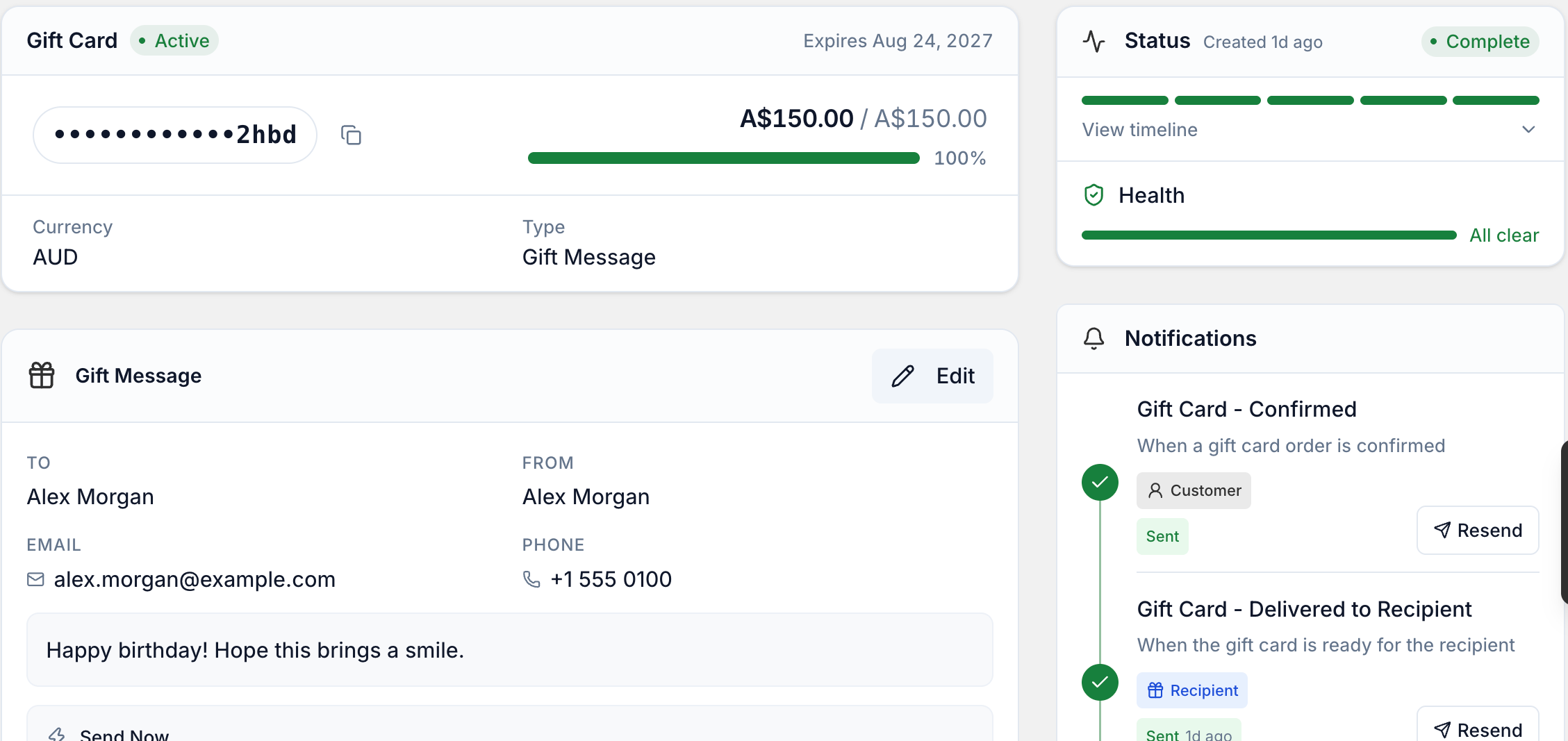
- In Giftnote, click Gift Cards, open the card and check the email on the Gift Message card.
- Look for a misspelled domain (gmial.com instead of gmail.com), a space before or after the address, or missing letters.
- Ask the buyer to confirm the right address. If it's wrong, click Edit on the Gift Message card and fix it. Saving doesn't send the gift card again. Check the card's Timeline to see what's been sent, then chat with us with the correct email and we'll re-issue it.
- Don't use Send now on a gift card to push it out again. The recipient can end up with a duplicate.
Check for a gap between Giftnote's emails and Klaviyo
This happens when you turned off Giftnote's own emails to move to Klaviyo, but the Klaviyo flows never went live, or Klaviyo is still reviewing your transactional emails.
- In Giftnote, go to Settings → Notifications. Check whether the Email switch is on for each gift card notification.
- If it's off, check your Klaviyo flows are Live (see the section above). If they're still Draft or waiting for Klaviyo's transactional approval, set them live, or turn Giftnote's own emails back on until they are.
Klaviyo's transactional approval can take up to 24 hours. If you're about to go live or it's a busy gifting period, keep Giftnote's own emails on until approval comes through.
Still not working?
- Check your Shopify spend limit. If your store has reached its app billing limit for the period, Giftnote can pause processing until the charge goes through. Your limit shows in Settings → Subscription. To raise it, go to Shopify admin → Settings → Billing → View all subscriptions → Giftnote → View spending limit. See Increase Your Shopify Billing Spend Cap.
- Check it isn't a Shopify gift card product. Giftnote gift cards must be regular Shopify products, not Shopify's own gift card product type. Giftnote lists Shopify gift card products in Settings → Gift Cards → Products but can't use them. If yours is one, create a new regular product.
- Check the card's Health. Open the gift card in Giftnote and look at the Health card for warnings.
- Ask the recipient to check spam. Their email provider may have filtered the gift card email.
- Chat with us using the chat button in the help centre or in the app. Include your store URL, the Shopify order number and the recipient's email, and we'll look into it and re-issue the card.
Related articles
Was this helpful?
Still need help? Share an idea