3. Email Notification Types in Giftnote
Every Giftnote notification: who receives it, when it goes out, which channels it uses, and how Giftnote's own emails and Klaviyo fit together.
Written By Giftnote Team
Last updated 5 days ago
Every notification Giftnote sends, who gets it and when. Use it to check what your customers and their recipients receive, and to avoid sending the same email twice.
Why this matters
Every gift order involves two people: the person who bought the gift (the customer, or gifter) and the person receiving it (the recipient). Giftnote emails both of them at different moments. Knowing which email goes to whom helps you answer questions and spot duplicates.
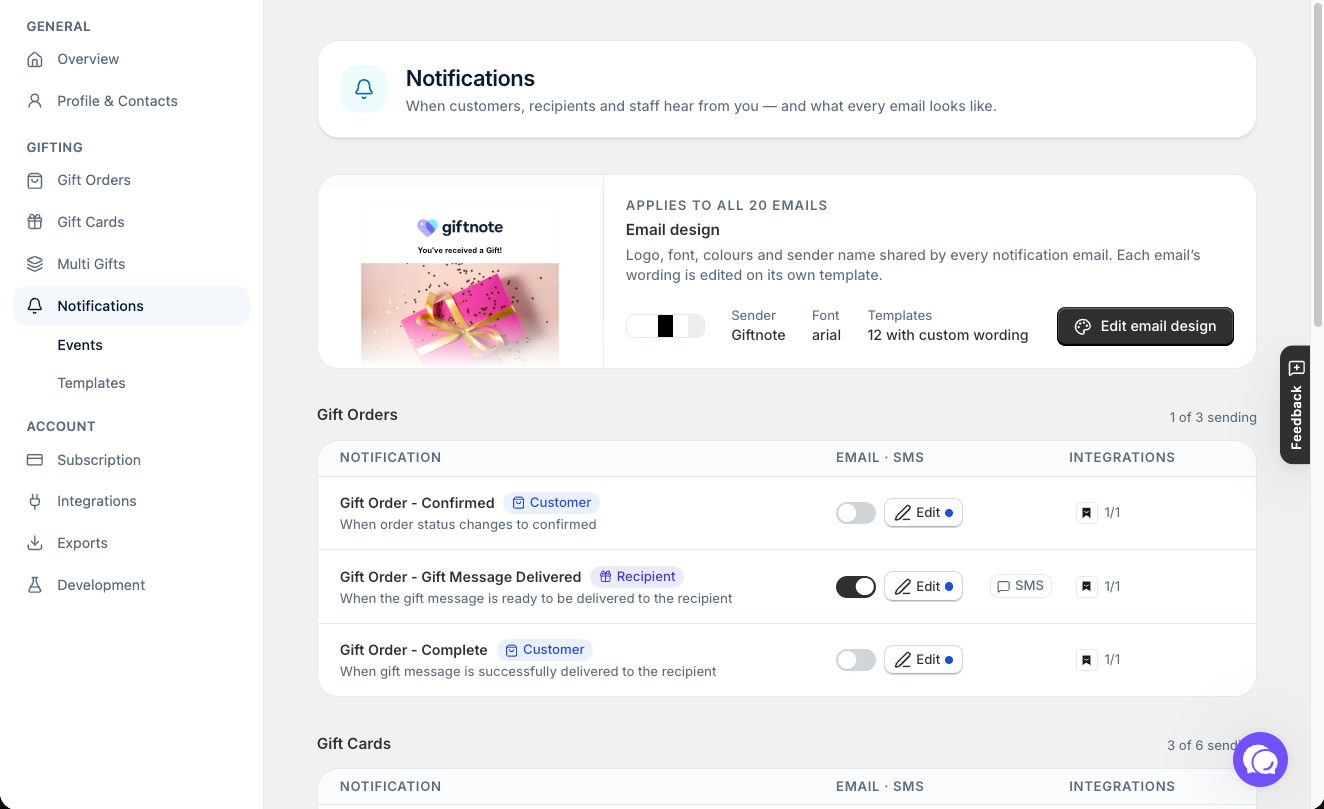
To see the full list, open Giftnote → Settings → Notifications. Each notification shows a Customer or Recipient badge, a one-line description, and icons for the channels it uses (email, SMS and any connected integrations).
Quick reference
Gift orders
Gift cards and store credit
Multi Gift
If you use Multi Gift, Settings → Notifications also lists:
- Multi Gift - Confirmed and Multi Gift - Complete, to the buyer. Complete goes out once every recipient has their own order, usually minutes after Confirmed, not when the gifts arrive. Shopify's order confirmation already covers the payment, so you can switch Confirmed off to send one fewer email.
- Multi Gift - Claim Request and Multi Gift - Claim OTP, to recipients claiming a gift without a shipping address.
- Three staff alerts, labelled Staff: Multi Gift - Placed, Multi Gift - Paid and Multi Gift - Error. These go to the contacts you set in Settings → Profile & Contacts.
If you used Giftnote before September 2026
The previous version of the app had one email per delivery method. Here's where each one is now:
Emails sent to the recipient
These are the emails that tell someone they've been given a gift.
Gift Order - Gift Message Delivered
The gift message itself, and the most important notification. When it goes out depends on the delivery option the customer chose:
- On Delivery: when the carrier marks the parcel as delivered, so the recipient hears about the gift as it arrives.
- Send Now: 15 minutes after checkout. Customers pick this when they want the recipient to know straight away, for last-minute or digital gifts.
- Send Later: on the date and time the customer picked in the gift message widget, such as a birthday.
- On Fulfillment: when you fulfil (ship) the order, without waiting for delivery.
See Delivery Options for more on each one.
The email includes the gifter's name, their message and your branding. To preview each version, open Settings → Notifications, click Edit email design and pick Send Now, Send Later, On delivery or On fulfillment under Delivery method in the preview.
Gift Card - Delivered to Recipient
Goes out when the delivery time arrives: straight away for Send Now, or on the scheduled date for Send Later. The recipient gets the code themselves. (Shopify's own gift cards send the code to the buyer instead.)
It includes the gift card code, the amount, the gifter's message and a link to your store.
Gift card balance reminder
Giftnote doesn't send a balance reminder email. When someone spends a gift card, Giftnote sends a Redeemed Gift Card event to your email tool, such as Klaviyo. Build a flow there to remind the recipient they still have credit to spend.
Gift Card - Store Credit Issued
Goes out when you issue store credit from the Giftnote app, for example as a customer service gesture, an influencer gift or a loyalty reward. It tells the recipient that credit has been added to their account.
Gift Card - Generic
Goes out for gift cards with no message and no scheduled delivery, for example when someone buys a gift card for themselves. It confirms the purchase and sends the code and amount to the buyer.
Emails sent to the customer (gifter)
These emails tell the person who bought the gift what's happening with it.
Gift Order - Confirmed
Goes out at checkout once the gift message is queued or scheduled. It confirms the recipient's name, the delivery option and the message.
Gift Order - Complete
Goes out once the recipient has received the gift message, to confirm it arrived.
Gift Card - Confirmed and Gift Card - Complete
The same pair for gift card orders: one when the order is confirmed, one when the gift card delivery is complete.
Two ways to send these emails
You can send each notification through Giftnote's own emails or through Klaviyo. Pick one per notification. If both are on, people get two copies.
Giftnote's own emails (default)
These are ready to send with Giftnote's built-in templates. Brand them in Settings → Notifications → Email design, where you can:
- Upload a logo or paste a logo URL, and set its height.
- Set a font, and choose body, header, backdrop and border colours (or one accent colour for every email).
- Set the Email sender name recipients see in their inbox, and an optional Reply-to address so replies reach you.
Giftnote sends these emails from its own address, not your email domain. If deliverability matters to you, use Klaviyo instead.
Giftnote's own emails carry a small "Powered by Giftnote" mark in the footer on every plan. For fully branded emails, send them through Klaviyo.
Klaviyo integration (recommended)
With Klaviyo, your gift emails come from your own domain, and you control the design, segments and flows.
Connect Klaviyo in Settings → Integrations → Klaviyo. That page lists the events Giftnote sends to Klaviyo, each with a switch, a Test button and an Edit option to rename it. Klaviyo's event names differ from the names in Settings → Notifications:
- Placed Gift Order: the customer's confirmation. It includes a Delivery Method property (Send Now, Send Later, On Delivery or On Fulfillment).
- Gift Order Delivered: the customer's "your gift was delivered" email.
- Received Gift Order: the recipient's gift message (Gift Order - Gift Message Delivered).
- Received Gift Card: the recipient's gift card.
- Purchased Gift Card and Gift Card Delivered: the customer's gift card emails.
- Issued Store Credit, Gift Card (no message or self-purchase) and Redeemed Gift Card.
- Multi Gift Created, Multi Gift Approved and Multi Gift Complete.
On a paid plan (Core or Professional), we can copy template flows into your Klaviyo account for you. Chat with us using the chat button in the help centre or in the app, or email support@giftnote.com.
Iterable, Attentive and Ometria use the same events. See Klaviyo Giftnote Events.
If you connected Klaviyo before September 2026: the older Giftnote - Order Scheduled and Giftnote - Order Tracked events both map to Placed Gift Order now. Giftnote keeps sending both old metric names to migrated shops, so your existing flows keep working. Build new flows on the current event names.
Turn off Giftnote's own email as soon as the matching Klaviyo flow goes live. Otherwise recipients get two emails.
- Go to Settings → Notifications and open the notification.
- Under Channels, Email and SMS each have an on/off switch and Edit template. Connected integrations such as Klaviyo have their own switch.
- Switch Email off. Repeat for each notification Klaviyo now sends.
What about SMS?
Giftnote always sends SMS itself, even if Klaviyo or another tool sends your emails. The SMS goes out at the same moment as the email.
- Only recipients get SMS. In Settings → Notifications, SMS is available on Gift Order - Gift Message Delivered, Gift Card - Delivered to Recipient, Gift Card - Store Credit Issued, Gift Card - Generic and Multi Gift - Claim Request. Edit the text in those notifications.
- SMS is included on the Core and Professional plans. Each notification that supports SMS has its own SMS switch under Channels. You can include links in the SMS.
- Message length: gift messages can be up to 500 characters, in the widget, at checkout and when you edit one in the Giftnote app.
Key things to know
- Don't run a Klaviyo flow and Giftnote's own email for the same notification. People get duplicates. Turn Giftnote's email off when your flow goes live.
- Giftnote has no balance reminder email. Build it in Klaviyo (or your email tool) from the Redeemed Gift Card event.
- SMS doesn't depend on your email choice. Giftnote sends it either way, and you edit it in Settings → Notifications.
- Integrations and Settings → Notifications use different names for the same moments. Use the list above when you build flows.
Related articles
Was this helpful?
Still need help? Share an idea