7. Gift Card Showing as "Invalid" in Giftnote
Gift cards showing as invalid? Start on Settings → Gift Cards → Products, then check inventory tracking, the product setup and whether customers skipped the widget.
Written By Giftnote Team
Last updated 27 days ago
Customers are buying gift cards, but Giftnote shows them as "Invalid" or with a Health warning. One of three things is almost always the cause, and you can fix all of them.
Check the gift card Products page first
In Giftnote, go to Settings → Gift Cards → Products. It lists every gift card product. Products with the vendor Giftnote Gift Card are Giftnote gift cards. The top of the list shows how many products need fixing. Those won't process new gift cards properly. Click Edit next to a product to fix it, then click Refresh after you save a fix.
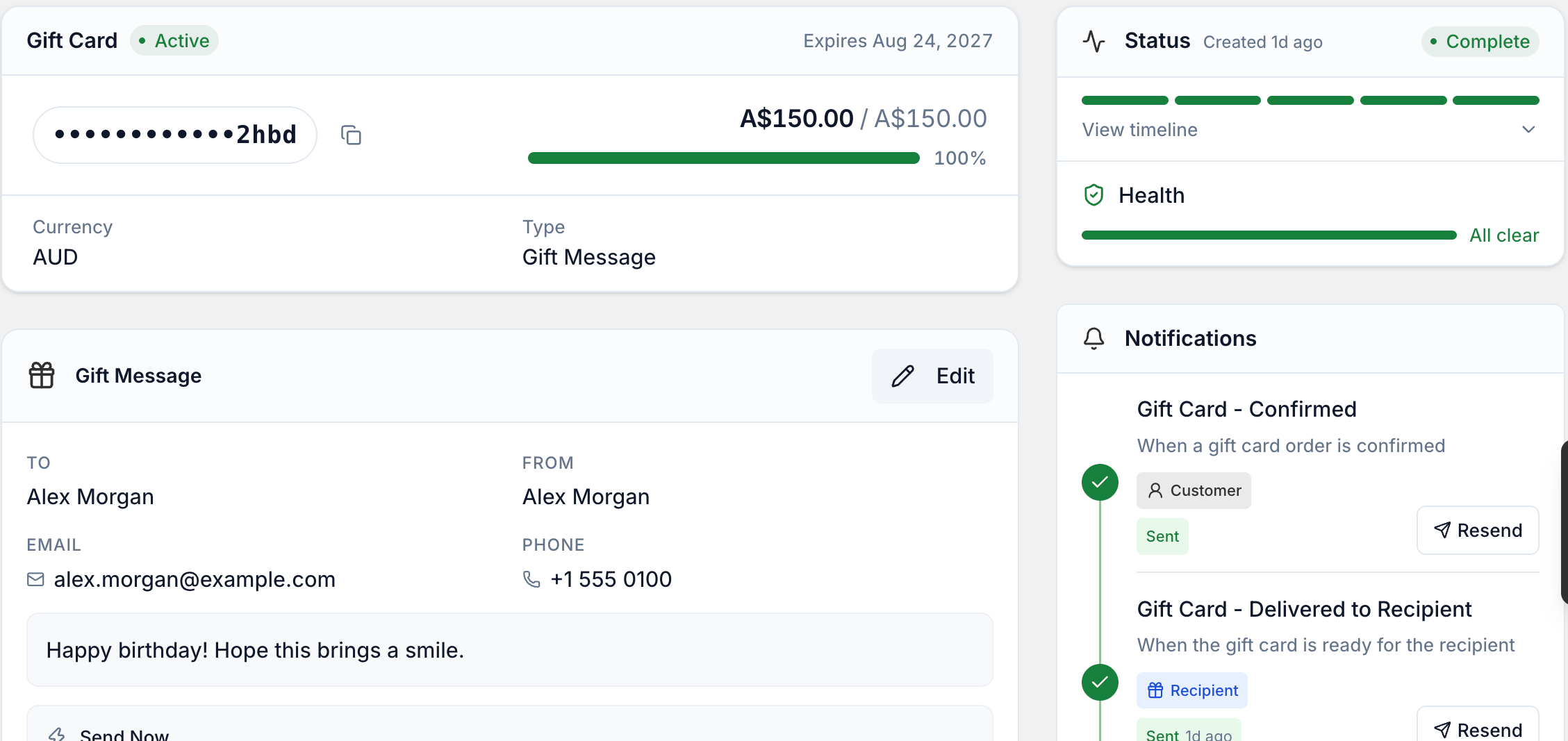
To see what's wrong with one card, open it from Gift Cards and check its Health card.
Most common causes
- Inventory tracking is on for the gift card product. This is the most common cause. Shopify makes gift card codes invalid when it tracks inventory on the product.
- The gift card product isn't set up right. Giftnote doesn't know about it, or it was copied from another product instead of created new.
- The customer skipped the Giftnote widget. They added the gift card to their cart without entering a recipient, so Giftnote never created a gift card.
Inventory tracking is on for the gift card product
When inventory tracking is on, Shopify creates gift card codes that are invalid straight away.
- In Shopify admin, click Products and open your Giftnote gift card product.
- In the Inventory section, untick Track quantity.
- Open each variant (for example
$25,$50,$100) and untick Track quantity there too. Variants don't copy this setting from the product. - Click Save.
After the fix: new purchases get valid codes. Codes issued while tracking was on may stay invalid. Chat with us using the chat button in the help centre or in the app, with your store URL and the affected order numbers, and we'll re-issue those codes.
The gift card product isn't set up right
Giftnote only issues gift cards for products listed in Settings → Gift Cards → Products. A product copied from another product can fail with no error.
- Check the product is listed in Settings → Gift Cards → Products.
- In Shopify, check This is a physical product is unticked in the Shipping section.
- Check the Theme template (near the bottom of the product page) is set to
gift-card. - Click Save, then click Refresh in Settings → Gift Cards → Products. The product should show Active and no longer need fixing.
If the product was copied or converted from another product, create a new gift card product and archive the old one. Copied products can carry hidden settings that cause failures now and then. See Add eGift Cards for how to set one up.
If it's one of Shopify's own gift card products, Giftnote can't use it. Create a new regular product instead.
The customer skipped the Giftnote widget
If a customer adds the gift card to their cart without entering a recipient in the Giftnote widget, Giftnote doesn't create a gift card. Shopify treats it as a normal purchase. This usually happens when:
- the gift card product page doesn't have the Giftnote gift card widget on it, or
- the customer adds it from a collection page or a quick-add button.
To stop it happening again:
- Put the Gift Card Message app block on your gift card product template. It's a different block from Gift Order Message. Settings → Gift Cards shows whether the Send as a gift · Product page widget is Detected on your published theme. To add it, go to Online Store → Themes → Customize, open your gift card product template and add the block.
- Remove the normal Add to Cart button from the gift card product template, so every customer goes through the Giftnote widget. Your theme developer can do this. On a paid plan (Core or Professional), we can do it for you. Chat with us or email support@giftnote.com and we'll send a Shopify collaborator request.
Orders already affected: Shopify sent the gift card code to the buyer in their order confirmation. You don't need to do anything unless the buyer wants it sent to someone else. If they do, chat with us and we'll re-issue the code to the recipient.
Still not working?
- More than one gift card product live? Keep one Giftnote gift card product published and archive the rest. Settings → Gift Cards → Products lists them all.
- Is the Giftnote app embed on? The Giftnote app embed card on Settings → Overview shouldn't say Off. If it went off (often after publishing a new theme), gift cards stop processing. Turn it back on in Online Store → Themes → Customize → App embeds.
- Have you hit your Shopify spend limit? If your app charges reach the limit, Giftnote stops processing until you raise it. Queued gift cards then go through. Your limit shows in Settings → Subscription. See Increase Your Shopify Billing Spend Cap.
- Chat with us using the chat button in the help centre or in the app. Include your store URL, the affected order numbers, and screenshots of the product's Inventory settings and of Settings → Gift Cards → Products.
Related articles
Was this helpful?
Still need help? Share an idea