6. Integrations and notifications
What changed for integrations and notifications in the September 2026 update: supported tools, per-event control, Klaviyo event names, and test buttons.
Written By Giftnote Team
Last updated 1 day ago
Integrations and notifications
Your connected tools keep working after the September 2026 update. What changed is how much you control: you pick which events each tool receives, add extra fields, rename events in Klaviyo, Iterable and Attentive, and test them from the app. If you use Klaviyo, read the note on event names below.
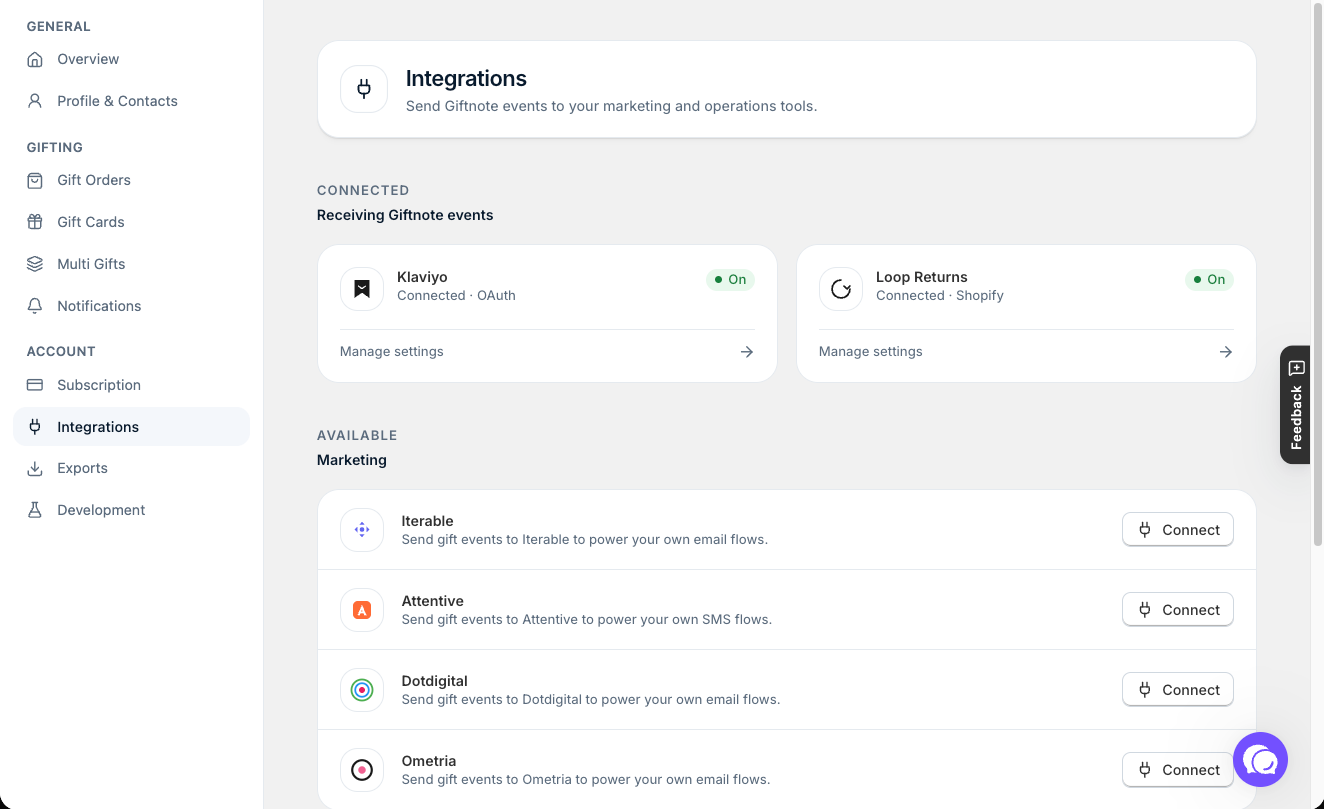
The lineup
For marketing, Giftnote connects to Klaviyo, Iterable, Attentive, Dotdigital and Ometria. For operations, it connects to Loop Returns, Rebuy and Shopify Flow. Connect or set up any of them in Settings → Integrations.
The Yotpo Email integration has been retired and is no longer supported. If you used it, see Yotpo Email has been retired for what to switch to.
Every gift moment is an event
Giftnote sends a separate event for each gift moment. For gift orders these are Placed Gift Order, Gift Order Delivered and Received Gift Order. Gift cards have their own, such as Redeemed Gift Card. On each integration’s settings page, choose which events it receives, and select Edit on an event to add extra fields. Klaviyo, Iterable and Attentive also let you rename an event to match your flows.
Klaviyo users: Placed Gift Order now replaces the old Giftnote - Order Scheduled and Giftnote - Order Tracked events, with a Delivery Method property (Send Now, Send Later, On Delivery or On Fulfillment). If you connected Klaviyo before the September update, Giftnote still sends the old metric names too, so your existing flows keep running. Build anything new on the new names, and move your old flows across when you're ready with Migrating your Klaviyo flows to the new Giftnote integration.
Control each channel
In Settings → Notifications, notifications are grouped by category (Gift Orders, Gift Cards and Multi Gift). Each row shows who gets it (Customer, Recipient or Staff) and has an Email switch. Select the logos in the Integrations column to switch each connected tool on or off for that notification. A notification that can also text the recipient has a View button under SMS, which opens the SMS text. Giftnote sets up the SMS text for you, so you can view it but not edit it. SMS depends on your plan.
Test before you rely on it
On the settings page of each integration that sends events (every integration except Loop Returns), select Send all test events, or select Test next to an event once its switch is on. To see what Giftnote’s own email looks like, open its template from Settings → Notifications (select Edit next to the Email switch) and use the preview. On the Gift Order - Confirmed and Gift Card - Confirmed emails you can switch the preview between delivery methods.
Related articles
Was this helpful?
Still need help? Share an idea