4. Recipient Details on Gift Cards in Shopify, and Setting an Expiry Date
Giftnote links every gift card to a Shopify customer profile for the recipient. How to find recipients in Shopify, and where to set a gift card expiry.
Written By Giftnote Admin
Last updated 22 days ago
On the free plan? This feature needs the Core or Professional plan. Choose a plan in Settings > Subscription in the app, or email support@giftnote.com and we'll help you choose. Which plan do I need?
When Giftnote issues a gift card, it also creates a Shopify customer profile for the recipient and links it to the card. You don't need to turn anything on. You can then find gift card recipients in Shopify and add them to your marketing.
If you used Giftnote before September 2026, you may remember an Attach recipient to gift cards setting. It's gone, because this now always happens.
Viewing gift card details in Shopify
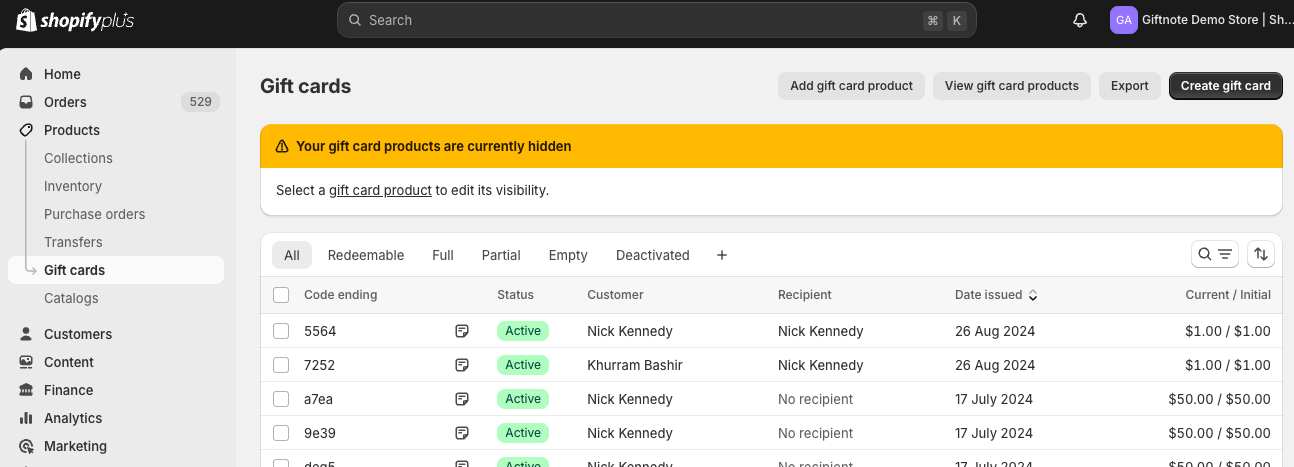
- In your Shopify admin, go to Products > Gift cards and open a gift card to see its recipient. Cards issued before Giftnote attached recipients automatically may not show one.
- To see the recipient as a customer, go to Customers in Shopify. You can include them in future marketing.
From Giftnote, open a gift card in Gift Cards and select the recipient's name on the Recipient card to open that customer profile in Shopify. The name is a link only when the recipient is a Shopify customer.
Setting an expiry date for gift cards
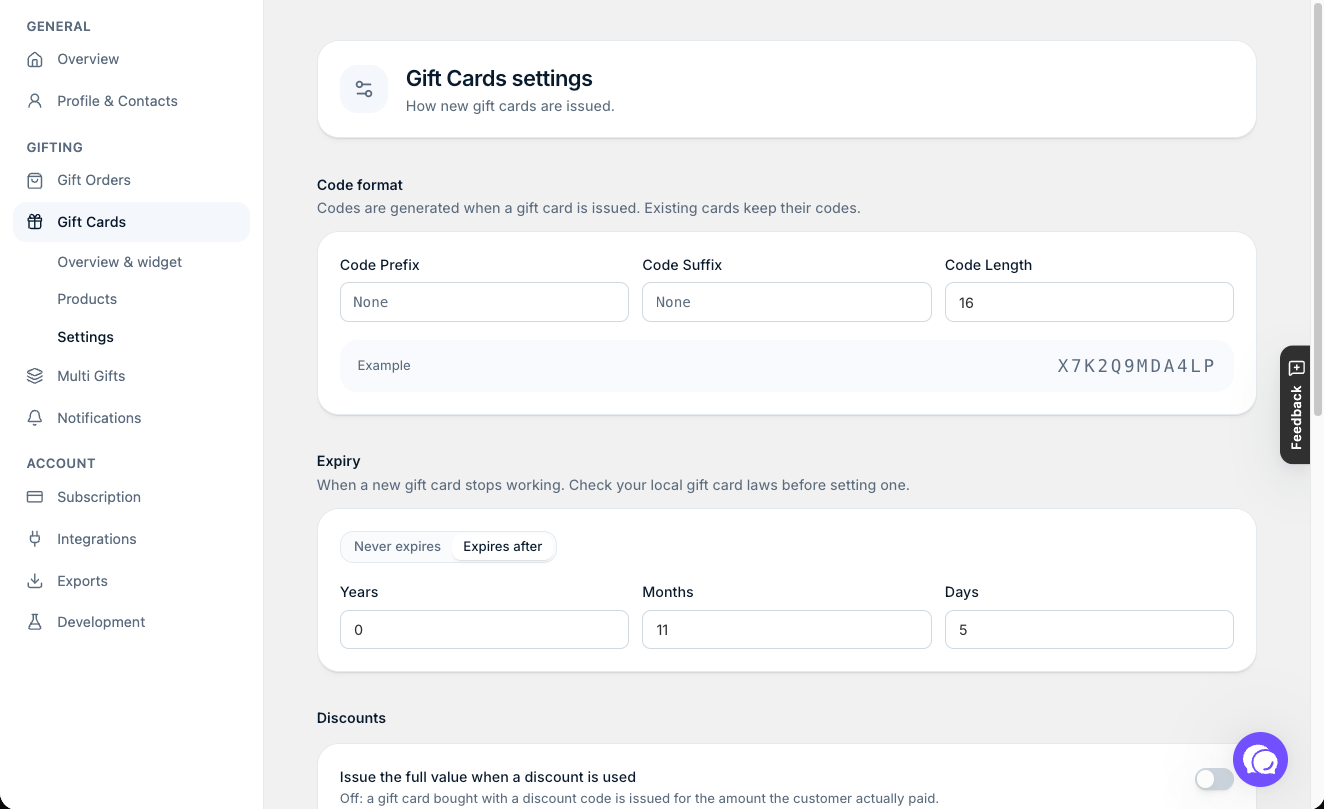
Gift cards don't expire unless you set an expiry. You set it in the Giftnote app under Settings > Gift Cards > Settings, in the Expiry section. For the steps, see Gift Card Expiration.
Important legal considerations
Some countries and states set a minimum period before a gift card can expire, or don't allow expiry at all. Check the rules where you sell before you turn expiry on.
Need help? Chat with us using the chat button in the help centre or in the app, or email support@giftnote.com.
Related articles
Was this helpful?
Still need help? Share an idea