4. Add eGift Cards
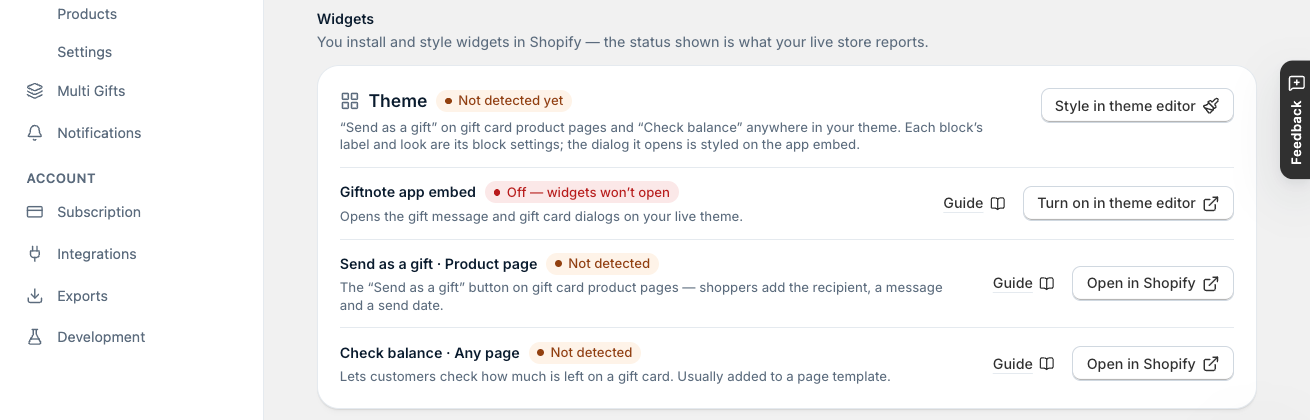
Sell digital gift cards with a personal message: add a Giftnote gift card product, add the Send as a gift widget to your theme, and check it shows as Detected.
Written By Giftnote Team
Last updated 27 days ago
Giftnote eGift cards are digital gift cards that Giftnote sends straight to the recipient, with the buyer's message. To sell them, you create a normal Shopify product for the gift card and give it its own page template with the Giftnote block. Shopify's built-in gift card products won't work, because Giftnote can't convert them.
Before you start: switch on the Giftnote Control Panel app embed. Add Gift Message Widget (section 2) shows how.
1. Create a new product page template
A template is the layout Shopify uses for a product page. You'll make one just for your gift card, so the gift card options only show there. These steps are for Online Store 2.0 themes, which most current Shopify themes are.
- Open the theme editor. Go to Online Store > Themes > Customize.
- Create the template. Use the template picker at the top to create a new product template called
gift-card. - Add the Giftnote block. In that template, click Add block, search for "giftnote", open the Apps tab and choose Gift Card Message. It adds the gift message and delivery options to the gift card page.
- Style it. Colours, font and light or dark mode come from the Style settings of the Giftnote Control Panel app embed.
- Optional: add Check balance. Add the Check balance block so customers can look up what's left on a card.
- Save. Check the Giftnote Control Panel app embed is on, then click Save.
On an older theme that doesn't support templates? Chat with us using the chat button in the help centre or in the app and we'll help you add the gift card option.
2. Create the gift card product
- Add a product. In Shopify, go to Products > Add product. Start from a new product, not an existing one.
- Describe it. Name it (for example "Digital Gift Card") and add an image and description.
- Assign the template. Set the product's theme template to
gift-card. - Make it digital. Untick This is a physical product.
- Turn off inventory tracking. Disable Track inventory.
- Add variants. Under Variants, add an option called
Amountwith values such as25,50,100. Set each variant's price to match its value, because the price is the amount the gift card is issued for. - Save and activate. Click Save and set the product to Active.
Each variant has its own settings. Check that every variant is not a physical product and doesn't track inventory.
Selling in more than one currency?
Gift cards are issued in the currency the customer checks out in. Set fixed gift card prices for each market in Shopify Markets, not in Giftnote. Otherwise Shopify converts the price and the card ends up with an odd exchange-rate amount. See Set up gift cards for Shopify Markets.
3. Confirm it's working in Giftnote
- Open your gift card products. In Giftnote, go to Settings → Gift Cards → Products, or click Manage products on Settings → Gift Cards.
- Check the status. Your new product should be listed as
Active, with the vendor Giftnote Gift Card. Giftnote treats products with that vendor as Giftnote gift cards.
What if it needs fixing?
Needs attention: the top of the list shows how many products need fixing. Click Edit and check the product against section 2. If it still needs fixing, chat with us.- Vendor
Shopify: this is one of Shopify's built-in gift card products, which can't become Giftnote gift cards. Create a regular product instead, as in section 2. - Not listed at all? The list also shows products that look like gift cards but haven't been added yet. Click Refresh to scan again. If your product still doesn't show as a Giftnote gift card, chat with us and we'll add it.
4. Configure gift card settings
In Giftnote, go to Settings → Gift Cards → Settings. Check these settings:
- Expiry: how long a gift card is valid after it's issued. Set to Never expires by default, or pick Expires after a number of years, months or days. Check your local gift card laws before you set one.
- Fulfilment → Automatically fulfill gift card orders: Giftnote marks gift card orders as fulfilled in Shopify once they finish processing. Use it if a warehouse system or 3PL (fulfilment partner) handles your orders. Turn it off if someone checks orders by hand first, for example for fraud.
- Discounts → Issue the full value when a discount is used: while this is off, a discounted gift card purchase issues the card for what the customer paid, not its full value.
- Code format: Code Length (8–20 characters), plus an optional prefix and suffix, with a preview.
Giftnote adds the recipient's details to the gift card in Shopify for you. Gift Card Advanced Settings explains each setting in full.
Need help?
Chat with us using the chat button in the help centre or in the app. Or email support@giftnote.com to request a complimentary onboarding, and we'll set up your gift cards for you.
Related articles
Was this helpful?
Still need help? Share an idea