1. How Multi Gift Works
What your customer does to send gifts to many people in one order, and what Giftnote does after they pay: one Shopify order per recipient, then delivery tracking.
Written By Giftnote Admin
Last updated 22 days ago
On the free plan or Core? Multi Gift needs the Professional plan. Choose a plan in Settings > Subscription in the app, or email support@giftnote.com and we'll help you choose. Which plan do I need?
Multi Gift lets one customer send gifts to many people in a single order, for example to clients, staff or event guests. They pick the gifts, upload a list of recipients and pay once. Giftnote then creates a separate Shopify order for each recipient. Multi Gift is on the Professional plan. Below is what your customer does, step by step, and what Giftnote does after they pay.
Want us to set it up for you? Email support@giftnote.com to request a complimentary onboarding. We aim to have you set up within 48 hours. Included on all paid plans.
Select products and customise the message
Your customer picks products (for example, branded keychains) and can add:
- A printed card: the message is printed on the packing slip, if your storefront offers it
- A digital message, sent when the gift is delivered
Each recipient can get their own message, written in the recipient spreadsheet (next step).
Upload recipient details
Your customer downloads a CSV template (a spreadsheet file), fills in one row per recipient and uploads it. Giftnote checks every row, adds the recipients to the order and pulls live shipping rates from Shopify.
If a row has a problem, such as an invalid phone number or an address you don't ship to, your customer sees an error and fixes it before going on.
New in our September 2026 update: if the storefront has Addressless gifting turned on, your customer only needs each recipient's name and email. Each recipient then claims their gift and enters their own shipping address. See Addressless gifting: let recipients add their own address.
Add multiple carts (optional)
If your storefront has Multiple carts turned on, your customer can build separate carts for different gifts. With it off, they get one cart. For example:
- Cart 1: keychains with printed cards
- Cart 2: branded hoodies, no extras
Each cart has its own CSV upload. Giftnote combines the carts into one order and works out shipping and tax for each cart.
Apply discounts and calculate tax
If you've set up volume discounts, Giftnote applies them automatically once the order reaches the spend you set.
Tax comes from your Shopify tax settings, the same way Shopify taxes any other order. If tax applies, Giftnote adds it to the order before checkout.
Add customer and billing details
Your customer enters their name, email, phone number and billing address. Giftnote uses these to create a Shopify draft order: one unpaid order for the whole gift, waiting for payment. The delivery addresses already came from the CSV.
Submit the order
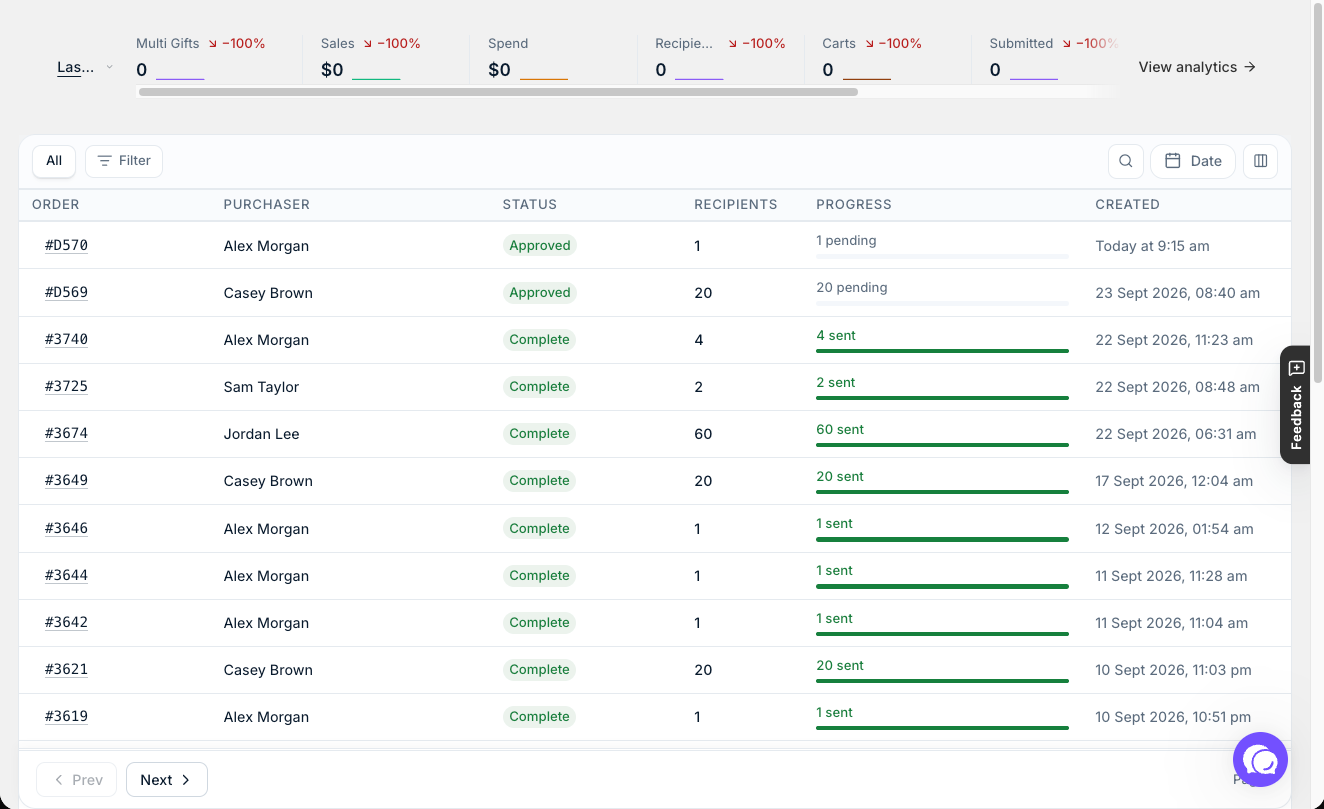
Your customer submits the order, sees a confirmation and gets an email. You can see the order in Giftnote under Multi Gifts. If anything needs changing, change it in Giftnote, not on the Shopify order.
Payment
Your customer pays at your normal Shopify checkout.
After payment
Once payment goes through:
- Giftnote creates a separate Shopify order for each recipient. They all share one family code tag (
GNMG-followed by a short code), so you can find the whole group in Shopify. - If you've turned on Require your approval before recipient orders are created (Giftnote → Settings → Multi Gifts → Settings), Giftnote waits for you to approve the order first. It's off by default.
- If Cancel the main order once it's paid is on (same page, on by default), Giftnote cancels the main order in Shopify without restocking. The recipient orders hold the stock.
- You fulfil and ship the recipient orders as normal. Don't ship the main order.
- Giftnote sends each digital gift message when that gift is delivered.
To keep the main order out of your revenue reports, see Updating Shopify Reporting for Multi Gift.
- Giftnote creates a separate Shopify order for each recipient. They all share one family code tag (
Track delivery and messages
After checkout, your customer sees the Gift progress widget on the thank-you and order status pages. It shows how many gifts have gone out. To add it or change its wording, see Gift progress widget.
Related articles
Was this helpful?
Still need help? Share an idea