2. Delivery Options: Send Now, Send Later, On Delivery, On Fulfillment
How Send Now, Send Later, On Delivery and On Fulfillment work, when each one sends, what happens without tracking, and how to turn an option off.
Written By Giftnote Team
Last updated 22 days ago
Your customers choose when their gift message reaches the recipient: straight away, on a date they pick, when the parcel is delivered, or when it ships. This article explains how each option works so you can pick the ones that suit your products and answer customer questions.
Why this matters
Timing shapes the recipient's experience. A message that lands as the parcel arrives feels like a surprise, and recipients are more likely to open it and click through. A message that arrives too early can spoil the surprise.
How each option works
When a customer adds a gift message in the widget, they choose one of the options you've turned on:
Each option sends the gift message by email, SMS or both, depending on what the customer entered in the widget. SMS is included on the Core and Professional plans.
Choose which options your customers see
- In the Giftnote app, go to Settings → Gift Orders → Settings.
- Find the Delivery methods section. Send Now, Send Later, On Delivery and On Fulfillment can each be turned on or off.
- Turn off any option you don't want to offer. For example, turn off Send Now so customers can only choose Send Later or On Delivery.
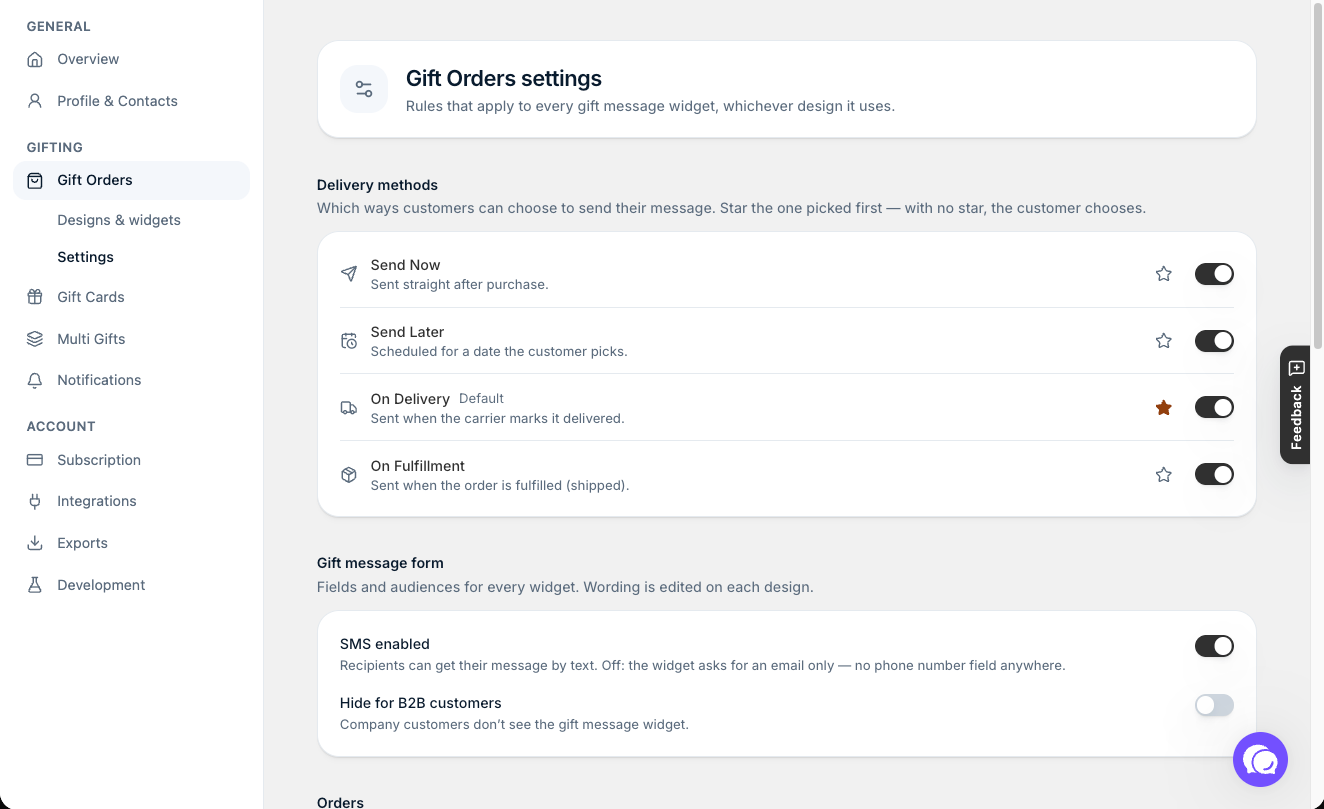
To pick the option the widget opens with, star it in Delivery methods. With no star, the customer chooses. Make sure the starred option is one you've left on.
Send Now: sent shortly after purchase
Giftnote sends the gift message 15 minutes after the order is placed, before the item ships.
What the gifter sees: a confirmation email that the gift message has been sent.
What the recipient sees: an email and/or SMS with the gift message, about 15 minutes after purchase.
Best for: digital products, gift cards, or when the gifter wants the recipient to know a gift is coming.
You can't recall a Send Now message once it's gone. The 15-minute wait gives a cancelled or fraud-flagged order time to stop before anything sends, and gives you time to fix a typo. You can't change the 15 minutes.
If a customer entered the wrong email:
- Open the order in Giftnote and click Edit on the Gift Message card.
- Correct the email and save. Saving doesn't send the message again.
- Wait for the order page to finish loading, then check the Timeline to see what has already gone out.
- If the recipient still needs the message, resend the Gift Order - Gift Message Delivered notification.
Send Later: sent on a date the gifter picks
The customer picks a future date, such as a birthday or anniversary. Giftnote holds the message and sends it on that date.
What the gifter sees: a confirmation email with the scheduled date and the recipient's details.
What the recipient sees: nothing until the scheduled date. Then they get the gift message by email and/or SMS.
Best for: birthday gifts, holiday pre-orders, or any gift bought well ahead of the day.
- Change a scheduled message: open the order in Giftnote and click Edit on the Gift Message card. You can change the message, the recipient's email or phone, the delivery method and the scheduled time.
- Stop a scheduled message: open the order and click Archive. Giftnote stops processing the order, so the message won't send. You can't undo this. To cancel the order itself, cancel it in Shopify.
On Delivery: sent when the parcel arrives
We recommend On Delivery for physical products. Giftnote holds the message until the carrier confirms delivery, so the recipient gets it as the gift arrives.
What the gifter sees: a confirmation email when they order, and a second email once the recipient has the gift message.
What the recipient sees: nothing until the carrier scans the parcel as delivered. Then an email and/or SMS with the gift message.
Best for: physical products where the surprise matters.
How it works:
- Your customer places the order and picks On Delivery.
- You (or your warehouse) fulfil the order in Shopify with a tracking number.
- Giftnote reads the carrier from the tracking number and watches for delivery. You don't need to set anything up.
- When the carrier marks the parcel as delivered, Giftnote sends the message.
Giftnote recognises about 700 carriers, including Australia Post, FedEx, UPS, USPS, DHL, Royal Mail and DPD.
On Delivery needs a valid tracking number. If you fulfil an order without one, or Giftnote doesn't recognise the carrier, it can't tell when the parcel arrives. Giftnote then sends the message as a fallback after 10–12 days, and the order's Timeline shows a Tracking Fallback event. To avoid this, always add a tracking number when you fulfil. If you missed one, add it to the order's fulfillment in Shopify. Giftnote picks up the change straight away.
On Fulfillment: sent when the order ships
On Fulfillment is new in our September 2026 update. Giftnote sends the gift message as soon as you fulfil (ship) the order in Shopify. It doesn't wait for delivery, so it goes out earlier than On Delivery.
Best for: perishables, alcohol or frozen goods, where the recipient should know it's on the way, and stores whose courier doesn't report deliveries.
Turn it on or off in Settings → Gift Orders → Settings → Delivery methods.
What about gift cards?
The gift card widget offers Send Now and Send Later only. Gift cards are digital, so there's no parcel to track. The recipient gets their code by email and/or SMS at the time the gifter chose.
Send Now gift cards also wait 15 minutes, counted from when payment comes through. If a fraud app on your store holds payment until it approves the buyer, the 15 minutes starts after approval.
Key things to know
- Some carriers never report a delivery. Local same-day couriers and some networks, including Shopify Fulfillment Network, may not send a "delivered" status, so On Delivery messages wait for the 10–12 day fallback. If you use one of these, mark the order as Delivered in Shopify yourself (this sends the gift message), or offer On Fulfillment instead. Not sure about your carrier? Chat with us using the chat button in the help centre or in the app, or email support@giftnote.com.
- Tracking errors: if an order has no carrier or an unrecognised tracking number, the fallback sends after 10–12 days. If an order shows a warning in the Health column of your Gift Orders list, check its tracking number and fix it on the order's fulfillment in Shopify, or chat with us.
- Customers sometimes pick Send Now when they meant Send Later. If this happens a lot, turn Send Now off in Delivery methods.
- Gift messages can be up to 500 characters on every delivery option.
Frequently asked questions
Can I hide the "On Delivery" gift message option?
Yes. To remove it everywhere, go to Settings → Gift Orders → Settings and turn off On Delivery in Delivery methods. Make sure On Delivery isn't the starred default in Delivery methods. If you're hiding it because your carrier doesn't report deliveries, leave On Fulfillment on so the message goes out when the order ships.
Do I need to set up my shipping carriers?
No. Giftnote reads the carrier from the tracking number, so there's nothing to set up.
Related articles
Was this helpful?
Still need help? Share an idea