4. Customising Email
Every setting on Giftnote's Email design page, plus what you can change on each individual notification email.
Written By Giftnote Admin
Last updated 22 days ago
On the free plan? This feature needs the Core or Professional plan. Choose a plan in Settings > Subscription in the app, or email support@giftnote.com and we'll help you choose. Which plan do I need?
You can brand the emails Giftnote sends from inside the app. One set of design settings (logo, colours, font, sender name) applies to every email. Each email also has its own subject line, text and images.
Where to find the settings
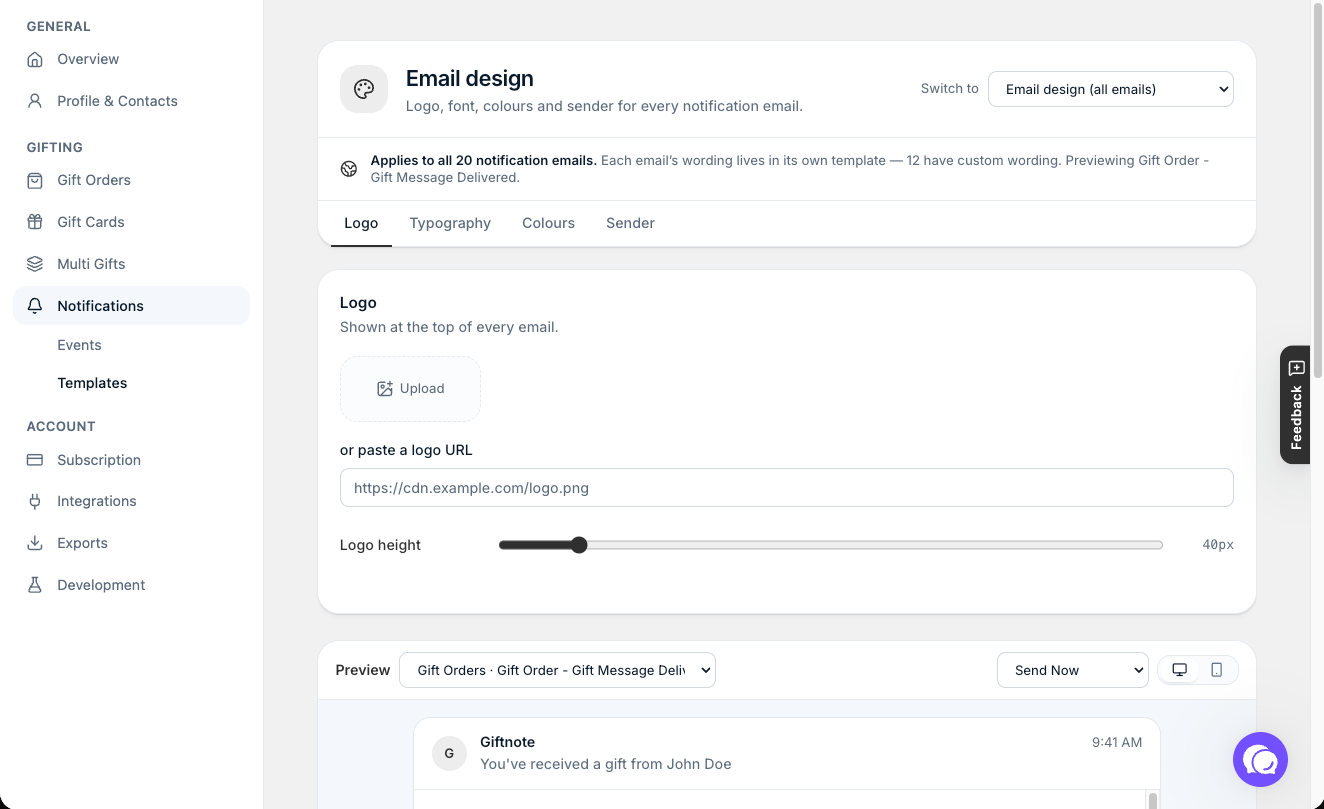
In the Giftnote app, go to Settings → Notifications. In the Email design card at the top, click Edit email design to open the shared settings. Click Edit on any notification listed below it to open that email's own settings.
Email design: shared styling for all emails
These settings apply to every email Giftnote sends, so you set them once. You edit on the left and check the Preview on the right. Use Preview with to pick which email to preview, and Delivery method to switch between Send Now, Send Later, On delivery and On fulfillment.
Logo
- Logo image: click Upload and choose a PNG, JPG or GIF up to 10MB.
- Logo URL: instead of uploading, paste the link to an image that's already online.
- Logo height (px): how tall the logo shows. The width adjusts to match.
Typography
Font family sets the font for all text in your emails. Type a list of fonts separated by commas, for example Helvetica Neue, Arial, sans-serif. The inbox uses the first one it has. Stick to fonts every device has, such as Arial or Georgia, and end with sans-serif or serif as a backup.
Colours
Enter colours as hex codes, for example #ffffff for white.
- Body text and Body background: the body section, which holds the message and products
- Header text and Header background: the heading area below the logo and above the cover image
- Backdrop background: the area around the email content
- Border: the border between the email content and the backdrop
Use one accent colour on every email: off by default, so each type of email keeps its own accent colour. Turn it on to give every email the same accent stripe.
Sender
- Email sender name: shown as the From name in the recipient's inbox
- Reply-to address: optional. Add your own address if you want replies to come to you instead of Giftnote's default.
Saving changes
Save if a save bar appears at the top of the page.
Individual email settings
Each email has its own subject, text and images. Changing one email doesn't change the others.
- Go to Settings → Notifications. Emails are grouped into Gift Orders, Gift Cards and Multi Gift. Each is labelled Customer (goes to the shopper), Recipient (goes to the person receiving the gift) or Staff (goes to your team).
- Find the email you want to change.
- Click Edit on that email's row.
Turning an email off
Each email has its own on/off switch under Channels. If Klaviyo or another email tool now sends that email, turn Giftnote's switch off so the recipient doesn't get two.
Text and images
In the template editor, each email has these fields:
- Subject: the subject line recipients see in their inbox
- Banner message: the heading text near the top of the email
- Body content: the main message of the email
- Cover image and Cover image link (optional)
- Footer image and Footer image link (optional)
The preview on the right has a tab for each delivery method: Instant, Scheduled, On delivery and On fulfillment.
Quick insert fields
Quick insert fields drop in details from each gift, like the recipient's name or the gift message, when the email sends. Click in a text field, then pick a field from the Quick insert list, or type it yourself in the same format, for example {{ To }}.
The list depends on the email. The usual fields are:
Gift order emails (for example Gift Order - Gift Message Delivered):
{{ To }} {{ From }} {{ Message }} {{ Order Name }} {{ Customer }} {{ Recipient Email }} {{ Recipient Phone }} {{ Customer Email }} {{ Delivery Method }} {{ Scheduled Date }} {{ Shop Name }} {{ Shop URL }} {{ Shop }} {{ Sender }} {{ Order Items }} {{ Tracking Number }} {{ Tracking Url }} {{ Carrier }} {{ Estimated Delivery }} {{ Shipped Date }}
Gift card emails:
{{ To }} {{ From }} {{ Sender }} {{ Message }} {{ Value }} {{ Currency }} {{ Code }} {{ Gift Card Value }} {{ Gift Card Currency }} {{ Gift Card Code }} {{ Order Name }} {{ Customer }} {{ Customer Email }} {{ Recipient Email }} {{ Recipient Phone }} {{ Delivery Method }} {{ Scheduled Date }} {{ Shop Name }} {{ Shop URL }} {{ Shop }}
For example, {{ To }} shows the gift recipient, {{ Sender }} the gift sender and {{ Message }} the gift message. On gift card emails, {{ Value }}, {{ Currency }} and {{ Code }} show the card's value, currency code and code.
When you're done, save if a save bar appears. If the fields you see don't match this list, chat with us using the chat button in the help centre or in the app, or email support@giftnote.com.
Related articles
Was this helpful?
Still need help? Share an idea