8. Disable a Gift card
Two ways to disable a Giftnote gift card or store credit: from the gift card page in Giftnote, or by deactivating the code in Shopify.
Written By Giftnote Admin
Last updated 22 days ago
On the free plan? This feature needs the Core or Professional plan. Choose a plan in Settings > Subscription in the app, or email support@giftnote.com and we'll help you choose. Which plan do I need?
Disabling a gift card or store credit stops anyone spending what's left on it. You can do it in the Giftnote app or in Shopify.
Treat disabling as permanent. Check you have the right card before you confirm.
Disabling a gift card in the app
Use this when you know the customer or recipient but not the code.
- In the Giftnote app, select Gift Cards.
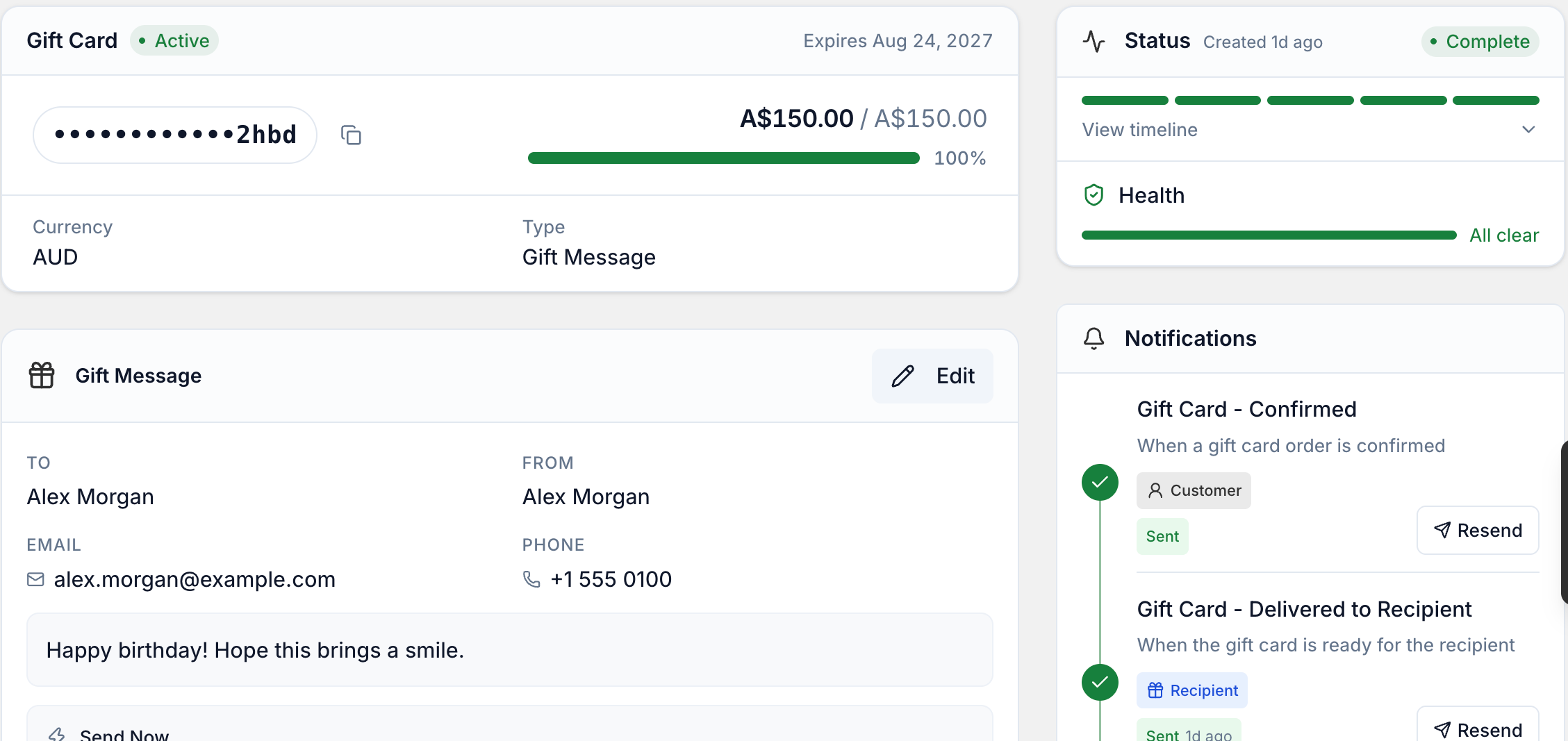
- Find the card. The list shows each card's customer and recipient. Use search or Filter to narrow it down, then select the card's code to open it.
- At the top of the gift card page, select More actions, then Disable.
- Confirm.
Disabling a code in Shopify
This is quicker if you have the code. To get it, open the gift card in Giftnote and select Copy code next to the masked code.
- In your Shopify admin, go to Products > Gift cards.
- Select the search icon on the right, search for the code and open the result.
- Select Deactivate at the top right and confirm.
Related articles
Was this helpful?
Still need help? Share an idea