3. Customising the look of your Multi Gift portal
Restyle your Multi Gift storefront with the Custom CSS field: the two rules that stop CSS failing, how to check it applied, ready-made snippets, useful selectors and an AI prompt to write your own.
Written By Giftnote Team
Last updated 24 days ago
On the free plan or Core? Multi Gift needs the Professional plan. Choose a plan in Settings > Subscription in the app, or email support@giftnote.com and we'll help you choose. Which plan do I need?
Your Multi Gift storefront (the ordering site your customers use) has a Custom CSS field. Use it to restyle pages, hide elements or match your brand more closely than the Branding tab's settings allow. CSS is the code that controls how a web page looks. If you don't write CSS, use the AI prompt below or ask your developer.
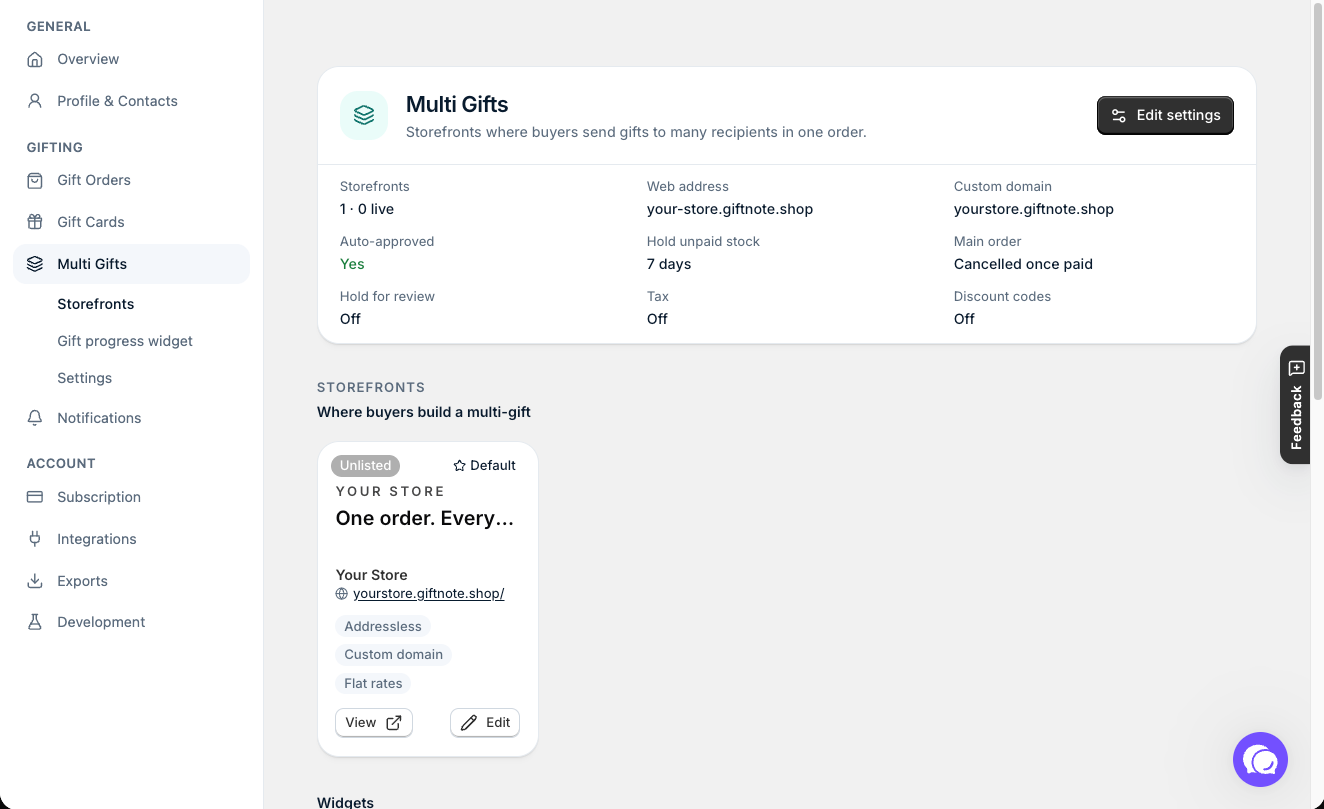
To find it, go to Settings → Multi Gifts in Giftnote, select Edit on your storefront, open the Branding tab and find the Custom CSS card next to the preview. Select Edit custom CSS, paste your CSS in the dialog, select Done, then save. If Giftnote can't accept the CSS, the card shows Won't save.
Before you start: two rules that will save you an hour
Rule 1. Paste the whole block, every time.
The field holds one block of CSS, and saving replaces it. To add a rule, paste your complete, updated block. Keep your current CSS in a text file so you always have the full version.
Rule 2. Some CSS is rejected on save.
The field rejects anything that could run a script, such as a literal <, @import or expression(). Ordinary CSS is fine, including the combinators >, ~ and +. If your CSS won't save, check it for these first.
If a rule saves but does nothing, rewrite any combinator as a descendant selector and test again. For example, change div > .item to div .item, and add a more specific class if you need to.
Check your CSS applied
Open your storefront, view the page source and find the <style> block Giftnote adds. If your rule isn't in it, the field removed it on save. If the rule is there but has no effect, another style is winning: add !important to your rule.
Test in a private (incognito) window. Storefront settings are cached, so a normal window can show the old styling.
Common customisations
Each block below works on its own. To use more than one, paste them together as a single block.
Hide the recipient search bar until a recipient is added
When a buyer first opens the storefront, the search and selection bar shows above an empty recipient list. Buyers can read this as broken.
/* Hide the recipient search bar until the first recipient is added */
#recipients-section:not(:has([data-recipient-id])) [data-recipient-search-bar] {
  display: none !important;
}
The bar comes back as soon as any group has a recipient. This uses :has(), which current browsers support, and has no literal <, so it saves. In a browser that doesn't support it, the bar stays visible and nothing breaks.
Restyle the order review page copy
Change wording on the storefront's Language & content tab first. It has a group for each step (Step 1 — Products, Step 2 — Recipients & messages, Step 3 — Review) and one for Order status. You can't change the button wording. If the text you want isn't there, you can replace text on the approval and review pages with CSS: set the original's font size to zero and add your own text with ::after and content.
Useful selectors
Checked against the storefront in October 2026. These are ids and data- attributes, which change less often than class names:
To react to "no recipients yet", test for the absence of [data-recipient-id] rather than the presence of the upload box. The upload box doesn't show on every storefront.
Write your CSS with AI
Paste this prompt into ChatGPT or Claude, fill in the brackets and use what comes back:
I'm restyling my Giftnote Multi Gift storefront (the gift ordering site for my Shopify store) with custom CSS. I'll paste your CSS into the Custom CSS field in Giftnote (Settings → Multi Gifts → Edit → Branding → Custom CSS).

My brand: [STORE NAME], [STORE URL]. Brand colours: [HEX CODES]. Fonts: [FONT NAMES]. If you can browse, look at my store and my storefront at [STOREFRONT URL] for style.

What I want to change: [DESCRIBE IT, e.g. "make the buttons square and dark green" or "hide the recipient search bar until a recipient is added"].

My current Custom CSS (keep it and add to it): [PASTE YOUR CURRENT CSS, OR WRITE "none"]

How the storefront is built:
- The Recipients section of the order page: #recipients-section
- Recipient search and selection bar: [data-recipient-search-bar]
- The search box inside that bar: #recipient-search
- One recipient group: [data-component="RecipientGroup"]
- One recipient row: [data-recipient-id]
- Empty group, before any recipient is added: [data-component="RecipientUploadEmpty"]
- Class names can change between releases, so use these ids and data- attributes where you can.

Rules:
- Return ONE complete CSS block: my current CSS plus your changes. The field holds one block and replaces it on save.
- No literal < character, no @import and no expression(). The field rejects them.
- If a rule might not apply, use descendant selectors (div .item) instead of >, ~ or +.
- Add !important where the storefront's own styles might win.
- Keep text readable, with at least WCAG AA colour contrast.
- Don't try to change the page layout or search indexing. CSS can't do either.

Return only the CSS block, with a short comment above each rule saying what it does.
Paste the whole block into the field each time, keep a copy outside Giftnote, and check the result in a private window.
Frequently asked questions
Can I change the layout, not just the styling?
No. CSS restyles what's already there. For layout changes, email support@giftnote.com and we'll consider it for the roadmap.
Will my CSS break when Giftnote updates the storefront?
It can, because class names can change between releases. Check your changes after each update, and keep your CSS saved outside Giftnote.
Can I hide the Giftnote branding?
No. The "Powered by Giftnote" branding stays on every plan.
Can I use custom CSS to stop Google indexing the storefront?
No. CSS can't control indexing. See Why does the Multi Gift portal not appear in Google?.
Related articles
Was this helpful?
Still need help? Share an idea