1. Understanding Your Analytics
What the numbers on your Giftnote Home page mean, what each gift order's lifecycle and delivery status tells you, and how to find and export orders.
Written By Giftnote Team
Last updated 24 days ago
What the numbers on your Giftnote Home page mean, what each gift order status tells you, and how to find and export orders. For every metric on the Analytics pages, see Definitions: Metrics.
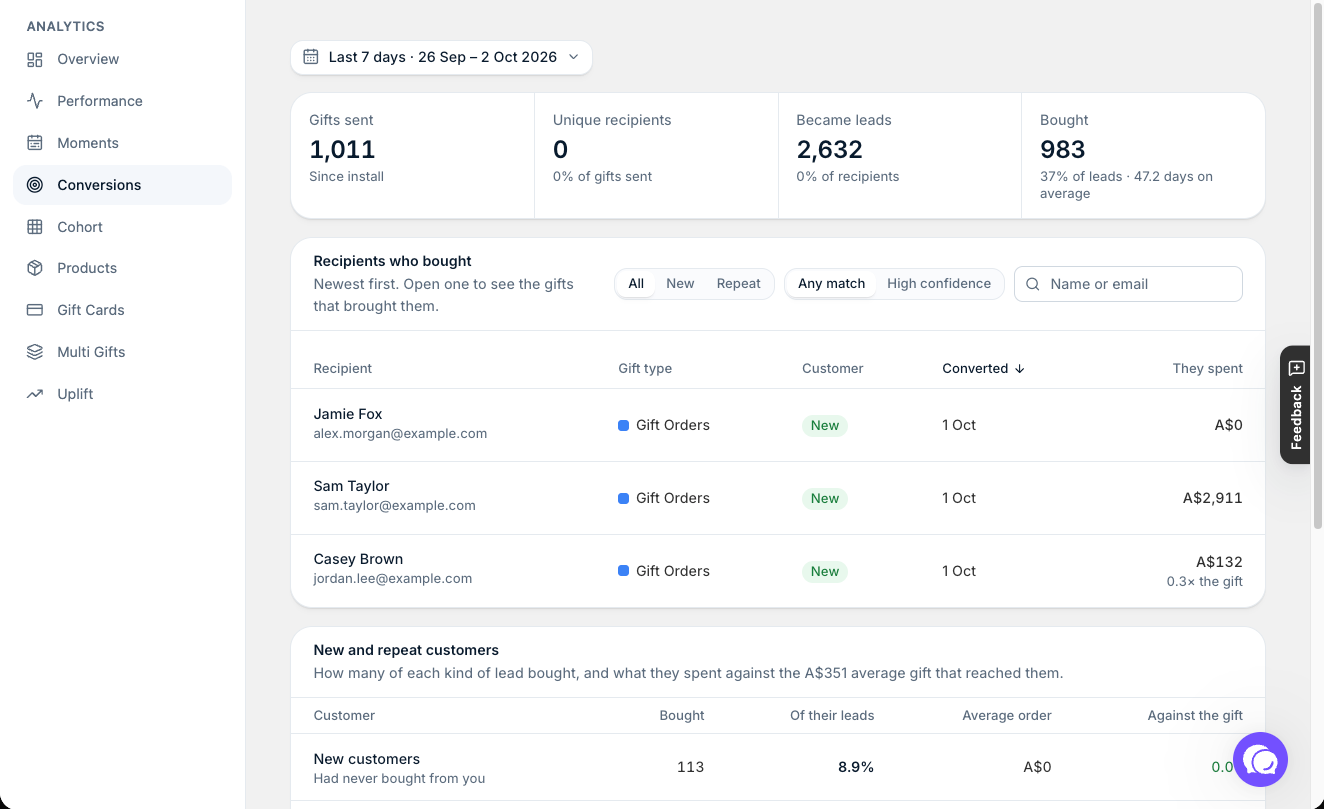
Quick reference: your Home figures
The top of your Giftnote Home page shows four figures for the last 7 days or 30 days (switch between them at the top right): Gifts sent, Gifting sales, Leads and Conversions. Each one shows how it compares with the period before, a daily trend, and a Since you installed total. Select Open analytics for the full reports.
The Conversions report shows how many recipients Became leads and how many Bought, with the average days from gift to purchase. Recipients who bought lists each one, newest first, and you can show new or repeat customers only.
Quick reference: Order status
Each gift order has two separate statuses: a lifecycle status (where Giftnote is up to with the order) and a delivery status (where the parcel or message is).
To see whether each notification went out, open the order and check the Notifications card. A notification that's gone out shows Sent. One that hasn't shows Send now. The Health card on the order shows All clear or any warnings.
An order I know was delivered doesn't show Delivered. Did the message fail?
Not always. Open the order and check the Timeline (click Notifications) to see whether the gift message went out. If it hasn't, and the status still hasn't caught up, chat with us using the chat button in the help center or in the app, or email support@giftnote.com.
Finding and exporting your orders
- Find an order: click Gift Orders, then use the search icon or Filter.
- Export your data: go to Settings → Exports. You can export Gift orders, Gift cards and Multi Gifts, and a Liability report of unspent gift card balances. Select Export, choose a Date created range (Last 7, 30 or 90 days, or All time), and confirm. The file is prepared in the background. When it's ready, select Download under Recent exports, which keeps your last 20 exports.
Related articles
Was this helpful?
Still need help? Share an idea