10. Gift Card Only Implementation
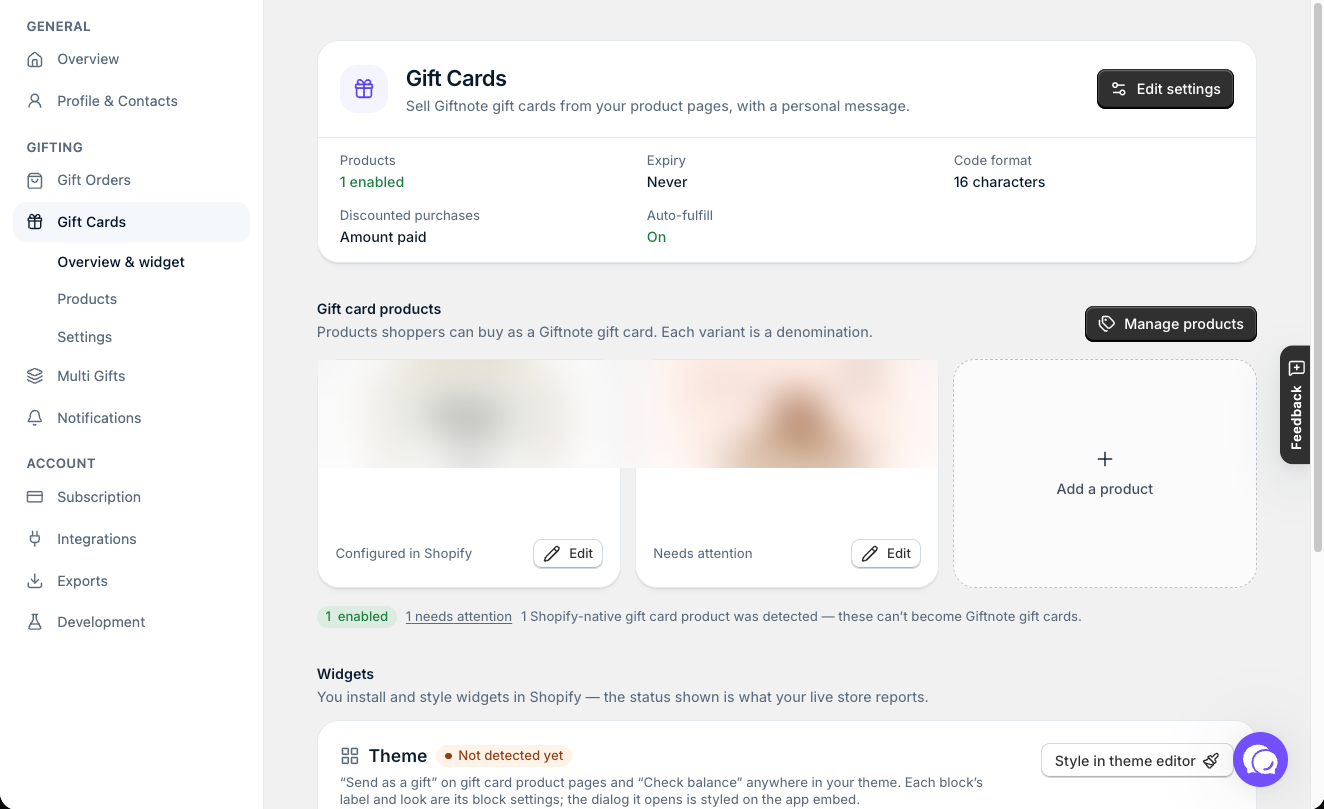
Use Giftnote for gift cards only: set up the gift card product in Shopify, then confirm Giftnote detects it on the Gift Card Products page.
Written By Giftnote Admin
Last updated 22 days ago
On the free plan? This feature needs the Core or Professional plan. Choose a plan in Settings > Subscription in the app, or email support@giftnote.com and we'll help you choose. Which plan do I need?
You can use Giftnote for gift cards only, without the gift message widget. All you need is a Giftnote gift card product in Shopify. Create it, then check Giftnote has picked it up. Gift cards are included on the Core and Professional plans.
Before you start
You'll need:
- Giftnote installed, with the Giftnote app embed turned on in your theme. In Giftnote, the Giftnote app embed card under Settings > Gift Cards shows whether it's on, and Turn on in theme editor takes you there. App embeds are switches in your theme editor (Online Store > Themes > Customize, then App embeds).
- Access to edit products in your Shopify admin
- The gift card amounts you want to sell, for example
25,50,100
Giftnote doesn't work with Shopify's own native gift card products. If you already have one, you need a separate Giftnote gift card product.
Quicker option: in Giftnote, go to Settings > Gift Cards and select Manage products. Select Create gift card product, enter a Product name and your amounts (use Add amount for each one), then select Create product. Giftnote creates the product in Shopify with one variant per amount. You can edit its images and description in Shopify afterwards. To build the product yourself, follow the steps below.
Accessing Shopify products
You set up Giftnote gift cards as regular products in Shopify. From your Shopify admin, select Products.
Creating a new gift card for Giftnote
- Add a product. Select Add product at the top right.
- Enter the gift card details. Add a title, description and image. Use an image the same size as your other product images.
- Turn off shipping. In the Shipping and Inventory sections, turn off the physical product option. We also recommend turning off Track inventory.
- Add the amounts as variants. Under Variants, add an option called
Amountwith one value per gift card amount. Your store shows these values exactly as you type them, so check them carefully. - Tidy up if needed. Drag the dots on the left of a value to reorder it, or select the bin on the right to delete it. The bin next to the option name deletes the whole option.
- Set the variant prices. In the variant list, set each price to match its value. The price of the variant the customer picks is the amount Giftnote issues the gift card for.
- Publish the product. At the top of the page, set the status to Active.
- Save the product before you leave the page.
Selling in more than one currency?
Set fixed gift card prices for each market in Shopify Markets. See Set up gift cards for Shopify Markets.
To add the gift message and delivery options to your gift card product page, add the Gift Card Message block (the Send as a gift · Product page widget in Giftnote). See Add eGift Cards.
Modifying an existing gift card
If your store already has a gift card product, check it isn't a Shopify gift card product first. Giftnote doesn't work with those.
- Open the product. From Shopify Products, select the gift card product. Use the search icon on the right of the list to find it.
- Check the product category. On the right of the product page, look at Product category. If it says Gift Cards and you can't edit it, it's a Shopify gift card and won't work with Giftnote.
Create a new Giftnote gift card product from scratch, as above, rather than converting an existing one. In Giftnote, Settings > Gift Cards > Products also lists Shopify gift card products with Shopify as the vendor, and Settings > Gift Cards notes that they can't become Giftnote gift cards.
Checking that Giftnote detects your gift card
- Open Giftnote. In your Shopify admin sidebar, under Apps, select Giftnote.
- Go to your gift card products. Select Settings > Gift Cards > Products.
- Find your product. The list shows each gift card product Giftnote detects, with its vendor and status. Your new product should show as Active. If you created it a moment ago, select Refresh. Giftnote treats products with the vendor Giftnote Gift Card as Giftnote gift cards.
My gift card product needs fixing.
The Products page shows how many products need fixing, and Settings > Gift Cards marks them Needs attention. They won't process new gift cards correctly. Select Edit and check the product against the steps above. If it still needs fixing, chat with us using the chat button in the help centre or in the app, or email support@giftnote.com.
My gift card product isn't in the list.
Select Refresh. Products that look like Giftnote gift cards but haven't been added yet are listed on the same page too. If yours is there but isn't set up as a Giftnote gift card, chat with us and we'll help you add it.
Related articles
Was this helpful?
Still need help? Share an idea