7. Migrating your Klaviyo flows to the new Giftnote integration
How to tell if you are on the original Giftnote Klaviyo integration, how the old events and merge fields map to the new ones, and the order to run the cutover in.
Written By Giftnote Team
Last updated 20 days ago
If you set up your Giftnote flows in Klaviyo more than a year ago, you're probably on our original integration. It still sends events, so nothing looks broken. The new integration uses different event names and merge fields and sends more gift data, so you need to rebuild your flows to use it.
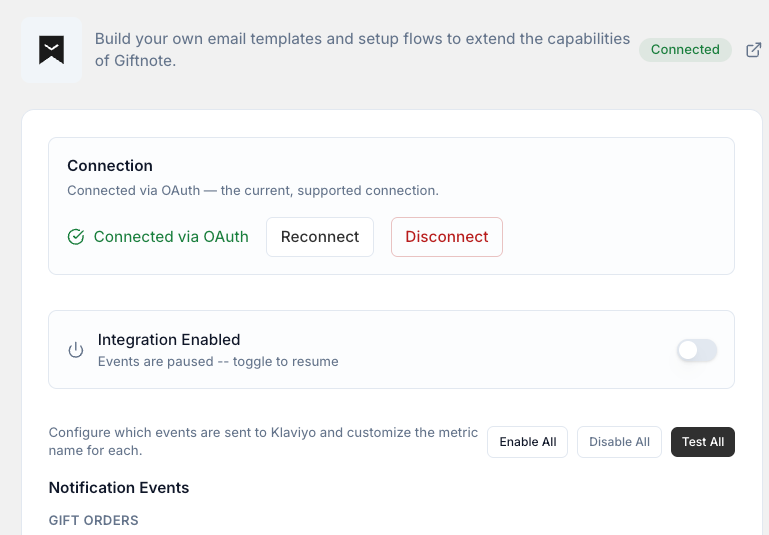
Below you'll find how to check which one you're on, how the old events and fields map to the new ones, and the steps to switch over without customers getting two emails, or none.
Am I on the old integration?
Open Klaviyo and look at your Giftnote metrics. You are on the old integration if you see metric names that start with Giftnote -, such as Giftnote - Order Message or Giftnote - Voucher Delivered.
The new integration uses plain names with no prefix: Placed Gift Order, Received Gift Order, Gift Card Delivered, and so on.
Two other signs:
- Your gift emails all run from one or two combined flows rather than a separate flow per event.
- Your templates use fields like
{{ event.gift_to }}and{{ event.voucher_code }}.
What you get by migrating
- A flow per event instead of one combined flow. You can write a different email for a scheduled gift, a delivered gift, and a gift card, rather than branching inside one flow.
- Gift card events that most old setups never had. Redeemed Gift Card and Issued Store Credit did not exist in the original integration. Neither did the balance data behind reminder campaigns.
- More data in the payload. Gift card SKU, expiry date, and delivery method, so you can build conditional templates.
- Multi Gift events for corporate orders, if you use the Multi Gift portal.
- Ready-made segments. The segments in Klaviyo + Giftnote segments are built on the new event names.
How the old events map to the new ones
Use this to work out which new flow replaces which old one. Before you build, send a test event from Giftnote and check the names in your Klaviyo activity feed.
How the merge fields change
Old field names don't cause an error. They show up blank in the email, so check every template.
Two rules before you rewrite anything:
- Multi-word field names need
|lookup:. Dot access cannot reach a key with a space in it, so{{ event.Gift Card Code }}will never work. - Always chain
|default:''. Without it, an event that has no value for that field renders the literal wordNonein your customer's email.
Product and gift card blocks
Dynamic tables for products and gift cards work the same way as before: a row collection, a row alias, and section display logic so empty tables do not appear. Check the field names against a test event in your own account before you rebuild these blocks. The fields inside these blocks are the most likely to have changed.
The migration steps
Do these in order. Steps 6 and 7 carry the risk: get them the wrong way round and customers get duplicate emails or none at all.
- Write down what is live today. List every Giftnote flow that is currently sending and which metric triggers it. You will switch these off later, and you need the list to be sure you replaced each one.
- Reconnect the integration. In your Shopify admin, open Giftnote and go to Settings → Integrations. Select Manage settings on Klaviyo under Connected (or Connect under Available · Marketing if it isn't connected), then reconnect and approve the permissions. The integration comes back disabled. Leave it that way for now.
- Send test events. Use the Test buttons in the Giftnote integration settings, then check Klaviyo's activity feed to confirm the new events are arriving and to see the real payload.
- Build your new flows. One flow per event, using the tables above. To skip starting from scratch, email support@giftnote.com and we'll add our ready-made flows to your Klaviyo account as drafts. See 4. Ready-made Klaviyo flows from Giftnote.
- Update the merge fields and brand the templates. Use the field table above. This design work takes the longest.
- Apply transactional status to every new flow. Gift recipients have not opted in to marketing, so without transactional status Klaviyo will accept the event and send nothing. This is the most common reason a new setup appears to fail. Remove any sign-up block or shop button first, because Klaviyo won't approve an email that has one, and turn Smart Sending off on gift emails.
- Switch the old flows off at the same time you turn the new ones on. Both sets live means every customer gets two emails.
- Turn off the matching Giftnote notifications. In Giftnote, go to Settings → Notifications, open each notification that Klaviyo now handles, and switch its email off. Save.
- Enable Klaviyo in Giftnote and save. Events now flow to your live templates.
- Place real test orders. One per scenario: send now, send later, on delivery, gift card purchase, and a gift card redemption. Check what actually lands in the inbox, not just what Klaviyo reports.
- Clean up the old metrics. Klaviyo accounts have a metric limit and old Giftnote metrics still count against it. Some long-running accounts carry more than twenty.
Things that catch people out
Your historical data does not come across. Klaviyo only receives events from the reconnection date onward. If you want a gift card reminder campaign to include people who bought before you migrated, email us for an export for that first send. Everything after that is automatic.
Suppressed contacts still will not receive anything. Suppression overrides transactional status. If a recipient's address bounced or unsubscribed previously, their gift email is blocked no matter how the flow is configured.
Gift card events may never have been set up at all. On plenty of old accounts, only the gift message flows were built. Check whether your gift card emails are coming from Klaviyo or still from Giftnote's own templates before you assume you are replacing something.
Related articles
Was this helpful?
Still need help? Share an idea