Show or hide your storefront in search engines
How to show your Multi Gift storefront in search engines or hide it with the Hide from search engines switch, which pages are never listed, and how visibility and custom domains work.
Written By Giftnote Team
Last updated About 23 hours ago
On the free plan or Core? Multi Gift needs the Professional plan. Choose a plan in Settings > Subscription in the app, or email support@giftnote.com and we'll help you choose. Which plan do I need?
Your Multi Gift storefront (sometimes called the portal) is an ordering tool for customers you send there: from your Shopify store, a link your sales team shares, or a link in your emails. A Published storefront can appear in search engines such as Google. If you'd rather keep a storefront out of search, turn on Hide from search engines. This article shows where, and how visibility works.
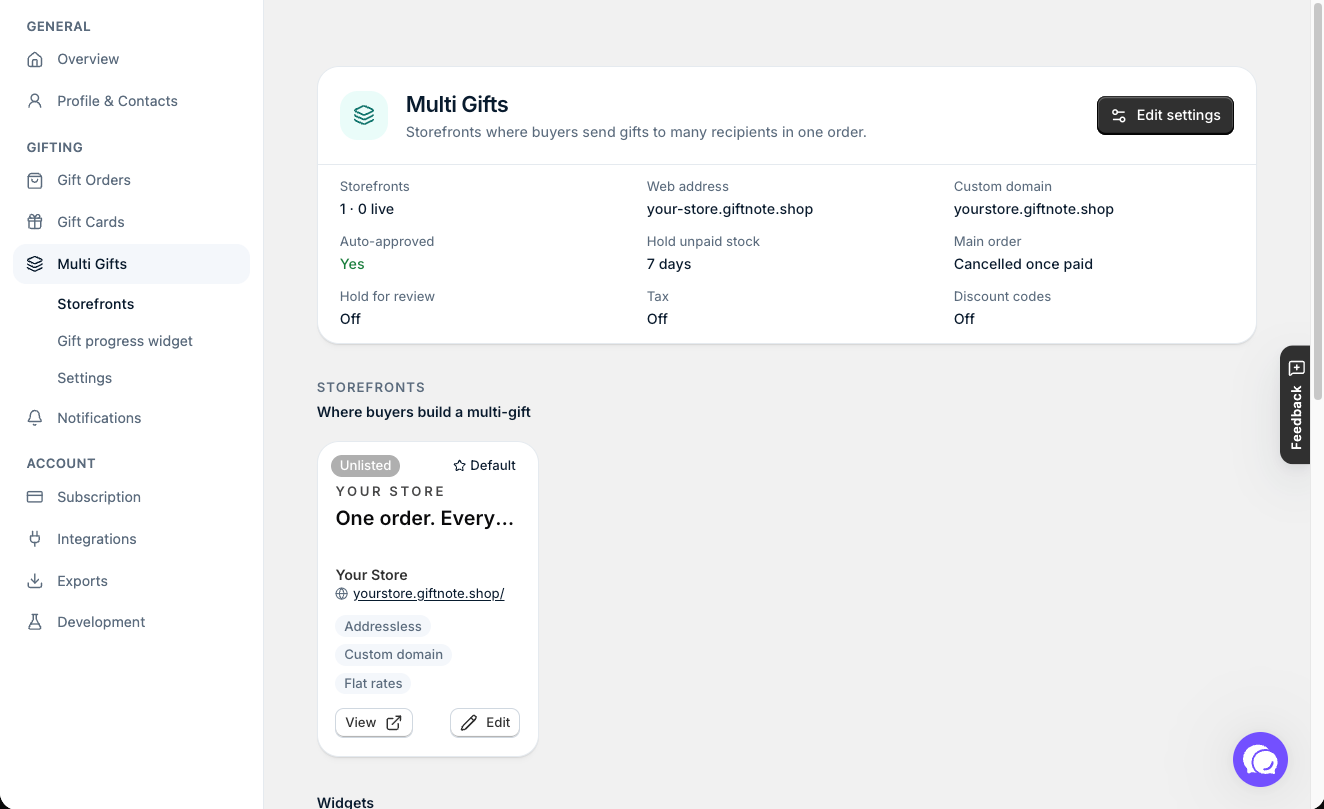
By default, a Published storefront can be listed by search engines. Draft and Unlisted storefronts are always hidden from search engines.
Where do customers come from?
Most customers reach the storefront through routes you control, so search is a bonus rather than the main way in:
- a Send to multiple recipients button on your Shopify product or cart page (see Add the Multi Gift Button to Your Shopify Store)
- a direct link your sales or wholesale team sends
- a link in your gifting or corporate email campaigns
- a link on a corporate gifting page on your Shopify store, which can rank
To win search traffic for corporate gifting, build a corporate gifting page on your Shopify store, optimize it for search, and link its main button to your storefront. The search benefit lands on your own domain, and customers still order through the storefront.
How do I show or hide my storefront in search engines?
In Giftnote, go to Settings → Multi Gifts, select Edit on the storefront and open the Identity tab. In the Visibility panel:
- Set the storefront to Published.
- Turn Hide from search engines on to keep the storefront out of search engines, or leave it off to let them list it. It's off by default.
- Save your changes.
The switch only works while the storefront is Published. Draft and Unlisted storefronts are always hidden from search engines. If you move a storefront off Published, the switch stays as you set it but is locked, and it applies again when you publish the storefront again.
Hiding a storefront from search engines doesn't lock it. Customers with the link can still open it. Order, claim and checkout pages are never listed in search engines, whichever way the switch is set.
Custom CSS can't change any of this. CSS only controls how pages look, not whether search engines list them.
What does storefront visibility do?
Each storefront has a Visibility setting on its Identity tab (Giftnote → Settings → Multi Gifts → Edit on the storefront):
- Draft: hidden everywhere except the editor.
- Unlisted: anyone with the direct link can open it, but it's hidden from your shop directory.
- Published: live, listed on the directory and open to anyone with the link.
Unlisted keeps a storefront off your directory and out of search engines. A Published storefront is listed on the directory and can be listed by search engines unless Hide from search engines is on.
Will the portal harm my store's SEO?
It shouldn't. The storefront sits on a separate address from your Shopify store, so it isn't part of your store's pages. If you'd rather it didn't compete with your product pages in search, turn on Hide from search engines.
Why are the portal URLs structured the way they are?
Each order gets its own link, so a customer can come back to an order in progress, and a link shared with a colleague opens the right order. The links are built to find the order, not to read well.
Order links stop working once an order is finished or has expired. That's expected, not a broken page.
Frequently asked questions
My SEO agency flagged the storefront in an audit. What do I tell them?
It's an ordering tool on a separate address from your Shopify store. Published storefronts can be listed by search engines unless Hide from search engines is on (Identity tab, Visibility panel), and order, claim and checkout pages are never listed. If you don't want the storefront in search, turn that switch on.
Can I use my own domain for the storefront?
Yes. In Giftnote, go to Settings → Multi Gifts → Settings and find the Web address section. Under Main domain, set up the domain. It covers the whole shop: it replaces your default storefront's address, and other storefronts open at their own path on it (for example /holiday). Claim a free giftnote.shop address, which works straight away with no DNS changes, or use your own domain, such as a subdomain of your brand. See How to Set Up Your Custom Gifting Subdomain.
Can I keep a storefront out of search?
Yes. Turn on Hide from search engines on the storefront's Identity tab, in the Visibility panel. Draft and Unlisted storefronts are already hidden from search engines, and a Draft storefront is hidden everywhere.
Does the storefront show up in Shopify's Shop app or in shopping feeds?
No. It doesn't publish products to any feed.
Can I track visits to the storefront?
Yes. On the storefront's Settings tab, open Tracking and add your Google tag ID (a G-, GT-, AW-, DC- or GTM- ID) and your Meta pixel ID. Leave a field blank to skip it.
Related articles
Was this helpful?
Still need help? Share an idea