8. Manage a gift card: view, adjust or disable it
Open a gift card in Giftnote to see its code and history, adjust its balance, resend it, or disable it (in Giftnote or in Shopify).
Written By Giftnote Admin
Last updated About 15 hours ago
On the free plan? This feature needs the Core or Professional plan. Choose a plan in Settings > Subscription in the app, or email support@giftnote.com and we'll help you choose. Which plan do I need?
Every gift card and store credit Giftnote issues has its own page in the app. From it you can see the code and balance, check what was sent, adjust the balance, resend the gift card email, or disable the card.
Open a gift card
In the Giftnote app, select Gift cards. The list shows each card’s customer and recipient. Use search or Filter to narrow it down, then select the card’s code to open it. You can also open a card from the Giftnote block on its Shopify order.
What the gift card page shows
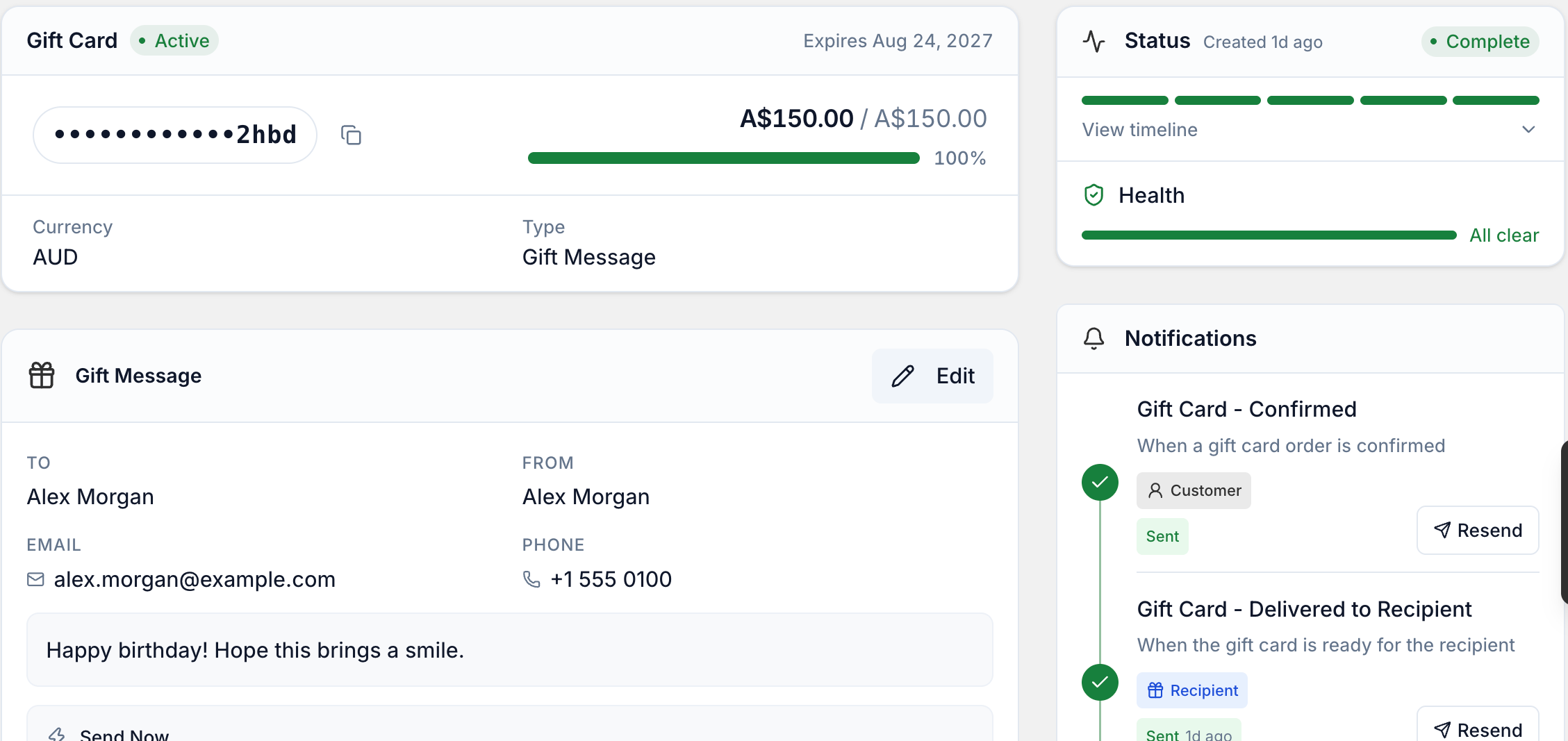
- Balance and code: the current balance, expiry and the masked code. Copy code copies the full code.
- Recipient: who the card is for. If they’re a Shopify customer, their name links to their customer record.
- Gift message: the message sent with the card, if there is one. Select Edit on the card to change it.
- Notifications: each email for this card and whether it was sent, with Resend to send the gift card email again.
- Timeline: everything that happened to the card. Filter it by All, Events, Notifications or Transactions.
More actions at the top also has View gift card (opens it in Shopify) and View Order.
Reprocess a gift card
Select Reprocess at the top of the page if a card looks stuck or its email wasn’t sent. Giftnote re-checks the card against Shopify and finishes anything that didn’t complete. Anything already done stays as it is.
Adjust a gift card’s balance
Use this to top up a card, or to take off an amount, for example after a partial refund. It changes the balance in Shopify straight away.
- Open the gift card.
- Select More actions, then Adjust balance. (It’s only offered on a card that’s active in Shopify, not one that’s disabled or expired.)
- Choose Add or Remove, enter the Amount, and add a Note for your team if you like.
- Confirm. The change appears under Transactions in the Timeline. If you don’t see it straight away, reload the page.
Disable a gift card
Disabling a gift card or store credit stops anyone spending what’s left on it. You can do it in the Giftnote app or in Shopify.
Treat disabling as permanent. Check you have the right card before you confirm.
- Open the gift card.
- Select More actions, then Disable.
- Read the confirmation and select Disable. The card stops working straight away, in Giftnote and in Shopify. Any remaining balance stays on the card, but nobody can spend it, and you can’t re-enable it from the Giftnote app.
Disabling a code in Shopify
This is quicker if you have the code. To get it, open the gift card in Giftnote and select Copy code next to the masked code. It copies the full code.
- In your Shopify admin, go to Products > Gift cards.
- Select the search icon on the right, search for the code and open the result.
- Select Deactivate at the top right and confirm.
Related articles
Was this helpful?
Still need help? Share an idea