Rebuy integration
Show the Giftnote gift message widget in your Rebuy Smart Cart and send gift events to Rebuy with an API key.
Written By Giftnote Admin
Last updated 6 days ago
Connect Rebuy to show the Giftnote gift message button inside your Rebuy Smart Cart, so shoppers can add a gift message without leaving the cart. You can also send gift events to Rebuy for personalization. Set up either one on its own: the Smart Cart button works whether or not you connect an API key.
Show the Giftnote widget in your Rebuy Smart Cart
You set this up inside your Rebuy account. Try Rebuy's Giftnote module first. If it doesn't suit your cart, use a Custom HTML widget instead.
Option 1: Use the Giftnote module in Rebuy (recommended)
- From the Rebuy dashboard, select Smart Cart in the left-hand navigation.
- Select your currently active Smart Cart.
- Scroll down to the Apps section and select the configuration option next to Giftnote.
- In the configuration popup, set the button labels: one for when there is no message yet, and one for when there is a message the customer can edit. These fields are required for the module to run. Save after you set them.
- Toggle the module on.
- Click Save at the top right to add the module to your Smart Cart.
Customisation options
The Giftnote module has the same customisation options as other Smart Cart apps. You can choose where the button appears and whether the module shows in an empty cart, using the drop-downs on the Giftnote app in the Apps section of your Smart Cart.
To add custom CSS to the button, add the following to the custom scripts block in your Smart Cart settings:
<template id="giftnote-rebuy"><style>
  #container {
    /* Container styles */
  }
  #button {
    /* Button styles */
  }
</style></template>
Save all changes with the Save button at the top right.
Option 2: Use a Custom HTML widget
- Open your Rebuy admin and go to Smart Cart › Widgets.
- Add a Custom HTML widget at the cart position you want.
- Paste the Giftnote button snippet below into the widget content field.
- Save and publish your Smart Cart.
<template id="__NAME_OF_BUTTON__">
  <style> /* ADD CSS HERE */ </style>
</template>
<giftnote-button
  data-styles="__NAME_OF_BUTTON__"
  data-add="Add a gift message"
  data-edit="Edit gift message"
></giftnote-button>
Change __NAME_OF_BUTTON__ to any name you like (use the same name in both places). data-add and data-edit set the button text before and after a message is added. The button only opens the gift message popup if the Giftnote Control Panel app embed is on. App embeds are switches in your Shopify theme editor (Online Store → Themes → Customize → App embeds) that load an app on your store.
If you'd like help, chat with us using the chat button in the help centre or in the app, or email support@giftnote.com.
Send gift events to Rebuy
- Open the Giftnote app in your Shopify admin and go to Settings → Integrations.
- Find Rebuy under Available · Operations and select Connect. If it's already connected, it's under Connected: select Manage settings.
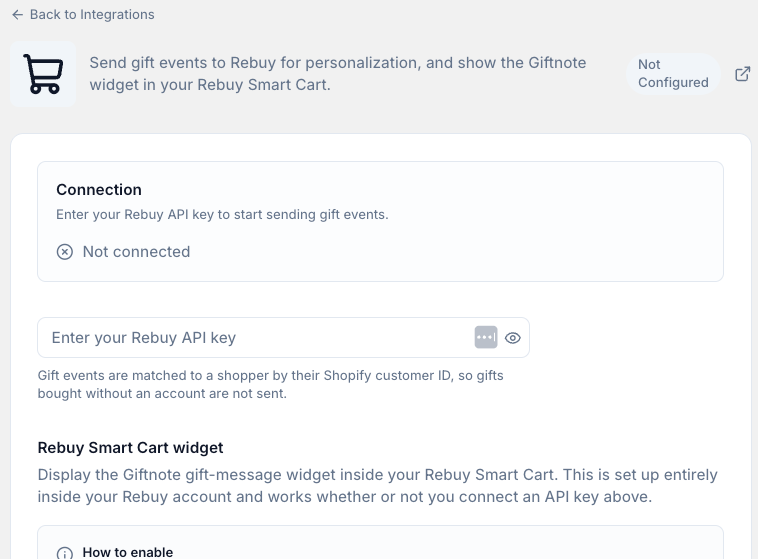
- Enter your Rebuy API key. Save if a save bar appears. Until you do, the top of the page reads Not connected.
Giftnote matches gift events to shoppers by their Shopify customer ID, so gifts bought without a customer account don't reach Rebuy.
Related articles
Was this helpful?
Still need help? Share an idea