5. Gift Message Not Delivered to Recipient
A gift message never arrived? Check the order in Giftnote, fix a missing tracking number, check for a scheduled date, then send or resend the message yourself.
Written By Giftnote Team
Last updated 27 days ago
A customer says their gift message never reached the recipient, even though Shopify shows the order as fulfilled. One of five things is almost always behind it, and you can fix most of them in a few minutes.
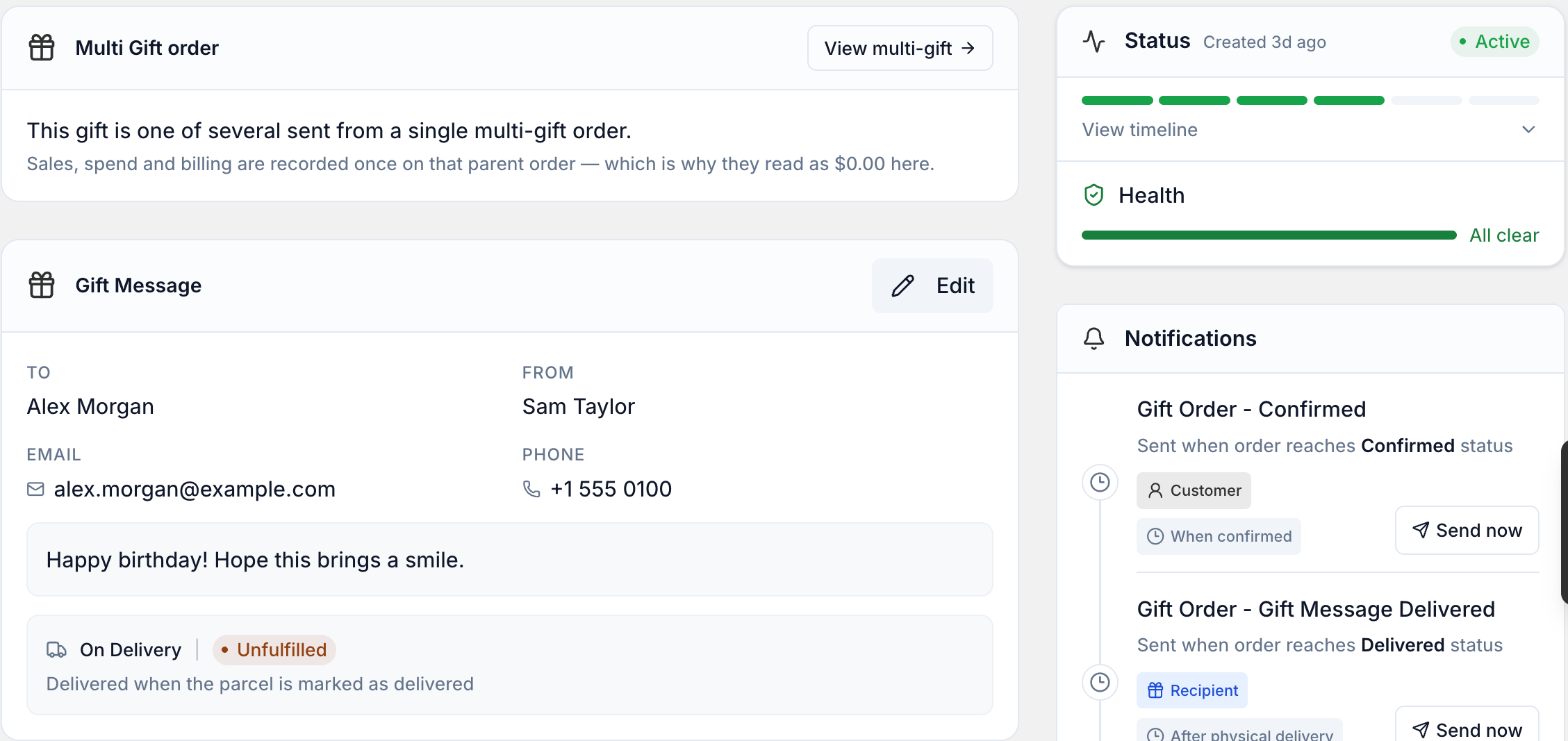
First, check the timing. An On Delivery gift message sends when the carrier confirms delivery, not when the order ships. If the order shipped yesterday and hasn't arrived, nothing is wrong: the message is waiting for the parcel. On Fulfillment messages send when the order ships. Send Now sends 15 minutes after checkout, and Send Later sends on the chosen date. Neither depends on shipping.
Most common causes
- The parcel hasn't been delivered yet. On Delivery messages wait for delivery, so there may be nothing wrong.
- The fulfilment has no tracking number. Your warehouse or 3PL (third-party logistics provider) fulfilled the order without one, so Giftnote has nothing to follow.
- The carrier never reports "delivered". Some local couriers and 3PLs don't send delivery scans back, so the message waits for the fallback.
- The message is scheduled for a later date. The customer chose Send Later and the date hasn't come yet.
- The message went out but didn't arrive. A typo in the recipient's email or phone, a spam filter, or a Klaviyo flow that isn't live.
Check what the Giftnote app shows for this order
Start here. The order page shows where the gift message is up to.
- Open Giftnote from your Shopify admin sidebar and click Gift Orders.
- Find the order with the search icon at the top of the list (search by order number or customer), or narrow the list with Filter.
- Check the STATUS, METHOD and DELIVERY columns, then open the order.
On the order page:
- The Health card shows All clear or any warnings.
- The Timeline card lists every event, notification and status change.
- The Notifications card shows whether each notification has been sent.
Wait for the order page to finish loading. While it loads, notifications can look as if they haven't been sent. Don't do anything until it has loaded.
If it's an On Delivery order and the parcel hasn't arrived, nothing is broken. The message sends when the carrier confirms delivery. If the parcel was delivered more than 24 hours ago and the message still hasn't gone, move to the next step.
Make sure the order has a valid tracking number
Giftnote reads the carrier from the tracking number on the Shopify fulfilment. It recognises about 700 carriers, so there's nothing to set up. Without a correct tracking number, Giftnote can't follow the parcel.
- Open the order and check it has a tracking number.
- If it's missing or wrong, add or fix it on the order's fulfilment in Shopify. Giftnote picks up the change straight away.
- Use the carrier's own tracking number (for example USPS, UPS or Australia Post). If you use a tracking service like 17track or AfterShip, don't use its reference number.
To check it worked: the order's Timeline shows new tracking events, and the message sends when the carrier confirms delivery. If the message might already have gone out, check the Timeline before you resend anything.
When the carrier never reports "Delivered"
Giftnote also watches Shopify's own Delivered status. Use it if your local courier, same-day delivery service or 3PL doesn't pass tracking back. You don't need to turn anything on.
- Open the order in Shopify.
- Mark the fulfilment as Delivered.
- Check the order in Giftnote after a few minutes. The gift message should show as sent.
If this happens a lot, offer On Fulfillment instead of On Delivery (Settings → Gift Orders → Settings → Delivery methods), or hide On Delivery in your widget design. See Delivery Options.
Last-resort fallback: if an order has no valid tracking or the carrier never confirms delivery, Giftnote sends the gift message after 10–12 days. The Timeline shows a Tracking Fallback event. Don't rely on it. By then the gift arrived long ago.
Check if the gift message was scheduled for a future date
If the customer chose Send Later, the message won't send until their chosen date, even if the parcel has already arrived.
- In Gift Orders, check the METHOD column, or use Filter to show Send Later orders.
- Open the order to see the scheduled date on the Gift Message card.
- If the date has passed and the message still hasn't gone, something went wrong. Go to the next section.
To change the date or stop the message:
- Change it: open the order and click Edit on the Gift Message card. You can change the scheduled time, the delivery method and the message.
- Stop it: open the order and choose Archive. Giftnote stops processing it. You can't undo this, and Giftnote has no delete. To cancel the Shopify order too, cancel it in Shopify.
Send the gift message yourself
If the message should have gone but didn't (the parcel is delivered, the tracking is right, and the order shows Failed or a Health warning), you can send it from the Notifications card on the order page.
Send it when:
- the order shows Failed or a Health warning
- the tracking number was missing when you fulfilled, and you've since added it
- the parcel arrived days ago and no gift message went out
Don't send it when:
- the parcel is still on its way (the message sends by itself on delivery)
- the row already shows Sent and the recipient hasn't checked yet. Sending again gives them a duplicate.
To send it:
- Open the order and let the page finish loading. Check the Timeline to make sure the message hasn't already gone.
- In the Notifications card, find Gift Order - Gift Message Delivered. This is the message to the recipient.
- Click Send now if it hasn't gone out yet, or Resend if it shows Sent.
If the order doesn't appear in Giftnote at all, contact support. We can send the gift message for you and find out why it didn't go out.
To check it worked: the row shows Sent, and the Timeline's Notifications tab lists the send. The recipient gets the message by email and/or SMS (whichever the customer entered) within a few minutes.
Carriers and setups that cause gaps
Some carriers and delivery setups don't send delivery updates reliably. If yours doesn't, mark orders Delivered in Shopify, or offer On Fulfillment, so gift messages still go out on time.
3PLs that fulfil before adding tracking. If your 3PL marks an order fulfilled and adds the tracking number later, Giftnote sees a fulfilment with nothing to follow. Ask your 3PL to add the tracking number when they fulfil, or add it yourself afterwards in Shopify.
Busy periods. Carrier tracking can slow down under heavy load around Black Friday and Cyber Monday. Before peak season, check that your fulfilment process adds tracking numbers every time, and keep an eye on order Health.
Still not working?
- Check spam. Ask the recipient (or ask your customer to ask them) to search their spam or junk folder for an email from your brand. Some phone networks filter SMS too, so they should check their blocked or spam texts.
- Check the recipient's details. Open the order and check the email and phone on the Gift Message card. One extra space or typo stops the email arriving, with no error. Click Edit to fix it, then resend.
- Check your Klaviyo flow is live (if you use Klaviyo). In Klaviyo, find the flow for the recipient's gift message event (Received Gift Order, unless you renamed it) and make sure it's set to Live, not Draft or Manual. If you connected Klaviyo before September 2026, Giftnote still sends the old
Giftnote - Order ScheduledandGiftnote - Order Trackedmetrics, so flows built on them keep working. In Giftnote, Settings → Integrations should list Klaviyo under Connected, marked On. If you recently reinstalled Giftnote, your Klaviyo connection may have dropped. - Contact support. Chat with us using the chat button in the help centre or in the app, or email support@giftnote.com. Include your store URL, the Shopify order number and a screenshot of the order page in Giftnote.
Related articles
Was this helpful?
Still need help? Share an idea