6. Design Email & SMS templates
Put your logo, colors and wording on Giftnote’s built-in gift emails and SMS, so you can launch without Klaviyo or another email tool.
Written By Giftnote Team
Last updated 1 day ago
Giftnote sends its own gift emails and SMS, so you can go live without connecting Klaviyo or another email tool. This article shows you how to put your logo, colors and wording on them.
Quick start: notifications via Giftnote’s native email builder
Start with Giftnote’s built-in notifications so nothing holds up your launch. You can switch to Klaviyo, Attentive or another tool later.
Step 1: Access notification settings
Open Giftnote from Apps in your Shopify admin, then go to Settings → Notifications.
Step 2: Set global email styling
Click Edit email design on the Email design card at the top of the Notifications page. Whatever you set here applies to every Giftnote email, so do it before you edit individual messages.
- On the Sender tab, set your Sender name.
- On the Logo tab, add your brand logo. Click the Logo image box and choose a PNG, JPG, GIF or WebP file up to 1MB, or paste a link in or paste a logo URL. Then set Logo height.
- On the Colors tab, choose your brand colors.
- Optionally pick a Font family on the Typography tab, add a Reply-to address on the Sender tab, and turn on Use one accent color on every email on the Colors tab.
The preview on the right updates as you go. The dropdown at the top of the preview picks which email to see, and the Desktop and Mobile buttons check the layout. Save if a save bar appears.
Customizing Email explains every field on this page.
Step 3: Edit your gift message notifications
Back on Settings → Notifications, you’ll see the notifications grouped by feature (Gift Orders, Gift Cards, Multi Gift). A badge on each shows who receives it:
- Customer: emails to the customer who bought the gift
- Recipient: emails (and some texts) to the person receiving the gift
- Staff: alerts to your team
Start with Gift Order - Gift Message Delivered. It’s the email that carries the gift message to the recipient.
Click Edit next to the notification’s Email switch. On the Content tab, change the Subject, Banner message and Body. Click a tag button to add details such as the recipient’s name or the message. On the Images tab, paste a link to a cover or footer image, and a web address for it to open if you like.
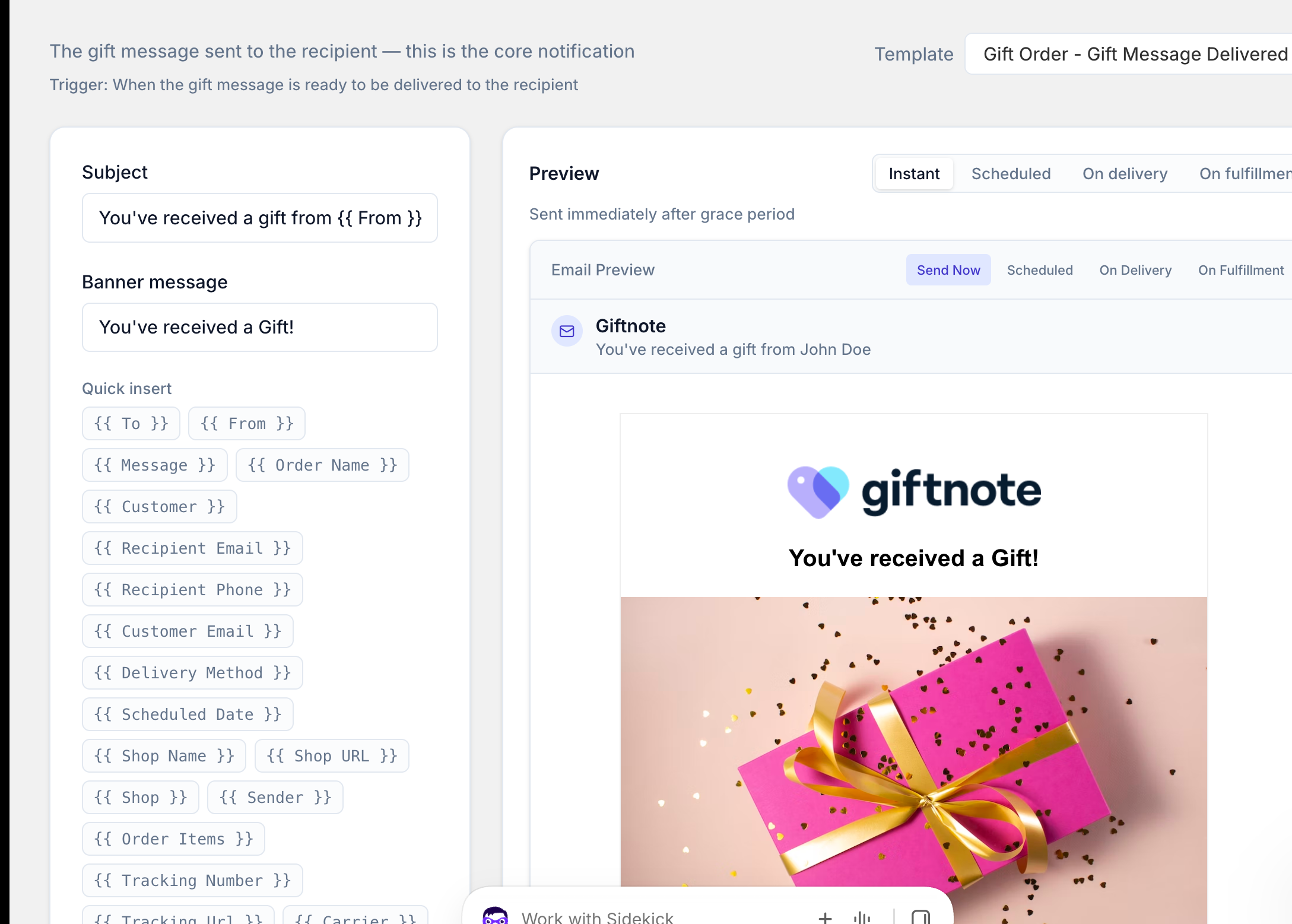
Tip: add a footer image and set Links to (optional) to your sign-up page, so recipients can join your mailing list.
Giftnote won’t save an email or SMS template that reads like bank, courier or crypto phishing. If a template you saved earlier reads that way, Giftnote holds its messages instead of sending them until you change the template.
Step 4: SMS for recipient notifications (optional)
SMS is included on the Core and Professional plans. Giftnote only sends SMS to recipients. By default, texts go out for Gift Order - Gift Message Delivered and Gift Card - Delivered to Recipient.
SMS is set up by Giftnote. The wording, the sender and when it sends are locked.
- Open Settings → Notifications.
- Click View in the SMS column of one of those notifications. That opens its SMS tab, with the text and a phone preview.
- To change the wording or the sender, contact support.
To stop asking customers for a phone number, go to Settings → Gift orders → Settings and turn off SMS enabled under Gift message form. The gift message widget then asks for an email only.
Customizing SMS lists which notifications send a text.
Step 5: You’re live
Once you’ve saved your templates, Giftnote sends the right message for each gift order. You don’t need Klaviyo or any other email tool for this.
When to use an integration instead
If you want full control via Klaviyo, Attentive or another platform:
- Connect the integration. Go to Settings → Integrations, connect your tool and build your emails there. Each tool has its own guide, for example How to setup Klaviyo.
- Turn off Giftnote’s emails. In Settings → Notifications, switch Email off on each notification your tool now sends, so recipients don’t get two emails.
- Save.
SMS still sends from Giftnote, even when another tool handles your emails.
We suggest switching after launch, once your gift orders are working.
Related articles
Was this helpful?
Still need help? Share an idea