4. Modify a gift order
Edit a gift order's message, recipient details, delivery method or scheduled time, and what to check before you resend it.
Written By Giftnote Admin
Last updated 22 days ago
On the free plan? This feature needs the Core or Professional plan. Choose a plan in Settings > Subscription in the app, or email support@giftnote.com and we'll help you choose. Which plan do I need?
You can change a gift message after checkout, for example to fix a typo. You can also change the recipient's name, email or phone, the delivery method and, for a scheduled message, the send time. Saving a change doesn't send the message again, and you can still edit after the message has been delivered.
Modifying a gift order message and schedule
- In Giftnote, select Gift orders and find the order. Use the search icon and Filter at the top of the list to narrow it down.
- Open the order and select Edit on the Gift Message card.
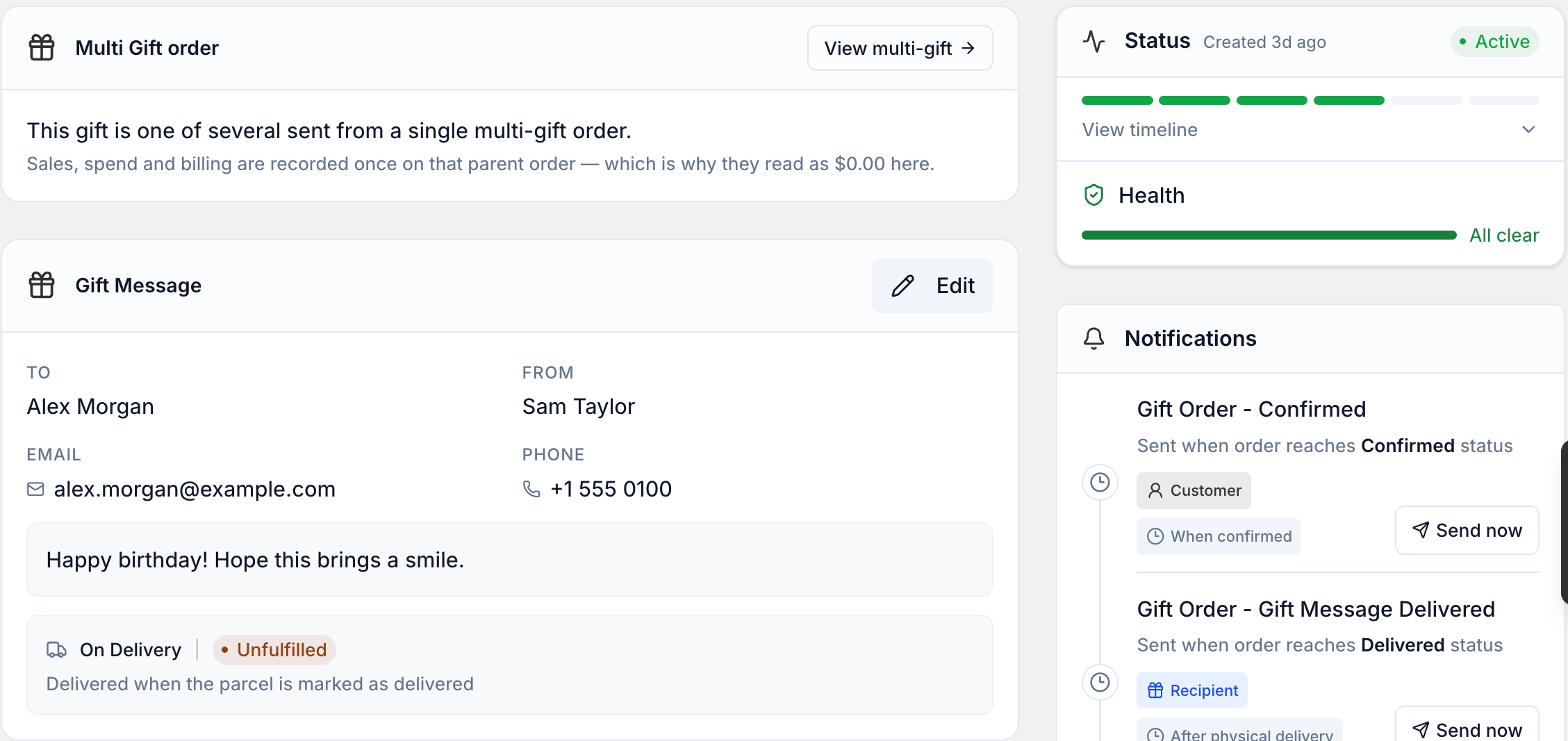
- In the Edit Message window, change what you need: To, From, Message (up to 500 characters), Email (optional) or Phone (optional). The delivery method and, for a scheduled message, the send date and time are here too.
- Select Save Changes. The button stays greyed out until you change something.
Fixing a wrong recipient email or phone number
- Correct Email (optional) or Phone (optional) and select Save Changes. This doesn't resend anything.
- Wait for the order page to finish loading. In the Timeline card, select Notifications to see whether the gift message already went out.
- If it did and the recipient still needs it, go to the Notifications card and select Resend on Gift Order - Gift Message Delivered. See How to resend messages.
Stopping a gift order
If a gift order shouldn't go ahead at all, archive it instead. See Archive or stop a gift order.
Related articles
Was this helpful?
Still need help? Share an idea