5. Customizing SMS
Which Giftnote notifications have an SMS version, where to edit the text, and the quick fields you can use.
Written By Giftnote Admin
Last updated 22 days ago
On the free plan? This feature needs the Core or Professional plan. Choose a plan in Settings > Subscription in the app, or email support@giftnote.com and we'll help you choose. Which plan do I need?
Giftnote can text the gift message to the recipient. You can change what that text says in the app, and add details like the recipient's name with quick insert fields.
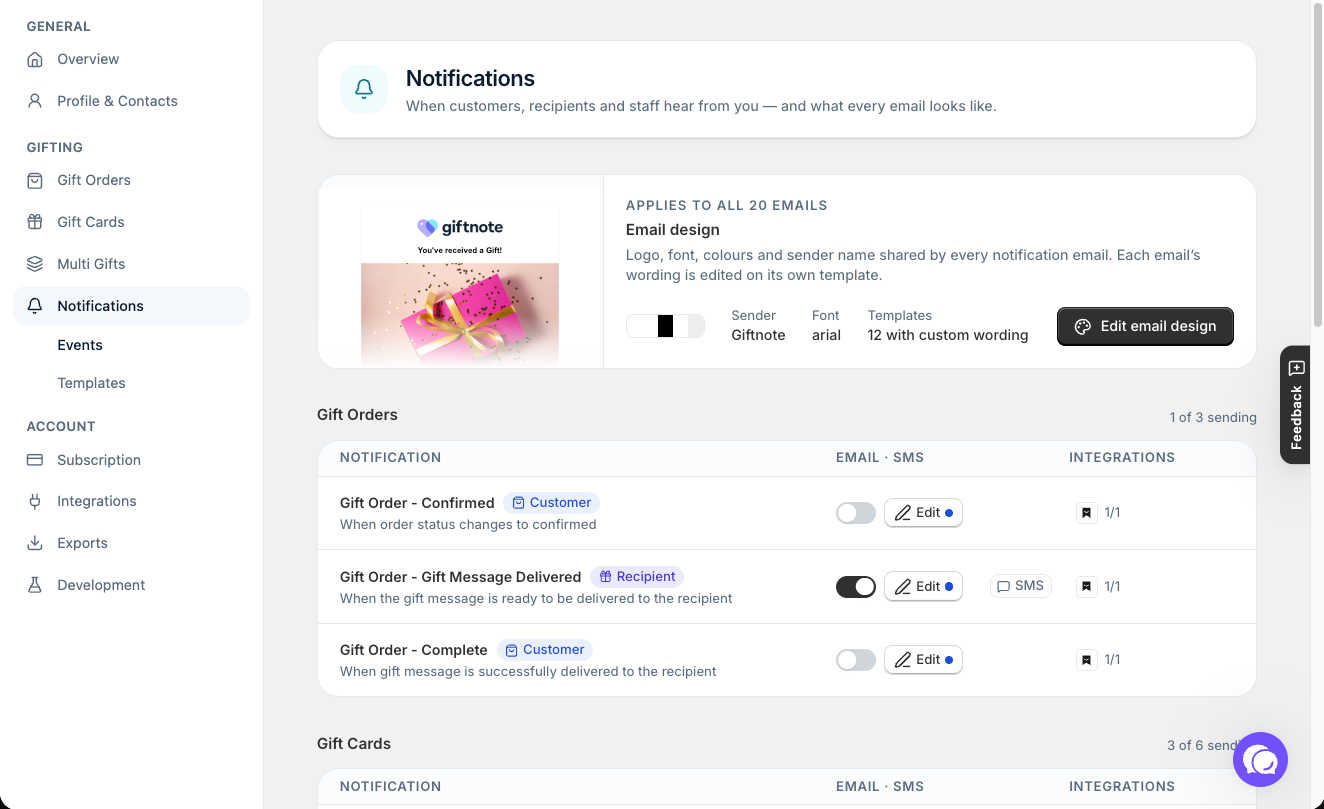
Which notifications have an SMS version?
Giftnote only texts gift recipients, on these notifications:
- Gift Order - Gift Message Delivered
- Gift Card - Delivered to Recipient
- Gift Card - Store Credit Issued
- Gift Card - Generic
- Multi Gift - Claim Request
On the Notifications page, these rows show SMS next to Email.
Giftnote sends these texts itself, even if Klaviyo or another tool sends your emails.
Edit the SMS text
- Open Notifications. In the Giftnote app, click Settings in the left navigation, then Notifications.
- Open the notification. Find Gift Order - Gift Message Delivered, Gift Card - Delivered to Recipient or another row that shows SMS, and click Edit on that row.
- Edit the SMS. Open the SMS template and edit the message in the SMS body.
You can use text, emojis, links and quick insert fields. For example, add a sign-up link from your SMS marketing app (such as Attentive).
Quick insert fields
Quick insert fields drop in details from each gift, such as the recipient's name, the sender's name and the gift message, when the text sends. Click in the SMS body, then pick a field from the Quick insert list, or type it yourself in the same format, for example {{ To }}.
Gift Order - Gift Message Delivered:{{ To }} {{ From }} {{ Message }} {{ Order Name }} {{ Customer }} {{ Recipient Email }} {{ Recipient Phone }} {{ Customer Email }} {{ Delivery Method }} {{ Scheduled Date }} {{ Shop Name }} {{ Shop URL }} {{ Shop }} {{ Sender }} {{ Order Items }} {{ Tracking Number }} {{ Tracking Url }} {{ Carrier }} {{ Estimated Delivery }} {{ Shipped Date }}
Gift Card - Delivered to Recipient:{{ To }} {{ From }} {{ Sender }} {{ Message }} {{ Value }} {{ Currency }} {{ Code }} {{ Gift Card Value }} {{ Gift Card Currency }} {{ Gift Card Code }} {{ Order Name }} {{ Customer }} {{ Customer Email }} {{ Recipient Email }} {{ Recipient Phone }} {{ Delivery Method }} {{ Scheduled Date }} {{ Shop Name }} {{ Shop URL }} {{ Shop }}
For example, {{ To }} shows the gift recipient, {{ Sender }} the gift sender and {{ Message }} the gift message. For gift cards, {{ Value }}, {{ Currency }} and {{ Code }} show the card's value, currency code and code.
Saving changes
Save if a save bar appears at the top of the page.
SMS availability and sender ID
Is SMS included in my plan?
Yes. SMS is included on the Core and Professional plans.
Can I add links to an SMS?
Yes. Links are allowed in the SMS body, for example an Attentive opt-in URL.
Can I turn SMS off?
Yes, per notification. Go to Settings → Notifications, open Gift Order - Gift Message Delivered or Gift Card - Delivered to Recipient, and turn the SMS switch off under Channels. Do this on every notification that shows SMS to stop all texts. To remove the phone number field from the gift message widget, turn off SMS enabled in Settings → Gift Orders → Settings.
Can I change the SMS sender ID?
There's no setting for it in the app. Chat with us using the chat button in the help centre or in the app, or email support@giftnote.com, and we'll tell you what's possible.
Related articles
Was this helpful?
Still need help? Share an idea