4. Upselling and Charging for Giftnote at Checkout on Shopify Plus
On Shopify Plus, upsell and charge for Giftnote at checkout with the checkout widget and a surcharge product.
Written By Giftnote Admin
Last updated 22 days ago
On the free plan? This feature needs the Core or Professional plan. Choose a plan in Settings > Subscription in the app, or email support@giftnote.com and we'll help you choose. Which plan do I need?
On Shopify Plus, you can charge shoppers a fee when they add a gift message at checkout. This is the same setup as Upsell Giftnote at Checkout, with a screenshot for each step.
Shopify only lets apps add blocks to the checkout steps on Shopify Plus. Not on Plus? See Charging Customers for Giftnote (Developer Setup).
Step 1: Create a digital product for the upsell
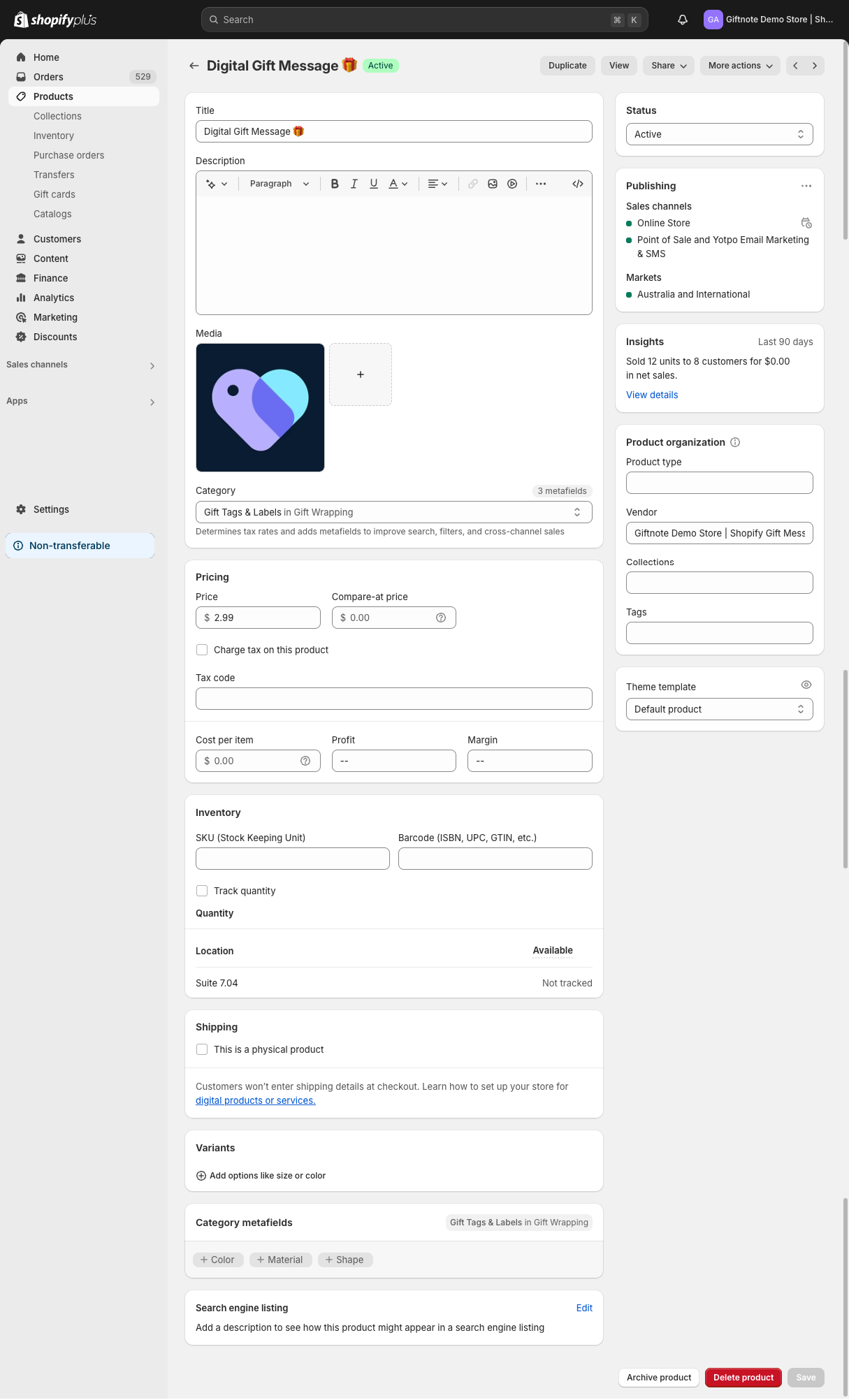
- Create the product. In your Shopify admin, create a new product for the fee, for example Gift Message. Giftnote doesn't need a particular vendor (brand), because it uses the variant you select in Step 3. To hide the product from your theme, packing slips and emails later, give it a vendor or tag you'll recognise (see the Pre-Launch Checklist).
- Make it digital. Uncheck "This is a physical product".
- Set the price you want to charge.
- Publish the product so it can be bought, but hide it from your storefront (see the Pre-Launch Checklist).
Your product settings should look like this:
Step 2: Add the Gift Message checkout block
- Go to Shopify > Settings > Checkout and click Customize to open the checkout editor.
- At the bottom of the checkout editor, select Add app block and choose Gift Message. This is the Giftnote widget that lets customers add a gift message.
- If you use Shop Pay: In the checkout editor, select the Gift Message block and, under Checkout behavior, make sure Include block in Shop Pay is on. When you test in Step 4, run one checkout with Shop Pay and check the gift message option appears.
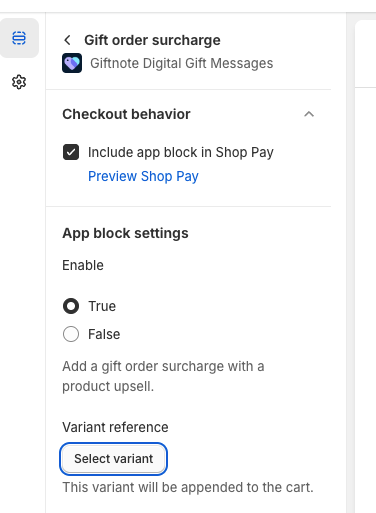
Don't add the block named [DEPRECATED] Gift Message. That's the old block (once called "Checkout Message"). If it's already in your checkout, replace it with the current Gift Message block. There's no separate "Gift Order Surcharge" block any more: the Gift Message block adds one fee line when a shopper adds a message, using the variant you select in Step 3, and removes it if they remove the message.
Step 3: Link the digital product to the upsell
- In the Giftnote app, go to Settings > Gift Orders > Settings.
- In the Surcharge & visibility card (Shopify Plus), select the variant of the digital product you created in Step 1 as the surcharge product.
- Save if a save bar appears.
Step 4: Test the checkout process
- Place a test order:
- Go through checkout and add a gift message.
- Check the fee product appears as one line item, so the shopper is charged.
- Remove the gift message and check the surcharge line is removed too.
- If you use Shop Pay, repeat the test with Shop Pay.
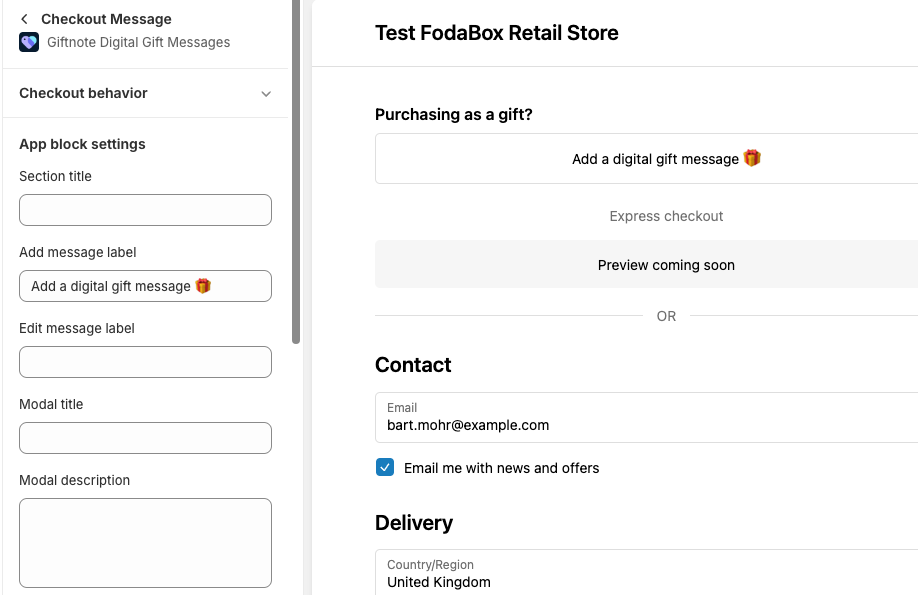
Step 5: Customize Giftnote widget labels (optional)
- Edit the checkout widget's wording so shoppers know a fee applies when they add a gift message. Go to Settings > Gift Orders > Designs & widgets. Under Widgets, check which design the Checkout widget uses, then open that design and edit the text on its Widget and Dialog tabs. Switch the Preview to Checkout to see the result.
Also see: auto-fulfilment
So the fee doesn't sit "unfulfilled" next to your real items, turn on the setting that marks the surcharge item as fulfilled automatically, in Settings > Gift Orders > Settings. See the Pre-Launch Checklist for the rest of the store-hygiene steps (hiding the product from collections, excluding it from packing slips and Klaviyo).
Selling through a multi-gift storefront?
Multi Gift storefronts (Professional plan) have their own, separate fee. Go to Settings > Multi Gifts, click Edit on the storefront, open Pricing and use the Message Fee card (Charge a message fee, with Include in Child Orders). It is set per storefront and is not limited to Shopify Plus. It does not replace the checkout surcharge above.
Additional options for non-Shopify Plus users
A developer can add the fee in your cart instead, with a small script in your theme. See Charging Customers for Giftnote (Developer Setup).
Additional tips
- Covering costs: the fee can pay for what Giftnote costs you. Shoppers see it the same way as paying for gift wrap in a shop.
- Anything more complex: chat with us using the chat button in the help centre or in the app, or email support@giftnote.com.
Related articles
Was this helpful?
Still need help? Share an idea