2. How do I hide the gift message widget on specific products?
Hide the gift message widget on specific products, or in certain countries and Shopify markets, from Settings → Gift Orders → Settings.
Written By Giftnote Team
Last updated 22 days ago
On the free plan? This feature needs the Core or Professional plan. Choose a plan in Settings > Subscription in the app, or email support@giftnote.com and we'll help you choose. Which plan do I need?
Some products shouldn't offer a gift message, such as gift cards or subscriptions. You can hide the gift message widget on those product pages by adding them to Hidden products in the Giftnote app. You can also hide the gift message box for whole countries with Where the gift message shows, or use exclusion tags on the theme block.
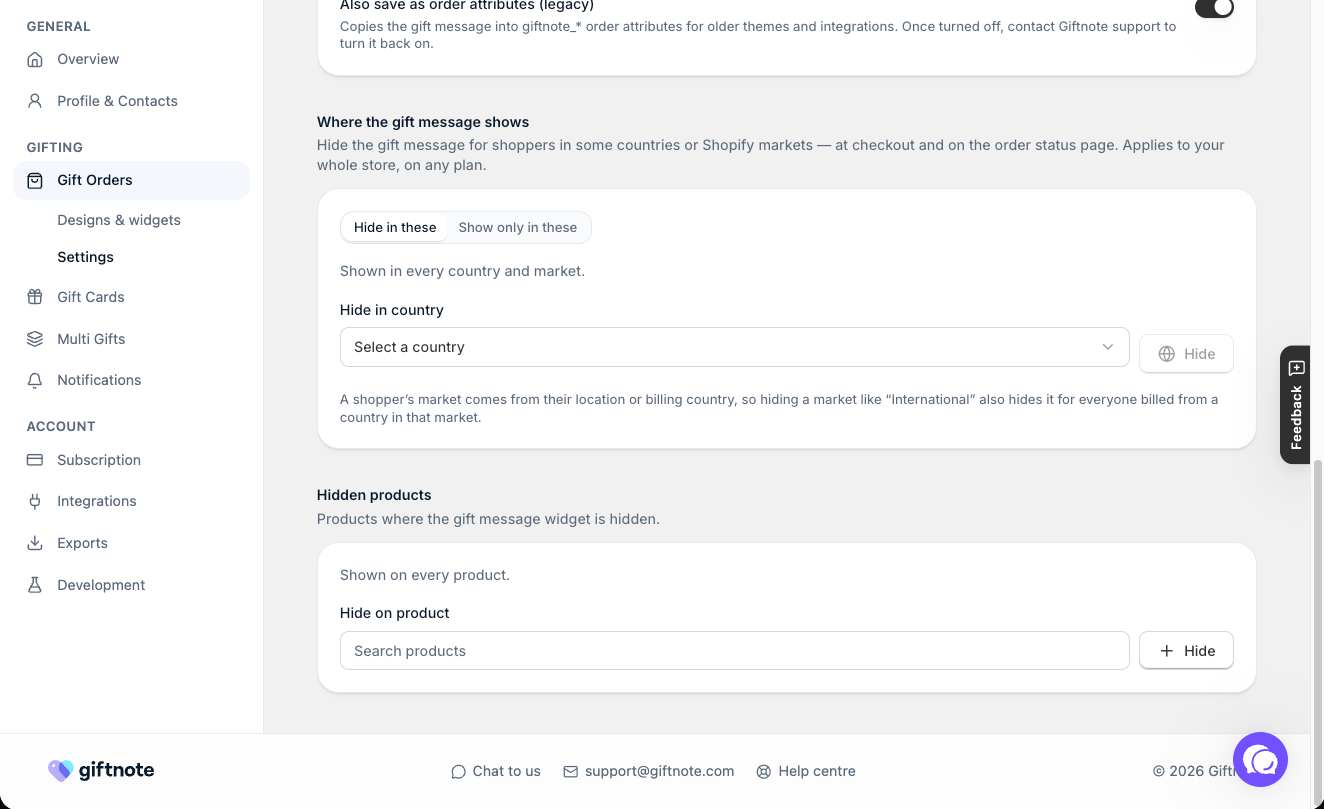
Stores most often exclude gift card products, subscriptions, digital goods and wholesale-only lines. Each setting only covers certain pages, so read "What about carts, checkout and order status?" below and test every page where your widget appears.
Why would I exclude a product?
Gift card products. If you sell gift cards through another app such as Rise.ai, or your gift card page has its own recipient fields, shoppers see two sets of gift fields on one page. That confuses them and leads to broken orders. Hiding Giftnote on that product fixes it.
Subscription products. A gift message belongs to one order. With a subscription that renews every month, it's unclear which delivery the message goes with, so most stores hide it.
Digital products. There's no parcel for the message to arrive with.
Wholesale or trade lines. Business buyers rarely want to send a gift message.
How to set up product exclusions
Hidden products and Where the gift message shows work on every Shopify plan.
- Open Gift Orders settings. In the Giftnote app, go to Settings → Gift Orders → Settings.
- Add the products. In the Hidden products section, click Hide on products… and pick every product you want to exclude. You can pick several at once. Save if a save bar appears.
- Test an excluded product. Open the excluded product's page and confirm the gift message option does not appear.
- Test a normal product. Open a product you didn't exclude and confirm the gift message option still appears.
Don't skip step 4. It's how you catch a mistake during setup rather than in your busiest week.
Hiding by country. On the same page, in the Where the gift message shows card, choose Hide in these, then pick the countries or Shopify markets from Select a country. To offer the gift message in a few places only, choose Show only in these instead. Shoppers in hidden places won't see the gift message box at checkout or on the order status page. Giftnote works out a shopper's market from their location or billing country.
What about carts, checkout and order status?
Each setting covers different pages:
- Hidden products hides the gift message option on those products' pages.
- Where the gift message shows hides the gift message box at checkout and on the order status page.
Don't assume either one also covers the cart page or cart drawer. If your widget appears in more than one place, build a test cart with an excluded product (on its own, then mixed with other products) and check each page before you go live. If the result isn't what you need, use one of the alternatives below, chat with us using the chat button in the help centre or in the app, or email support@giftnote.com.
Are there alternatives to exclusions?
Exclusion tags on the theme block. The Gift Order Message app block in your theme editor has an Exclusion tags setting. Add that tag to any product in Shopify where you don't want the widget to appear. See Add Gift Message Widget.
A second product template. In your theme, make a copy of your product template without the Giftnote block, and assign it to the products that shouldn't offer a gift message. The widget disappears from those product pages, and the cart and checkout stay as they are. This is a theme change, so ask whoever looks after your theme.
Move the widget. If the widget only causes trouble on some product pages, moving it to the cart drawer or to checkout can solve it without excluding anything.
Frequently asked questions
Can I exclude a whole collection instead of listing products?
No. You pick individual products (several at once) with Hide on products…. For a large collection, use exclusion tags on the theme block, or chat with us about your setup.
The widget still shows after I set up exclusions. What now?
Check the product is listed under Hidden products, and that you're looking at the product page rather than the cart or checkout. Then test in a private browser window. If it still shows, chat with us and send the product names and a link to the product page.
Does excluding a product stop gift cards being sent for it?
No. Exclusions only control whether the gift message widget appears. Gift cards are still issued as normal.
Can I hide the widget for wholesale customers rather than by product?
Yes, if they're Shopify B2B company customers. In Settings → Gift Orders → Settings, in the Gift message form card, turn on Hide for B2B customers ("Company customers don't see the gift message widget"). For wholesale customers who aren't set up as B2B companies, hiding it needs a change to your theme.
Related articles
Was this helpful?
Still need help? Share an idea