2. Search: How to Find, View and Edit a Giftnote via Shopify Orders
Find a gift order and its message by searching and filtering in Giftnote, or open it from the Giftnote summary block on the Shopify order page, then view or edit it.
Written By Giftnote Team
Last updated 22 days ago
On the free plan? This feature needs the Core or Professional plan. Choose a plan in Settings > Subscription in the app, or email support@giftnote.com and we'll help you choose. Which plan do I need?
You can find a gift order, and the gift message on it, in two ways: search in the Giftnote app, or open it from the order page in Shopify admin. The second is quicker when you're already looking at the order in Shopify.
1. Search inside the Giftnote app
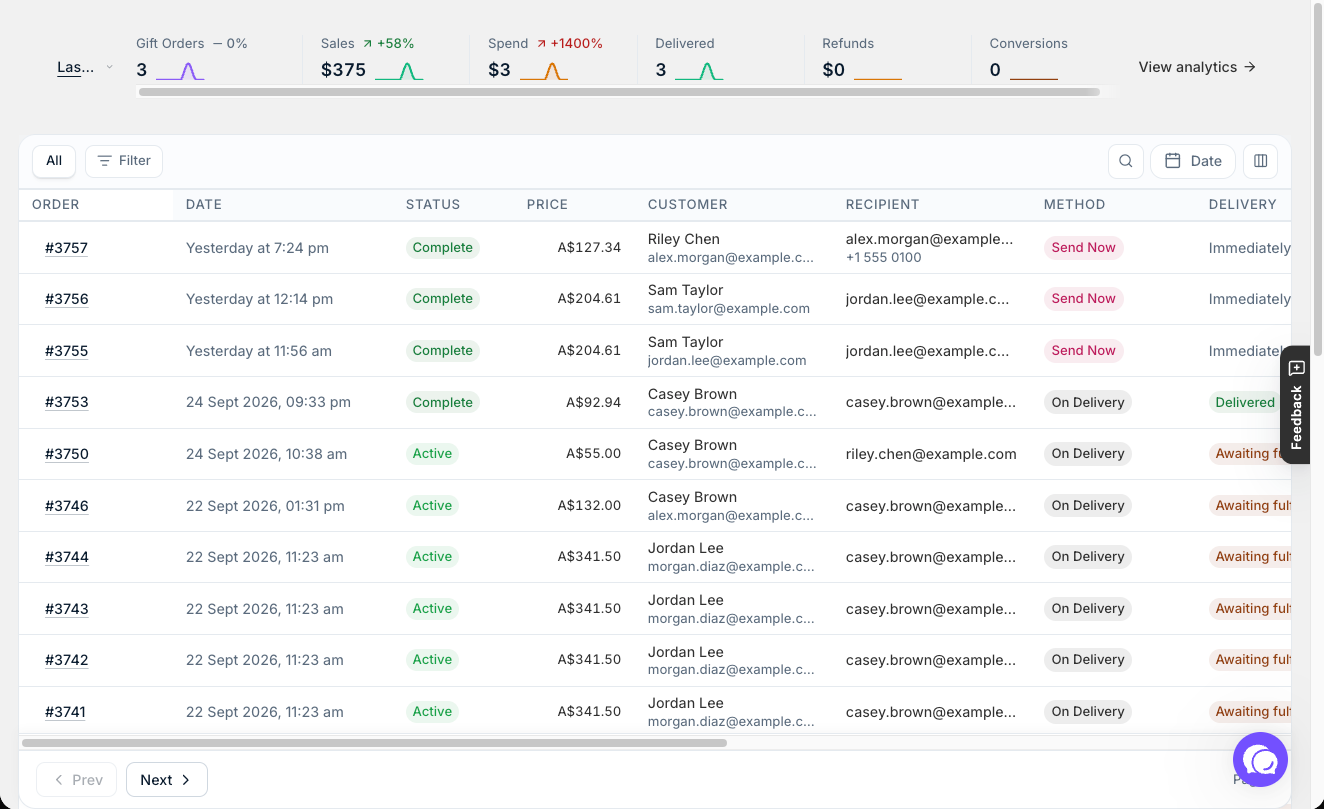
- In Giftnote, select Gift orders.
- Select the search icon at the top of the list to search.
- To narrow the list, select Filter, choose a status, method, medium (email or SMS), source or billing, and select Apply. Use Date for a date range and Columns to choose which columns show.
- Select an order to open it. To change the message, select Edit on the Gift Message card.
Use a filter every day? Select Save as view in the filter panel and give it a name. It appears as a tab at the top of the list. The Gift cards and Multi gifts lists have the same tools.
2. Or add the Giftnote block to your Shopify order page
Add the Giftnote summary block to your Shopify order page once. After that, it shows on every order that has a gift order, gift card or multi gift. For the steps, see Viewing Gift Notes via Shopify Order Admin.
3. View and open the gift order
On a Shopify order with a gift, the Giftnote summary block shows the gift details. Select Open in app to open it in Giftnote, where you can view or edit the message.
Need help?
Chat with us using the chat button in the help centre or in the app, or email support@giftnote.com.
Related articles
Was this helpful?
Still need help? Share an idea